Google Drive & Google Sheets to Snowflake: ETL Tools

Moving Google Drive files into Snowflake can mean several different things: loading a folder of recurring CSV exports, syncing every worksheet in a set of Google Sheets, replacing one named range, or running a one-time import. Those workloads should not share one blanket recommendation.
This guide compares Supaflow, Fivetran, Hevo, Airbyte, manual Snowflake loads, and a custom Google API pipeline. It then walks through a Supaflow setup using CSV files; the same pipeline workflow applies to TSV, Excel (.xlsx), and native Google Sheets sources.
What Is the Best ETL Tool for Google Drive or Google Sheets to Snowflake?
There is no single best tool for every Google Drive or Google Sheets workload. Choose based on the unit you need to sync, the way changes are detected, the deployment model, and who will operate the pipeline.
- Choose a folder-based managed connector when files arrive repeatedly and the pipeline needs scheduling, schema discovery, retries, and monitoring.
- Choose a single-spreadsheet or named-range connector when the source is tightly scoped and collaborators update one workbook.
- Choose a self-managed connector when your team needs control over the data plane and is prepared to operate the runtime.
- Choose a manual load for one-time or infrequent imports where automation would add more overhead than value.
- Build a custom pipeline when the source shape or transformation rules cannot be represented by an existing connector and your team can own authentication, state, retries, schema changes, and monitoring.
Google Drive and Google Sheets ETL Tools Compared
| Approach | Best fit | Source scope | Update behavior | Operational model |
|---|---|---|---|---|
| Supaflow | Recurring CSV, TSV, .xlsx, or Google Sheets files in Drive folders | One File Type per source; CSV/TSV folders become tables; spreadsheet worksheets become tables | Selects files by Drive modification time and re-reads selected files or worksheets in full; no row- or cell-level change capture | Supaflow-managed or private sync agent; connector monitoring is included |
| Fivetran | Managed file ingestion with file-to-table or pattern-to-table mapping | Google Drive Magic Folder or Merge Mode; the separate Google Sheets connector maps one named range to one table | Drive uses file modification time and re-imports recently modified files; a changed named range is replaced in full | Google Drive connector is SaaS; Google Sheets supports SaaS and eligible hybrid deployments |
| Hevo | Managed, service-account-based ingestion from selected folders or spreadsheets | Selected Drive folders and worksheets; child folders must be selected explicitly | A changed Google Sheet is re-ingested in full; deleted sheet records are not captured | Managed service; Google Drive and Sheets sources use service-account authentication |
| Airbyte | Teams choosing between managed cloud and self-managed operation | Drive connector reads one folder recursively with path patterns; Google Sheets reads one spreadsheet and can sync each tab | Drive supports full refresh and incremental sync, but not incremental deletes | Airbyte Cloud or self-managed Core |
| Manual export and Snowsight load | One-time or infrequent loads | Files exported from Drive or Sheets and uploaded from a computer or stage | Each refresh is a new manual export and load | Your team owns file preparation, schema decisions, and each run |
| Custom Google API pipeline | Source-specific selection or transformations not covered by a connector | Any files, spreadsheets, or ranges your code is designed to read | State and comparison logic are defined by your code | Your team owns credentials, scheduling, retries, schema, Snowflake loading, and monitoring |
How to read the comparison
Source scope matters first. Supaflow's Google Drive source is folder-based and configured for one file type. Fivetran offers distinct Drive modes plus a named-range Sheets connector. Hevo selects folders and worksheets. Airbyte separates a recursive Drive connector from a single-spreadsheet Sheets connector.
"Incremental" does not mean the same thing across these tools. For Supaflow, Drive modification time decides which file or selected worksheet to read again; the selected content is read in full. Fivetran's Drive documentation distinguishes Merge Mode incremental sync from Magic Folder's modified-file re-import. Hevo states that a changed Google Sheet is re-ingested in full. Airbyte supports incremental Drive sync but not incremental deletes.
Billing should be compared against your change pattern. Fivetran measures usage in Monthly Active Rows. Hevo plans use Events, and its Google Sheets documentation says a changed sheet is re-ingested in full and counted toward that quota. Airbyte offers managed volume- or capacity-based plans and a self-managed option; check its current pricing. Every Supaflow connector is included on every plan at no extra cost. You pay only for compute consumed, measured in Supaflow Credits (1 credit = 1 compute-hour on a Small node). No per-row fees.
Which Approach Fits Your Workflow?
Choose Supaflow when a recurring Drive folder contains one supported file type, you want folders or worksheets mapped to tables, and file-level change detection matches the source. The managed-service-account option avoids uploading a key; OAuth and your own service-account key are also available. Use separate sources for different file types.
Choose Fivetran when its Magic Folder or Merge Mode maps cleanly to your file layout, or when one named range should replace one destination table. Check the documented Google Forms and IMPORTRANGE modification-time limitations before using a spreadsheet as an operational source.
Choose Hevo when service-account authentication and explicit folder selection fit your access model. For Google Sheets, account for full-sheet re-ingestion in both load behavior and Events usage, and note that deleted source records are not captured.
Choose Airbyte when deployment control is a deciding factor. Its Drive connector recursively includes subfolders and supports path patterns, while its Sheets connector targets one spreadsheet. The Drive connector supports incremental sync but does not replicate incremental deletes.
Choose a manual Snowsight load for occasional work. Snowflake can load structured files such as CSV and TSV from a computer or existing stage, but the export, validation, and refresh remain manual.
Choose a custom pipeline when you need exact ranges, source-specific transformations, or an update model the managed connectors do not provide. Google's Sheets API can read single or multiple ranges, but the surrounding pipeline is still your responsibility.
Set Up Supaflow for Google Drive to Snowflake
The walkthrough below covers the connector's table mapping, prerequisites, and end-to-end setup in Supaflow.
What the Google Drive Connector Does
The Google Drive connector reads structured data from a Drive folder and loads it into your destination. It supports four file types:
| File Type | How Tables are Created | Scan Depth |
|---|---|---|
| CSV | Inferable immediate child folders become tables; root files form one fallback table only when no child table can be inferred | Configured root + one level of subfolders; layouts are not combined |
| TSV | Same as CSV (tab-delimited) | Configured root + one level of subfolders; layouts are not combined |
Excel (.xlsx) | Each worksheet becomes a table (named <file>_<sheet>) | Recursive through all subfolders |
| Google Sheets | Each worksheet becomes a table (named <file>_<sheet>) | Recursive through all subfolders |
For CSV and TSV, use either immediate child-folder tables or files directly in the configured root; do not mix the two layouts because inferable child folders take precedence and root files are ignored. Files within one table can have slightly different columns -- Supaflow unions them and fills missing values with null. For Excel and Google Sheets, each non-empty worksheet with a header row becomes its own table.
Each row includes source-file lineage metadata so you can trace loaded data back to the Drive file.
After the initial run, the connector uses each file's Drive modification time to select work in the next sync window. A selected file or worksheet is read in full. This is file-level incremental behavior, not row-level or cell-level change capture, and source-side deletes are not emitted as delete events.
Prerequisites
- A Supaflow account (sign up here)
- A Google Drive folder with data files (CSV, TSV, Excel, or Google Sheets) -- see the Google Drive source docs for full setup details
- A Snowflake account with a warehouse, database, and schema ready to receive data -- see the Snowflake destination docs for connection options
Step 1: Prepare Your Data in Google Drive
Create a folder structure in Google Drive for Supaflow to discover. CSV and TSV use either immediate child-folder tables or one root-folder fallback table. For Excel and Google Sheets, each worksheet becomes a table.
For this walkthrough, we will use CSV files. Create a folder called accounts and add a file called account1.csv with content like this:
Name,NumEmp,Industry
Company A,25,Heavy Industry
Company B,36,Mining
Company C,47,Aerospace
Company D,58,Fiber Optics
Choose one CSV or TSV layout: keep the matching files directly in the configured folder, or put them in immediate child folders that each represent a table. Do not mix root files with child-folder tables. Excel and Google Sheets discovery recurses through all subfolders. Select the matching source file type when creating the source.
Step 2: Create a Snowflake Destination
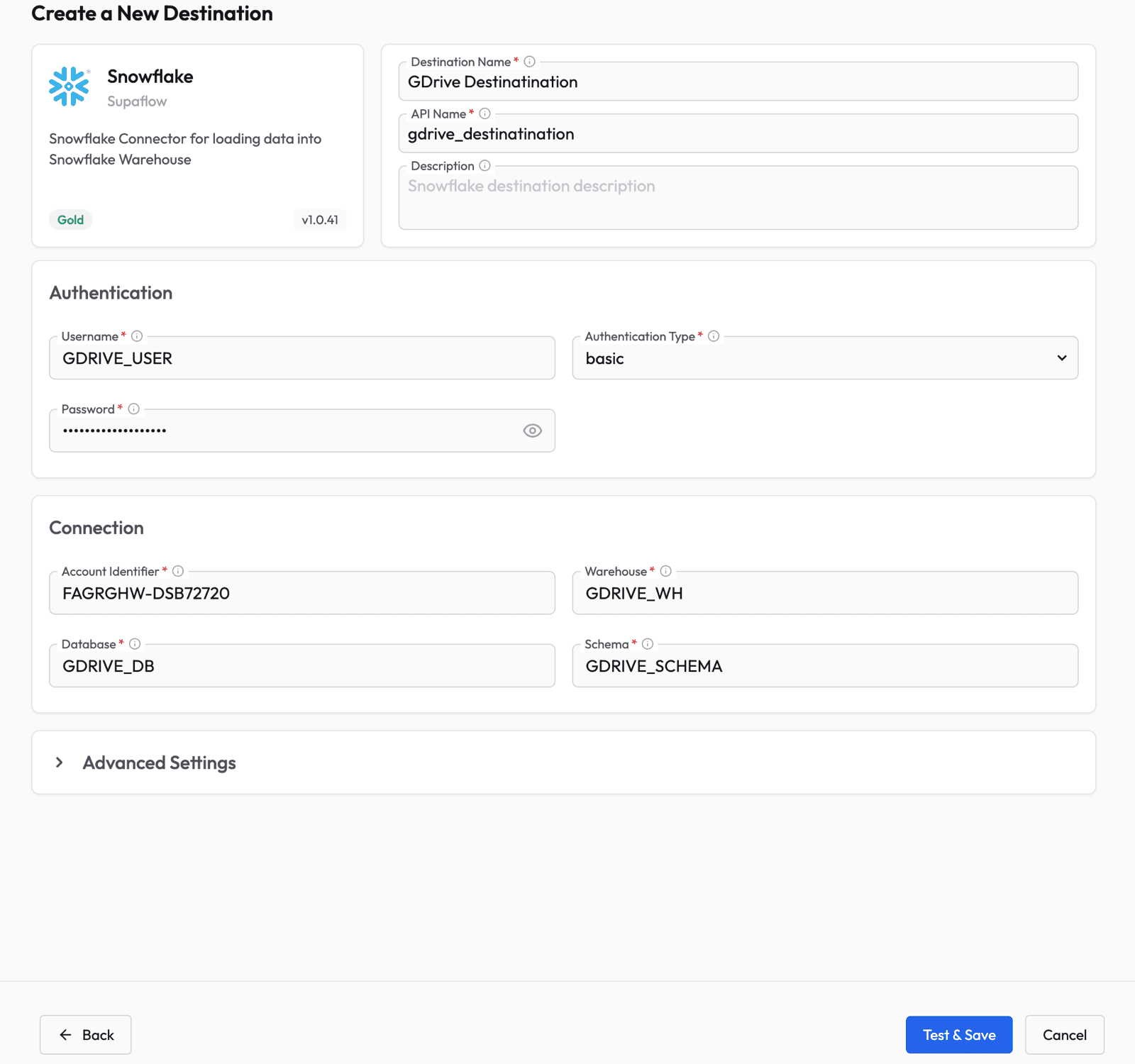
Before creating a pipeline, you need to configure where the data will land. Go to the Destinations page in Supaflow.

Click Create Destination and select Snowflake. Fill in your Snowflake connection details:
- Authentication Type -- select basic from the dropdown first
- Username and Password -- your Snowflake credentials
- Account Identifier -- your Snowflake account URL (e.g.,
XXXXXXX-YYYYYYY.snowflakecomputing.com) - Warehouse, Database, and Schema -- where the data will be loaded
Click Test & Save to verify the connection.
Step 3: Create a Google Drive Source
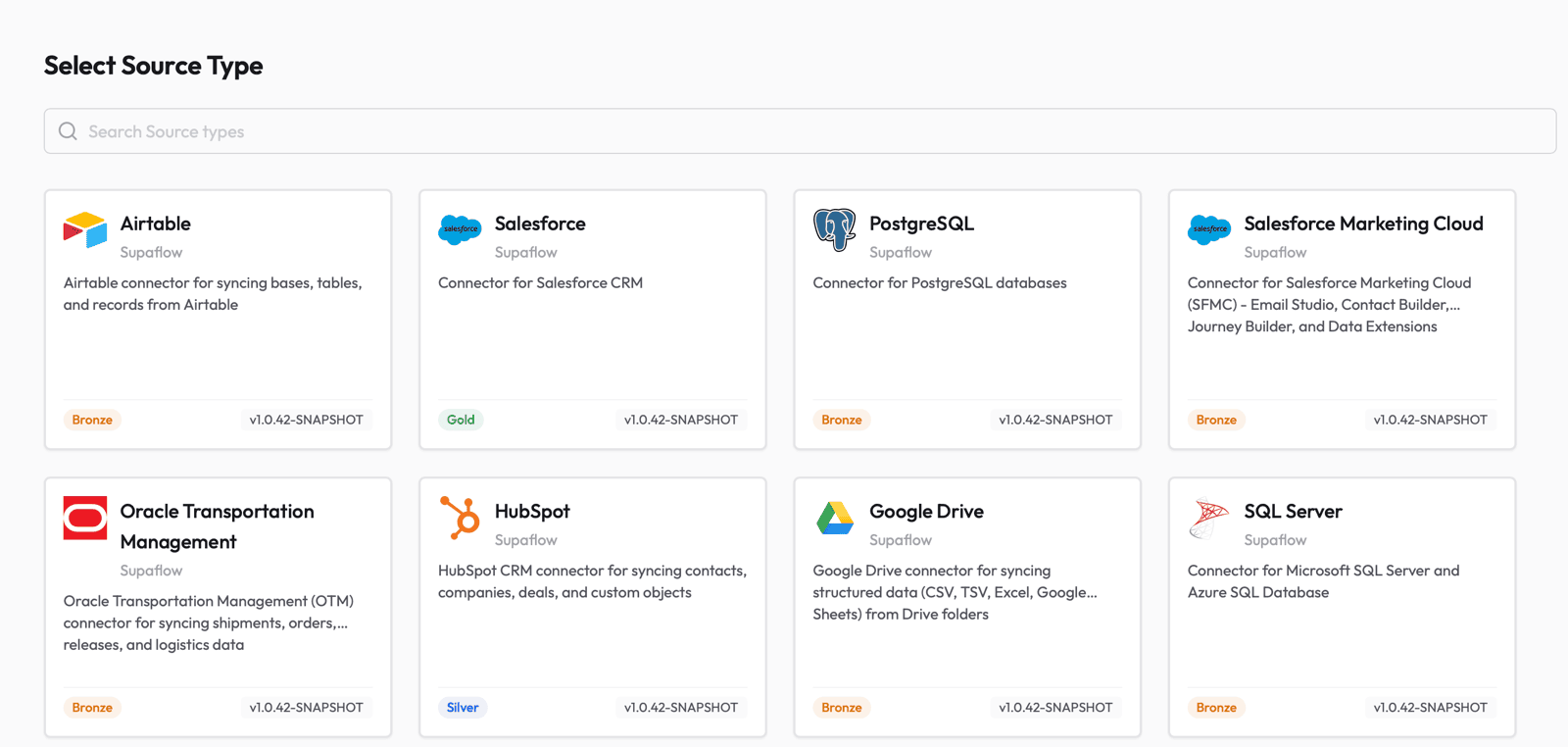
Next, set up the Google Drive source so Supaflow can read your files. Go to the Sources page and click Create Source. Select Google Drive from the list of available source types.
Fill in the source configuration:
- Source Name -- give it a descriptive name (e.g., "Google Drive")
- Authentication Method -- choose Managed service account (the default), OAuth, or Service account key. For the managed option, share the folder with the generated service-account email. For OAuth, click Authorize and complete the Google consent flow. For your own service account, upload its JSON key and share the folder with that account.
- Folder URL -- paste the full URL of the Google Drive folder you want to sync (e.g.,
https://drive.google.com/drive/folders/...) - Source File Type -- select the format of your files: CSV, TSV, EXCEL, or GOOGLE_SHEETS
- CSV/TSV Settings (shown when CSV or TSV is selected) -- configure the delimiter, encoding, header-row behavior, and optional skipped header or footer lines. The defaults work for most standard files.
- File Pattern (optional) -- a glob pattern to filter files by name (e.g.,
sales_*.csv). Leave empty to include all matching files.
Click Test & Save to verify the connection. Supaflow will confirm it can access the folder and read files.
For the full list of supported file types and configuration options, see the Google Drive source docs.
Step 4: Open Your Project
Navigate to your project that has the Google Drive source configured. Click Open to enter the project.

Step 5: Create a Pipeline
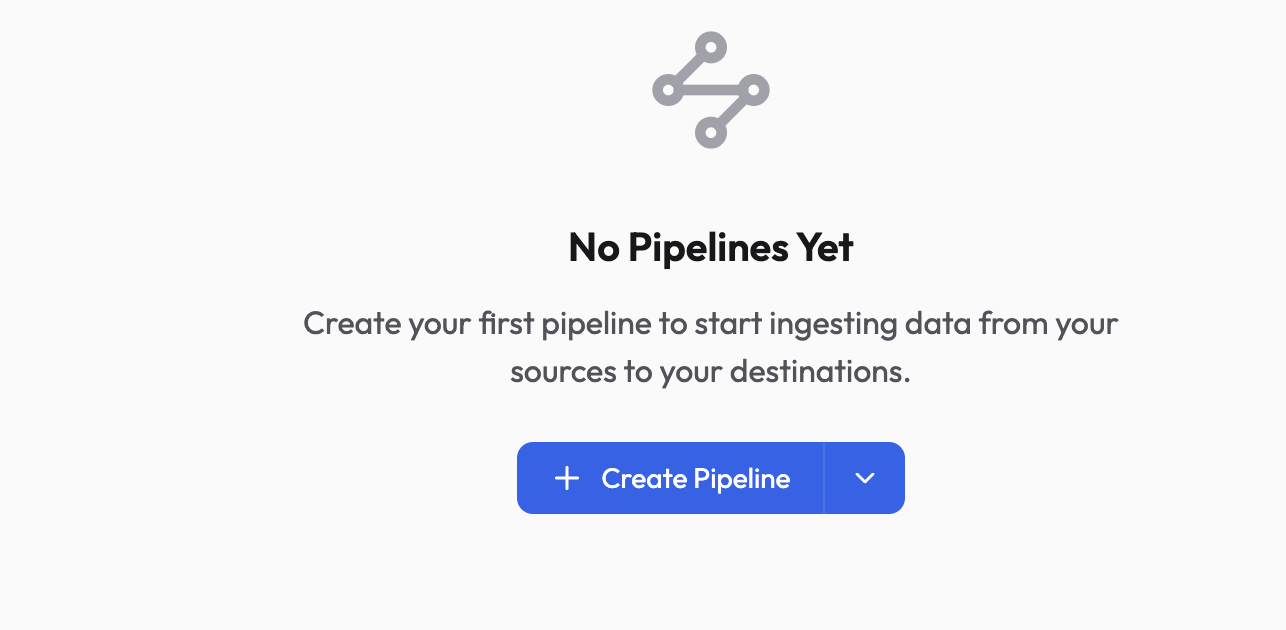
Inside the project, click Create Pipeline to launch the pipeline wizard.
Choose Source
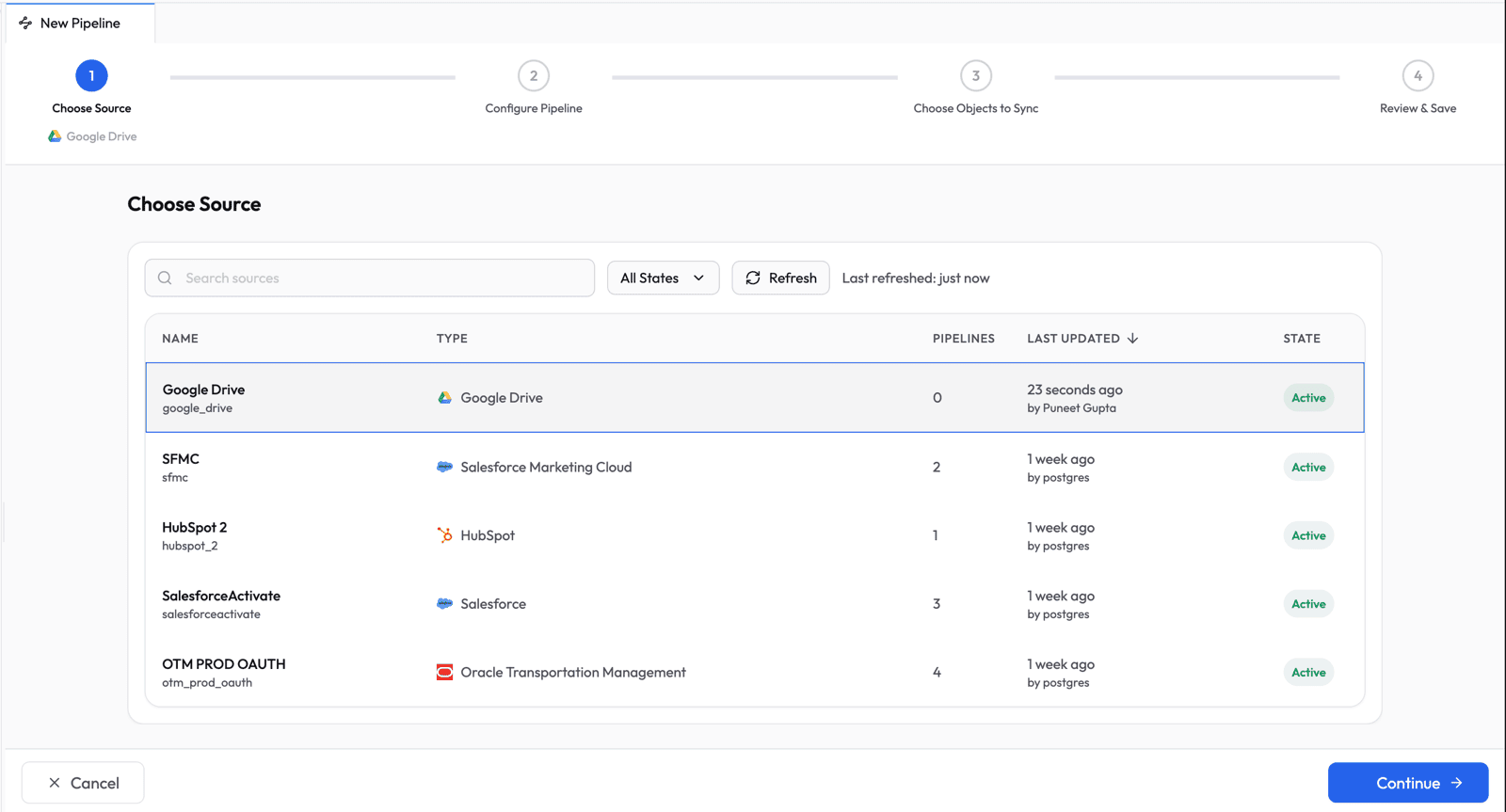
Select Google Drive from the list of available sources and click Continue.
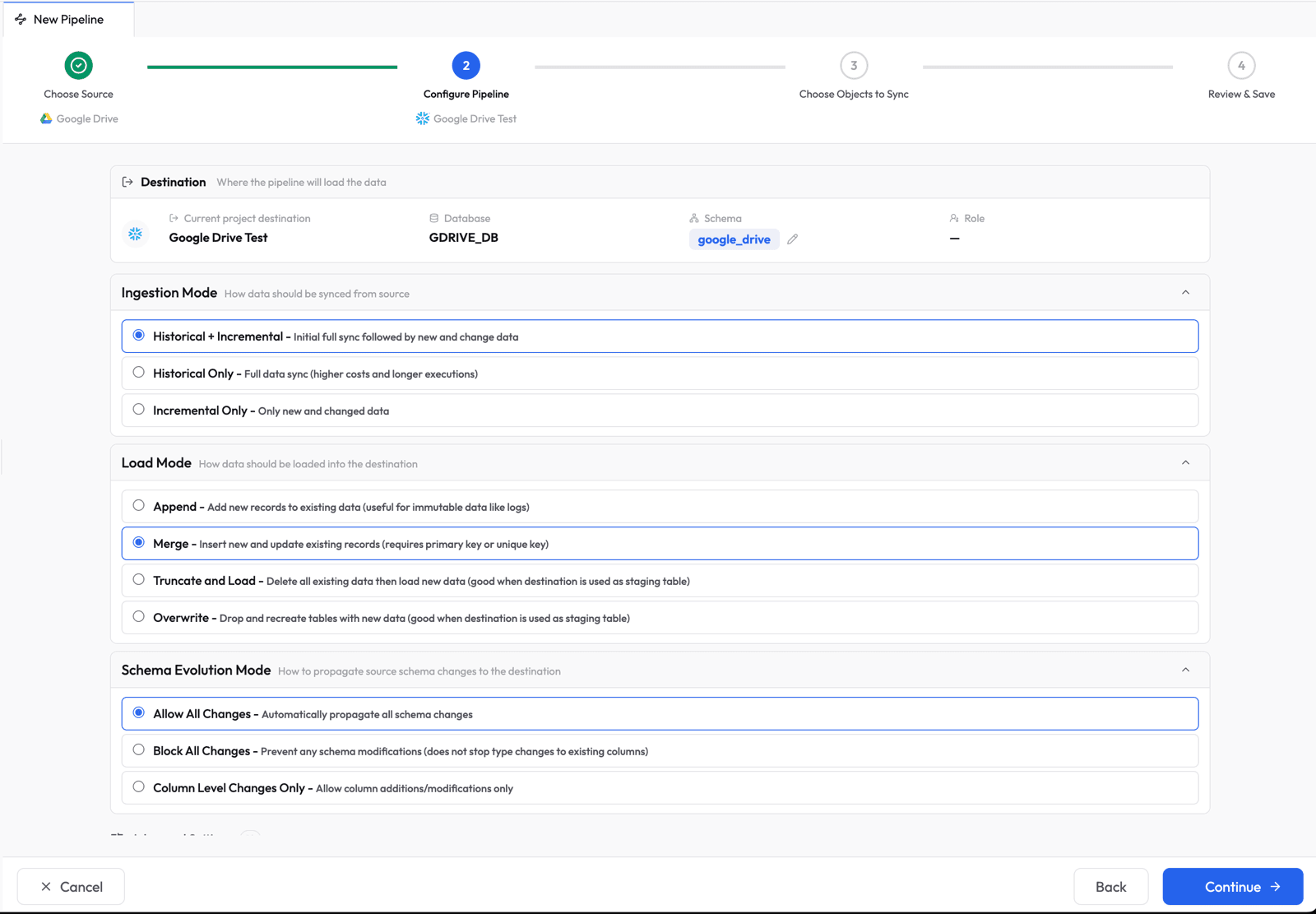
Configure Pipeline Settings
Set the sync behavior for your pipeline:
- Ingestion Mode: Historical + Incremental -- does a full sync on the first run, then only picks up changes on subsequent runs
- Load Mode: choose the destination behavior that matches the history you need. This walkthrough uses Merge; validate it with a representative modified file because Google Drive detects changes at the file level and does not expose a source-defined primary key.
- Schema Evolution Mode: Allow All Changes -- automatically propagates column additions and type changes to Snowflake
Choose Objects to Sync
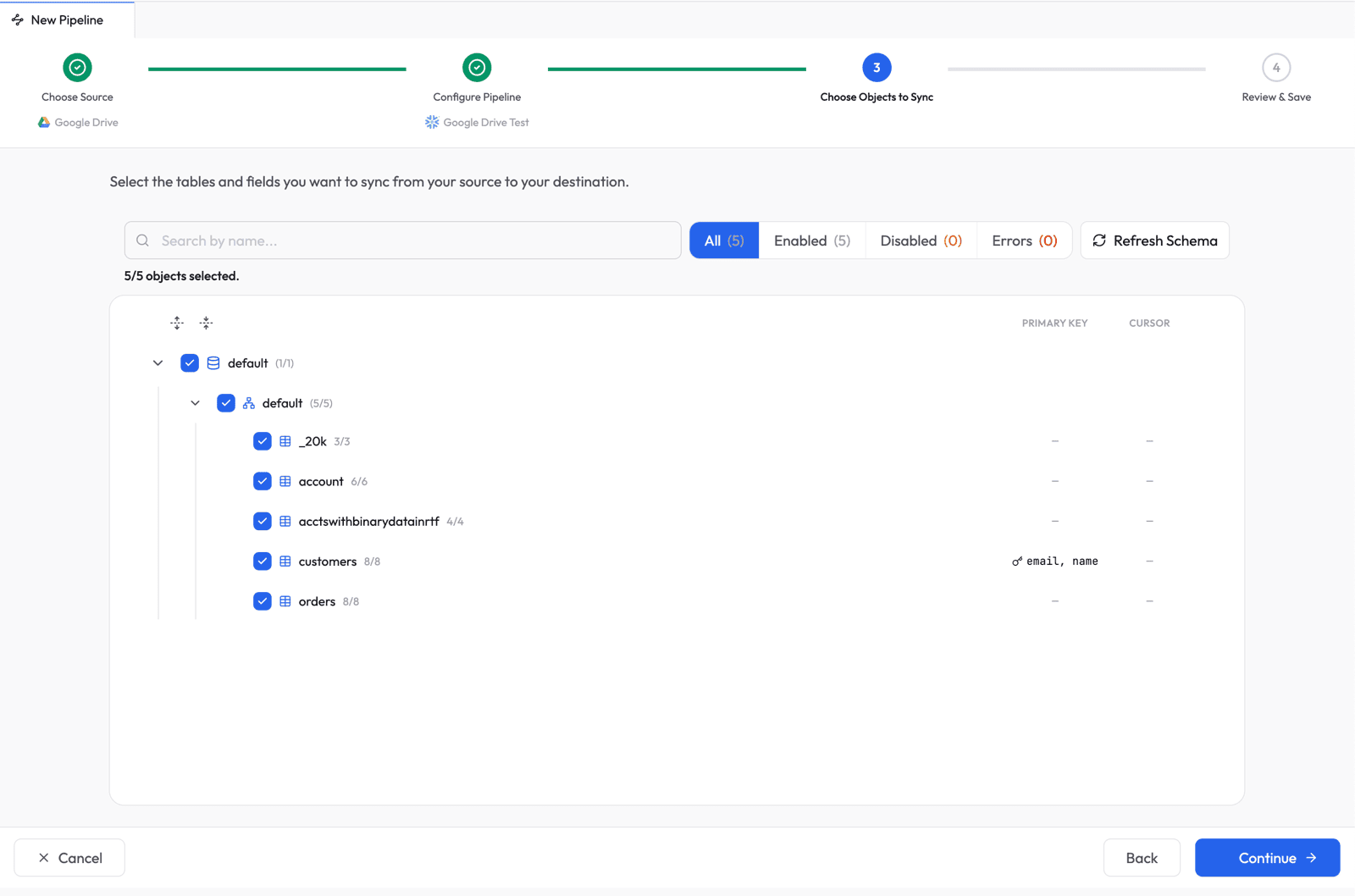
Select which tables (folders) and fields (columns) to sync. Supaflow auto-discovers your Google Drive folder structure and shows all available objects.
Tip: If you recently added a folder to Google Drive and it does not appear in the list, click Refresh Schema in the top-right corner. For CSV/TSV, Supaflow checks immediate child folders first. If any child table can be inferred, root files are ignored; root files are used only as a fallback when no child table can be inferred. Excel and Google Sheets are scanned recursively.
Review and Save
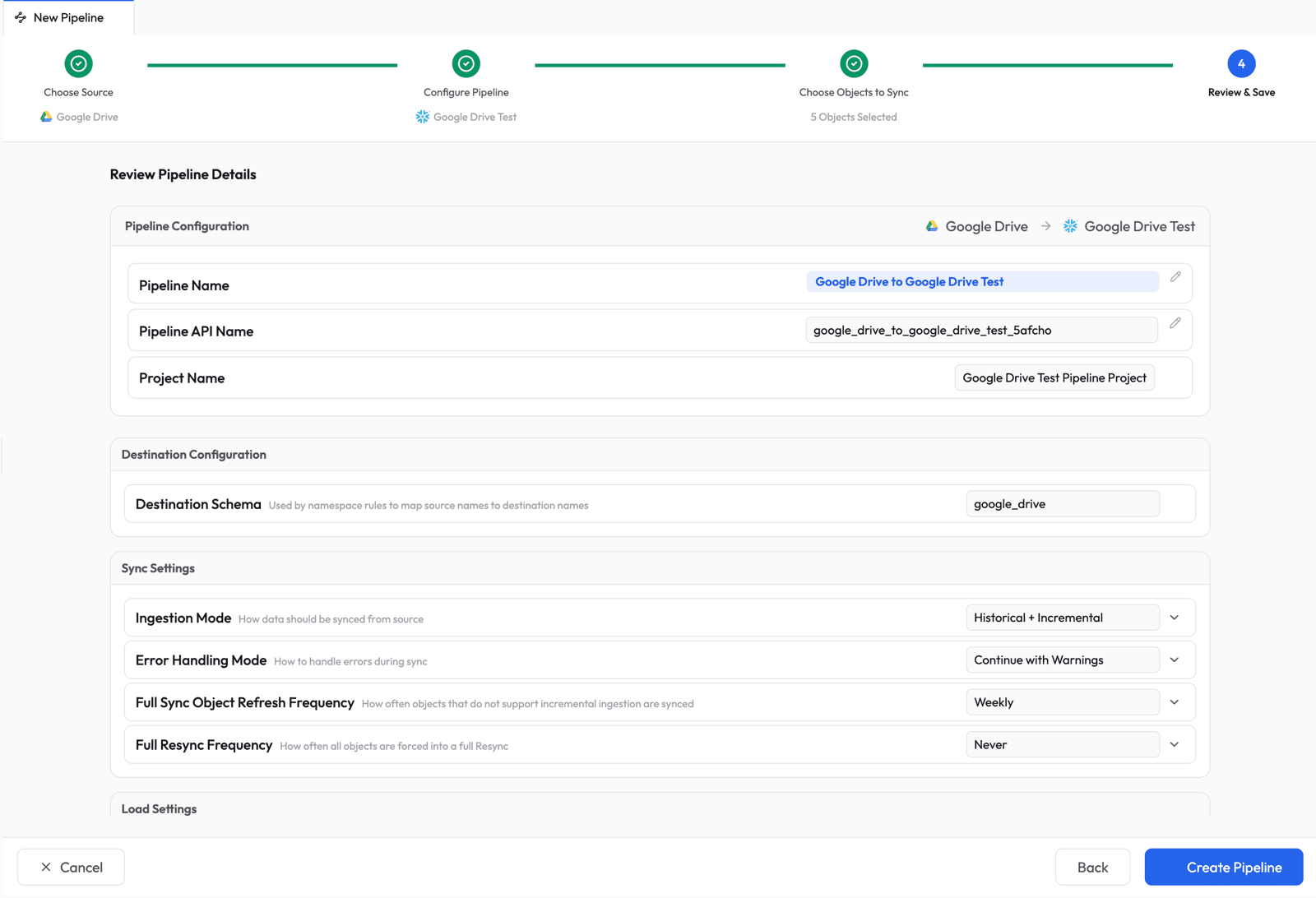
Review the pipeline summary. Supaflow auto-generates a pipeline name and destination schema. Adjust any settings if needed, then click Create Pipeline.
Step 6: Run the Pipeline
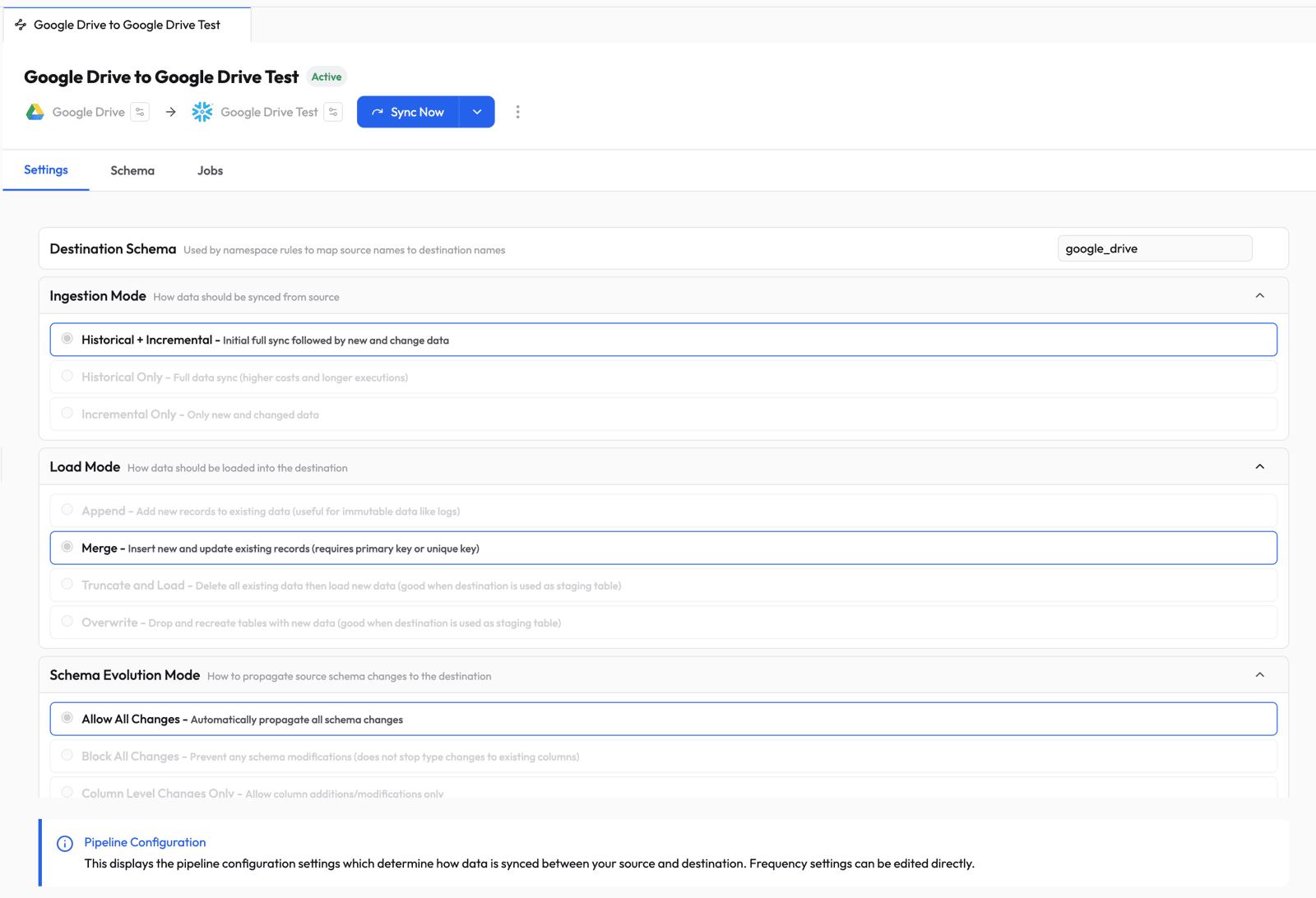
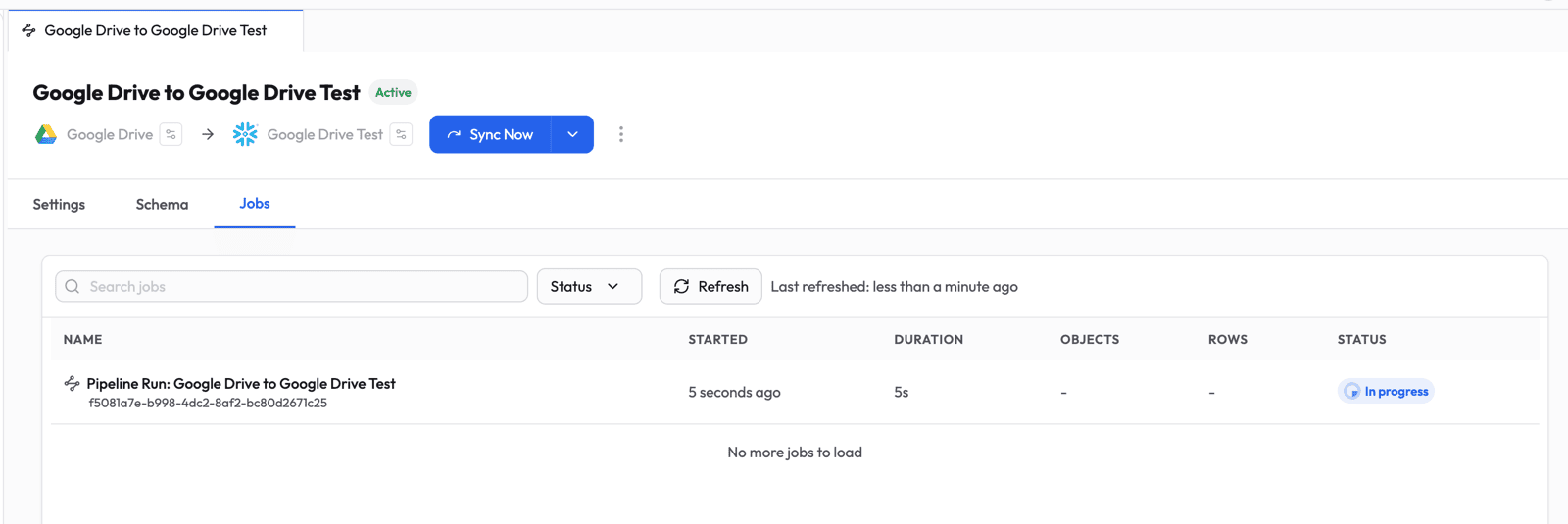
The pipeline is now active. Click Sync Now to trigger the first run.
Step 7: Monitor Progress
Switch to the Jobs tab to watch the pipeline run in real time.
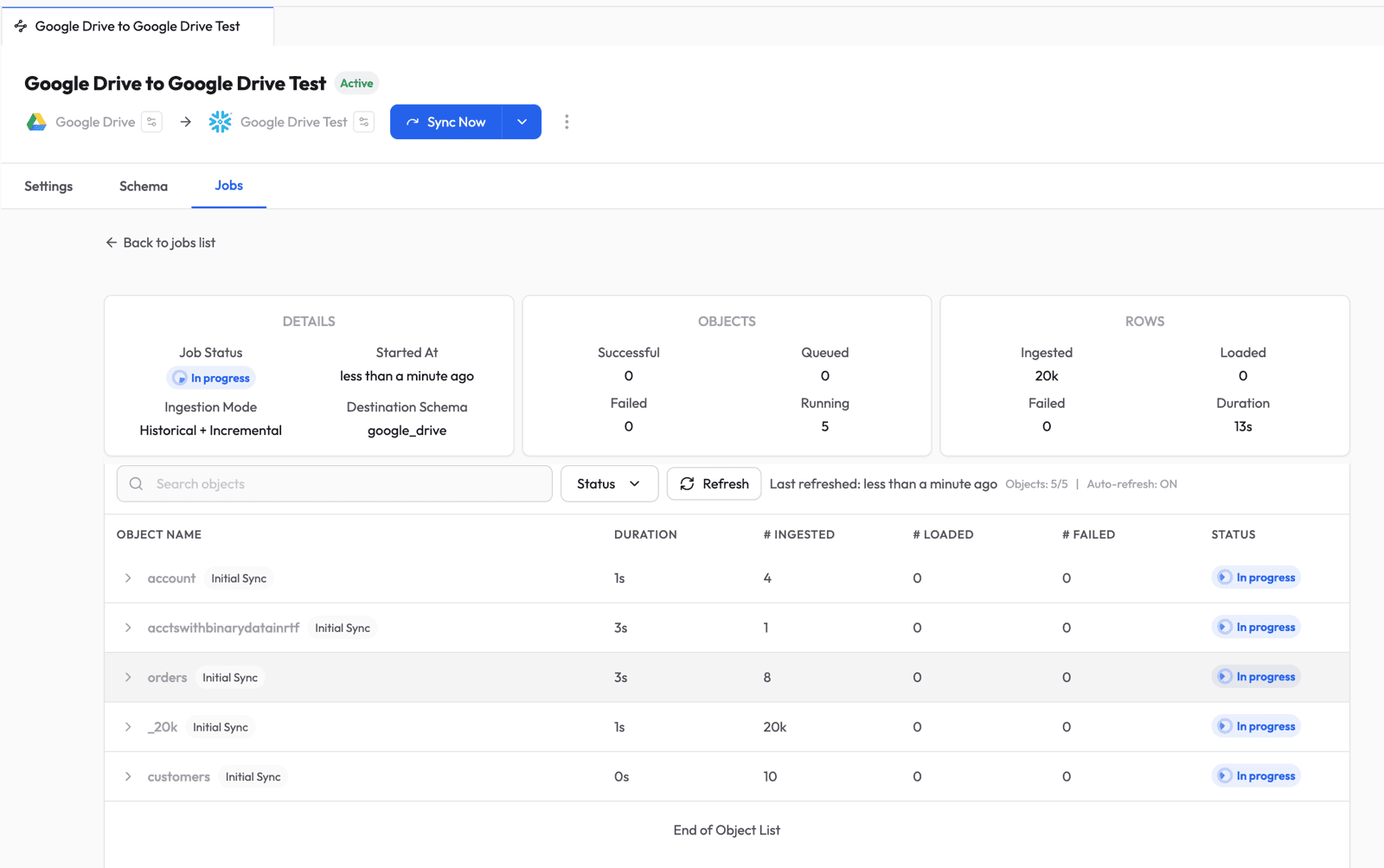
Click into the job to see per-object progress -- ingested rows, loaded rows, duration, and status for each table.
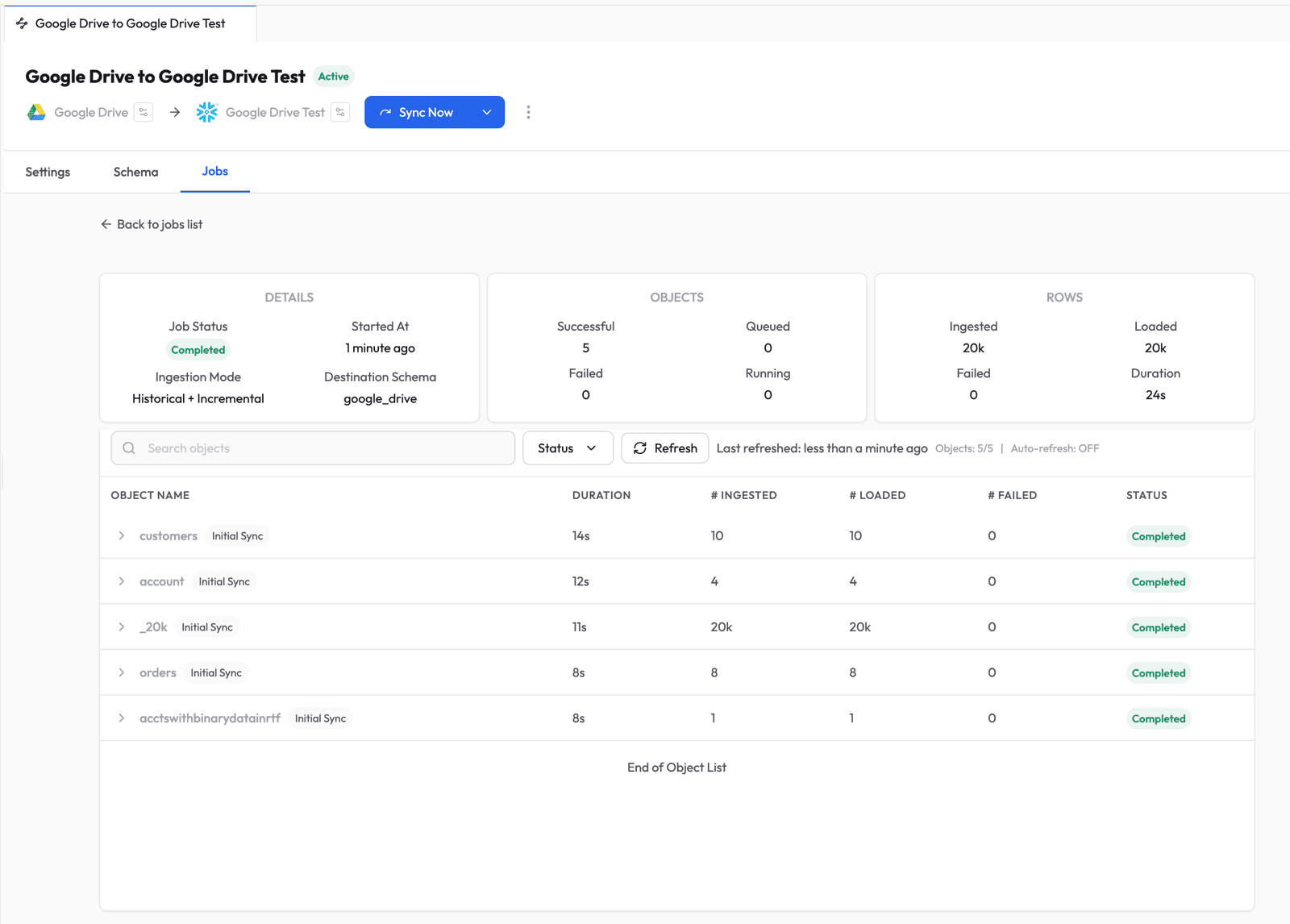
Once all objects complete, the job shows a Completed status with a full summary.
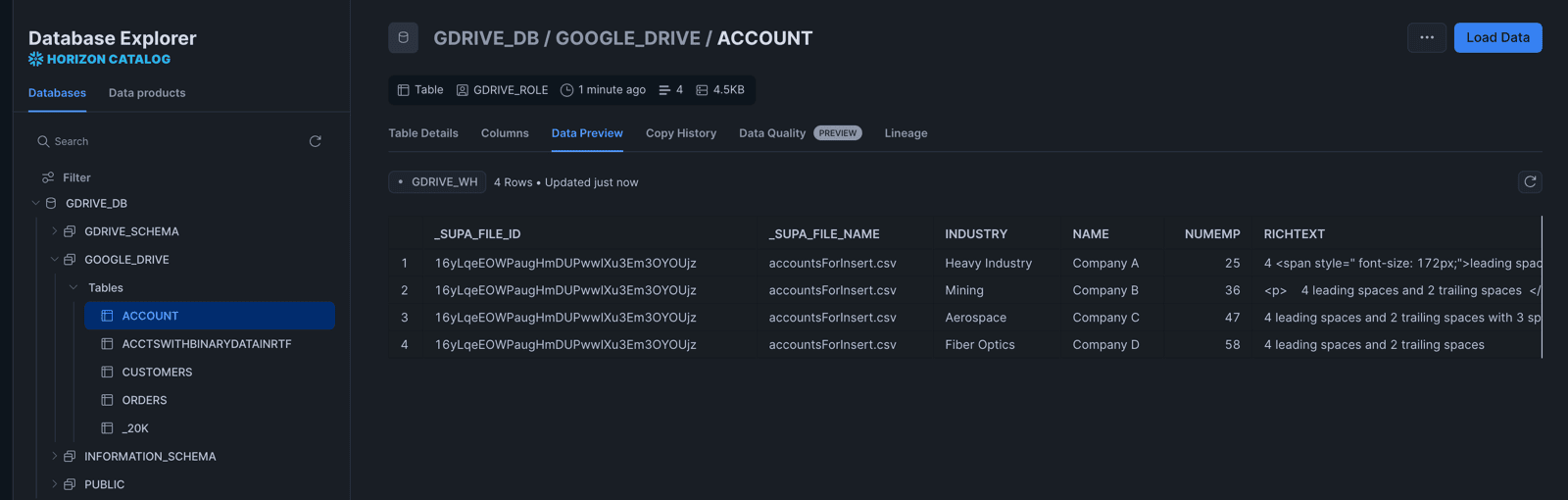
Step 8: Verify in Snowflake
Log into Snowflake, navigate to Catalog > Database Explorer, and browse to the database and schema you configured.
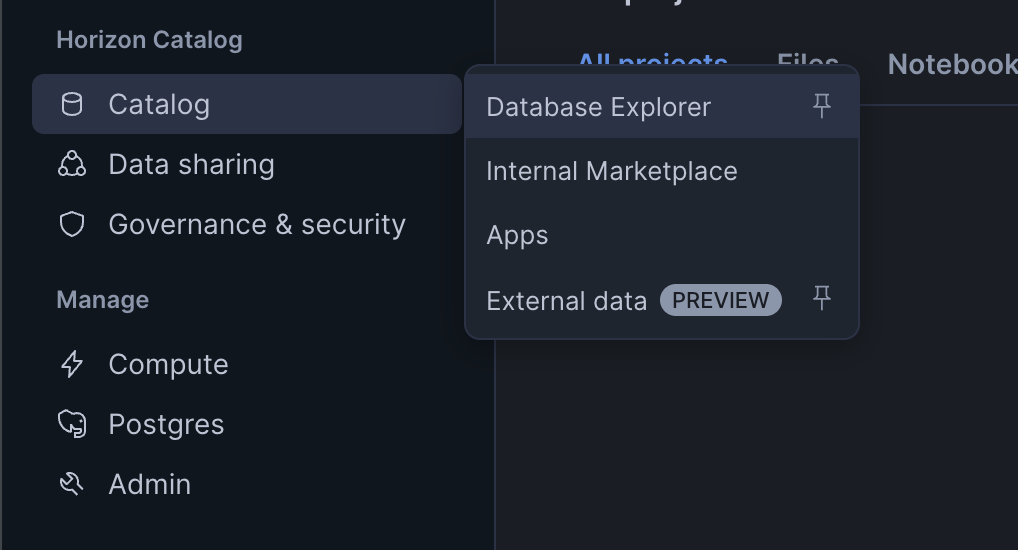
Select any table to preview the data. You should see the rows from your CSV files loaded and ready to query.
What Happens Next
After the initial sync, Supaflow handles ongoing changes automatically:
- New or modified files are selected on the next incremental run using their Drive modification time
- New folders appear as new tables after a schema refresh
- Schema changes are detected after a schema refresh and applied according to your pipeline's schema-evolution settings
- CSV/TSV files with slightly different columns across the same folder are unioned automatically -- missing values become
null - Excel and Google Sheets edits cause each selected worksheet to be re-read in full, since Drive tracks modification at the file level
- Source-side deletions are not emitted as delete events by the Google Drive source
Every synced row includes source-file lineage metadata, so you can trace data back to its file in Google Drive.
You can schedule runs on a cadence or trigger them manually with Sync Now whenever you need fresh data. See the ingestion pipelines docs for more on pipeline configuration, scheduling, and sync modes.
Get Started
Sign up at app.supa-flow.io and create a Google Drive source. For full details, check out the Google Drive source docs, the Snowflake destination docs, and the pipeline configuration guide. If you have questions, reach out at support@supa-flow.io.
 Ask Claude