Plan your next pipeline
Explore your source catalog, choose the objects you need, and review a pipeline plan before creating it.
Supaflow for Claude
Plan a pipeline, follow a run, and investigate failures in the conversation where you work. Connect your Supaflow account to bring your existing connections, pipelines, and jobs into Claude.
You need a Supaflow account. Create an account or sign in.
Prepare your Supaflow account and configure your source and destination connections. Install Supaflow, then connect your account before your first pipeline task.
Sign in or create an account. Configure source and destination connections in Supaflow before creating or running a pipeline. Existing users can keep using their current connections.
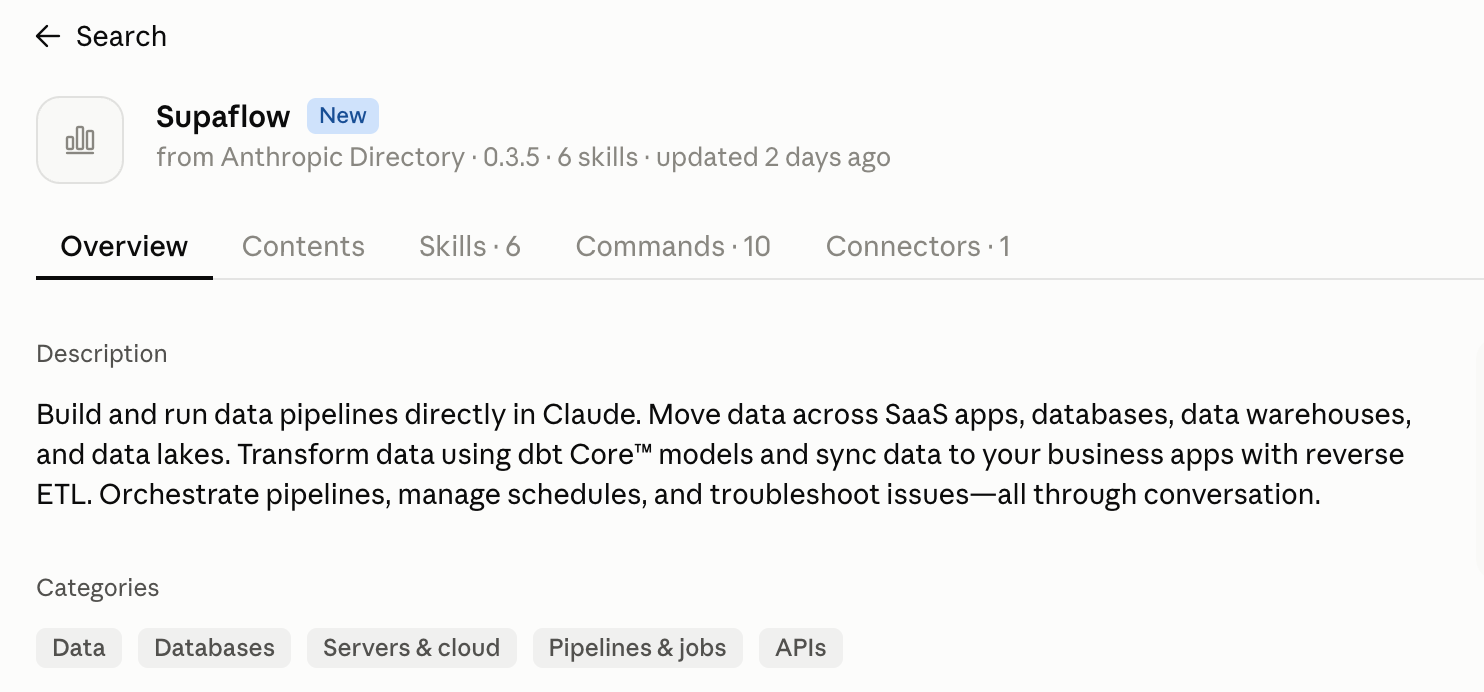
Open the official Supaflow listing in the Anthropic Directory and install the plugin. No GitHub marketplace setup is needed for the hosted edition. Availability can depend on your Claude account or administrator settings.
Open the plugin’s Connectors tab, add or connect Supaflow, and complete OAuth. Enter account credentials only in the Supaflow sign-in form.
Ask Claude to check your authenticated identity, list accessible workspaces, and show connections. Choose the workspace for your request before planning or running a pipeline.
Your first conversation
Ask your assistant to verify your account, help you choose a workspace, and show the connections you can use. If something is missing, complete that setup in Supaflow and check again.
These are example prompts. The assistant should use your actual resources and report the results it finds.
Explore your source catalog, choose the objects you need, and review a pipeline plan before creating it.
Run an existing pipeline, follow its job status, and manage recurring schedules.
Inspect recent jobs and reported errors, then work out the next step with your assistant.
When your sources need private-network access or your security requirements call for running jobs on infrastructure you control, use a private Supaflow agent. Supaflow Code in Claude Code can guide deployment, status checks, logs, and upgrades through your local shell. You need Node.js 18 or newer, Python 3, Supaflow CLI 0.5.0 or newer, and Docker for private-agent operations.
Connector development — coming soon. Guided building and testing of new connectors will extend these Code workflows. Private-agent setup is available today.
Before local CLI login: an organization administrator or personal-account owner must enable API access and Supaflow CLI under OAuth applications in Settings > API Keys > Permissions, review and save the settings. This local CLI-backed MCP path uses CLI permissions, independently of the hosted ChatGPT or Claude selection. If unauthenticated, run this in your own terminal:
If this is your first time adding the Supaflow marketplace, run:
Already added this marketplace? Refresh it, then install the Code edition:
Open a fresh Claude Code session after installation. Supaflow Code uses your CLI account and selected workspace. Use the hosted edition for Claude web, Desktop chat, or Cowork.
Local CLI authentication and the hosted OAuth connection are separate. Verify the account and workspace before changes. Never paste credentials into chat. Read the Supaflow CLI guide for agent prerequisites.
Review both Claude packages on GitHubThe hosted Supaflow edition connects through OAuth and does not require the CLI. Supaflow Code runs locally in Claude Code and requires the Supaflow CLI, local authentication, and a selected workspace.
Use the hosted Supaflow edition for these surfaces. Install it from the Anthropic Directory, then connect Supaflow from the plugin’s Connectors tab. Your Claude account or administrator settings may determine whether plugin installation is available. No GitHub marketplace setup is needed for the hosted edition.
Supaflow Code can guide local private-agent deployment and operations in Claude Code with a local shell and Docker. The hosted Supaflow edition manages pipeline operations and does not install or manage local agents.
Guided connector development and testing with Supaflow Code are coming soon. The current edition supports local pipeline and private-agent workflows.
Choose supaflow-code@supaflow for local CLI and private-agent workflows. The supaflow@supaflow package is the hosted edition. Verify the account and workspace for the edition you use; local CLI authentication and hosted OAuth are separate.
Both editions can work with existing Supaflow pipelines. Configure new datasource credentials securely in Supaflow or follow the local CLI documentation. Never paste passwords, API keys, or tokens into a conversation.