Agents
Monitor and manage the services that execute your data pipelines.
If you are deploying via the Snowflake Native App (installed from the Snowflake Marketplace), follow the dedicated Snowflake Native App Deployment Guide for a step-by-step walkthrough with screenshots.
Overview
Agents are deployment services that run your Supaflow jobs. An agent can run as a self-hosted Docker container, on AWS ECS, or inside Snowflake SPCS, with deployment-specific encryption keys and compute resources.
Supaflow is built with security at its core — customer data never leaves your environment. Only metadata is shared with Supaflow Cloud, encrypted with keys you control.
To access: Navigate to Settings → Agents in the sidebar.
How Agents Work
Supaflow uses strict control-plane and data-plane separation:
- Control plane - Coordinates work and manages job orchestration (Supaflow Cloud)
- Data plane - Processes all customer data (your environment only)
Agent Communication Flow
- Agent polls for jobs - Uses outbound HTTPS only. No inbound network access, firewall changes, or IP allowlists required.
- Agent decrypts job metadata - All job metadata is encrypted using your tenant's public key. The matching private key is stored securely with the agent, so only your agent can decrypt and run jobs.
- Agent executes jobs - Connects directly to your sources and destinations within your network. Data flows from source to destination without ever passing through Supaflow Cloud.
This architecture ensures your data stays within your environment while Supaflow coordinates the work.
What You Can Do
- Monitor agent health - View real-time status and connectivity
- Control Snowflake services - Suspend or resume SPCS agents to manage costs
- Manage encryption - Rotate keys and migrate datasource encryption
- Approve new agents - Activate registered agents for job execution
- Track metrics - See total agents, running count, jobs completed, and uptime
- Deploy agents - Set up agents in multiple environments
Deploying a Self-Hosted Docker Agent
Use a self-hosted Docker Agent when a source or destination is reachable only from your private network, or when production data movement must stay inside your environment. Run the agent on a stable host in the same LAN or VPC as the database. The host needs outbound HTTPS access to Supaflow and private network access to every source and destination the agent will use; the database does not need a public IP or inbound internet exposure.
Deploy with the Supaflow CLI
The Supaflow CLI 0.5.0 or later provides the fastest path for installing and managing a local Docker agent:
npm install -g @getsupaflow/cli
supaflow auth login
supaflow agent start
Fresh enrollment requires an API key created by an organization admin. Before starting the container, the CLI checks that Docker is installed and running, verifies available disk space and image access, and inspects any existing container and identity volume.
If an agent identity already exists on the host, supaflow agent start resumes that agent without consuming a new registration token or requiring re-approval. On a fresh interactive enrollment, the CLI asks whether to approve the agent after it registers. Approval changes tenant job routing, so leave it pending when you want an administrator to review it first.
Use the same command family for ongoing management:
| Command | What it does |
|---|---|
supaflow agent start | Enroll a new agent or resume the existing identity |
supaflow agent upgrade | Install a newer image while preserving the identity volume and attempting rollback after a failed startup (CLI 0.5.0+) |
supaflow agent stop | Stop the container while preserving its identity |
supaflow agent status | Show container, lifecycle, connectivity, and heartbeat status |
supaflow agent logs | Inspect or follow the agent logs |
supaflow agent remove | Remove the container; add --purge only when intentionally deleting the identity |
See the Supaflow CLI guide for command details and re-enrollment guidance.
Deploy with the Settings Wizard
Use the wizard when you prefer to generate the Docker command in the Supaflow app and approve the agent from Settings > Agents.
Step 1: Open the Docker Deployment Wizard
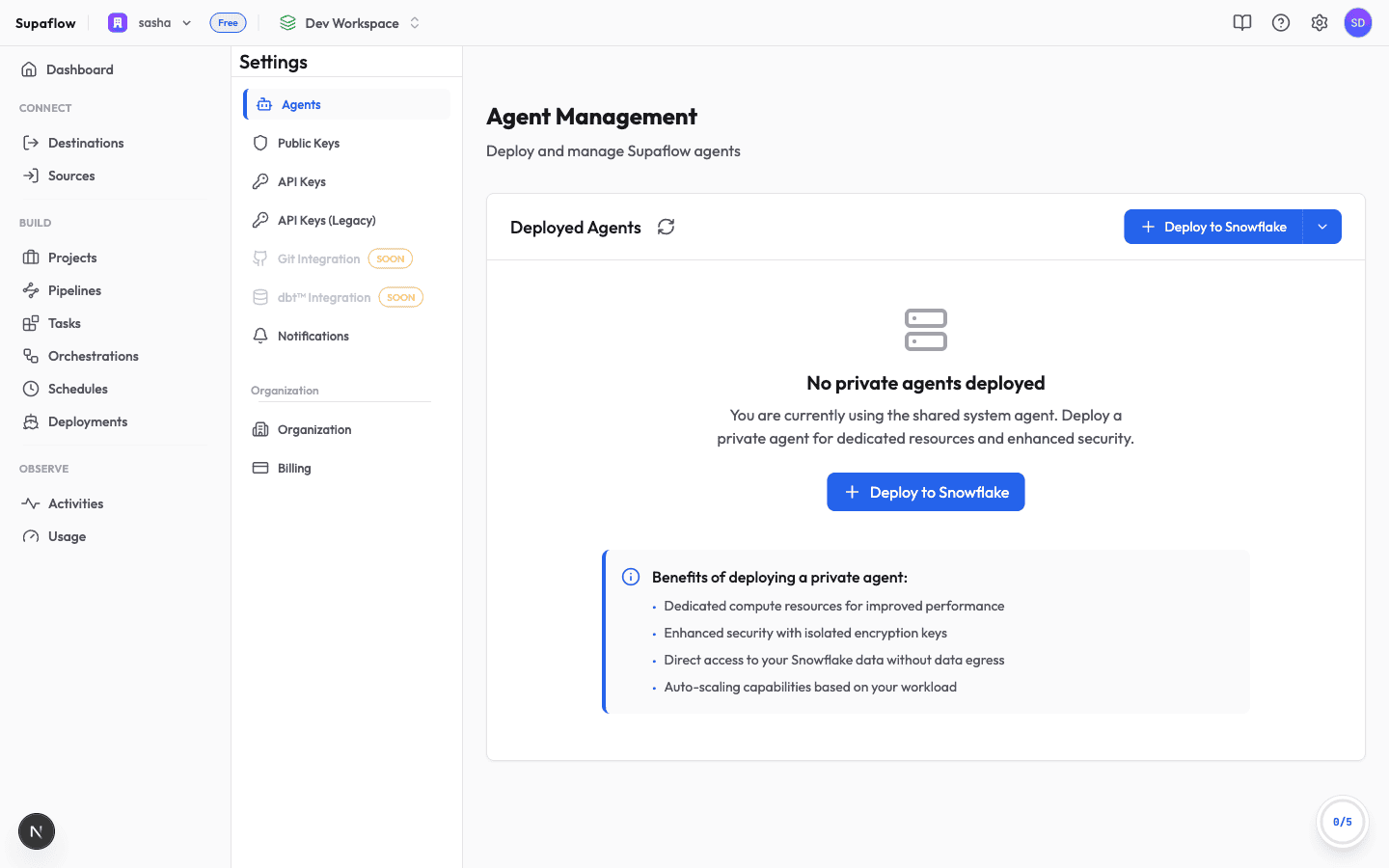
Go to Settings > Agents. If you have not deployed a private agent yet, the page shows that you are using the shared system agent.
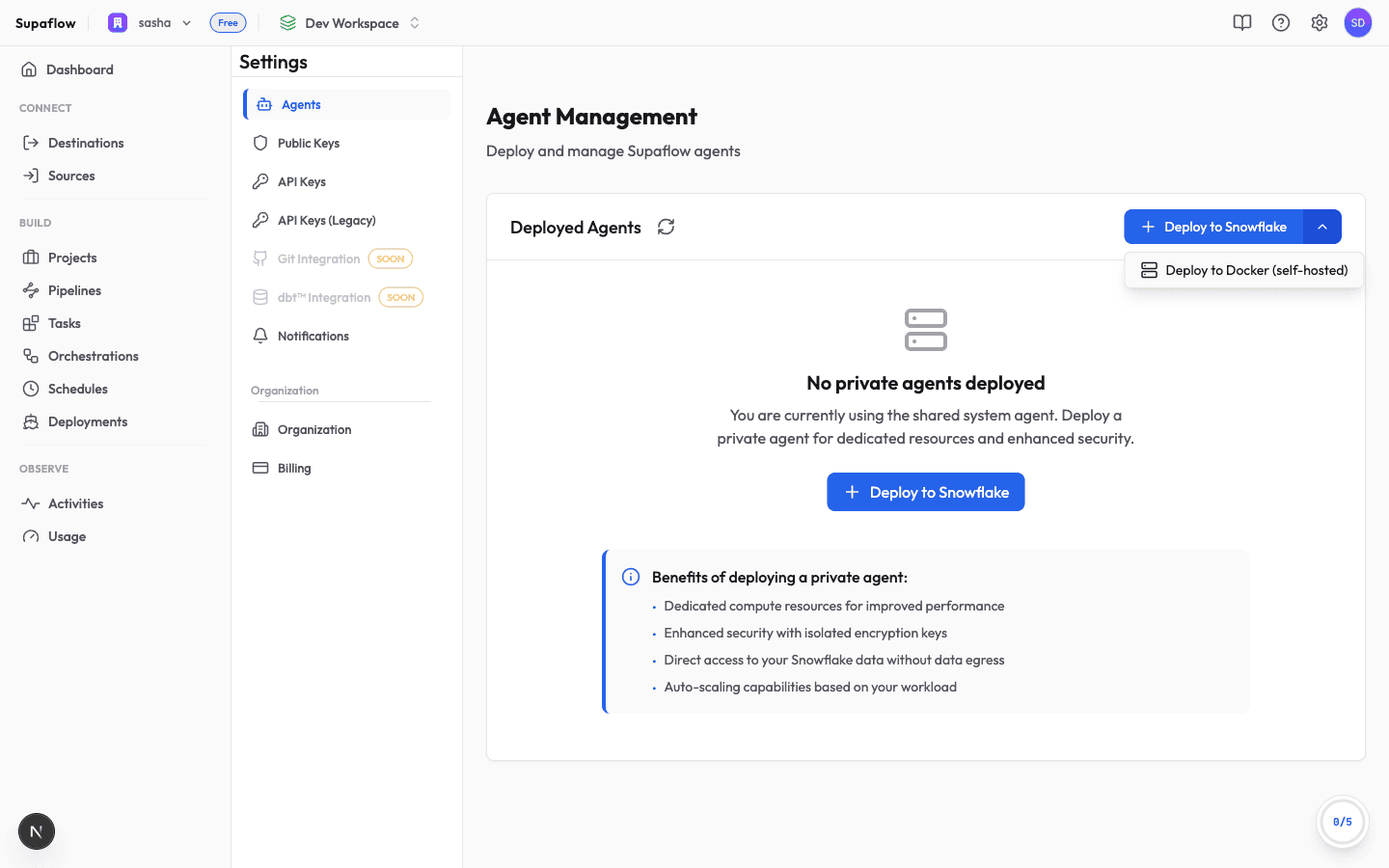
Open the deployment menu beside Deploy to Snowflake and select Deploy to Docker (self-hosted).
Step 2: Generate a Registration Token
The wizard's first step issues the credential your new agent uses to register itself.
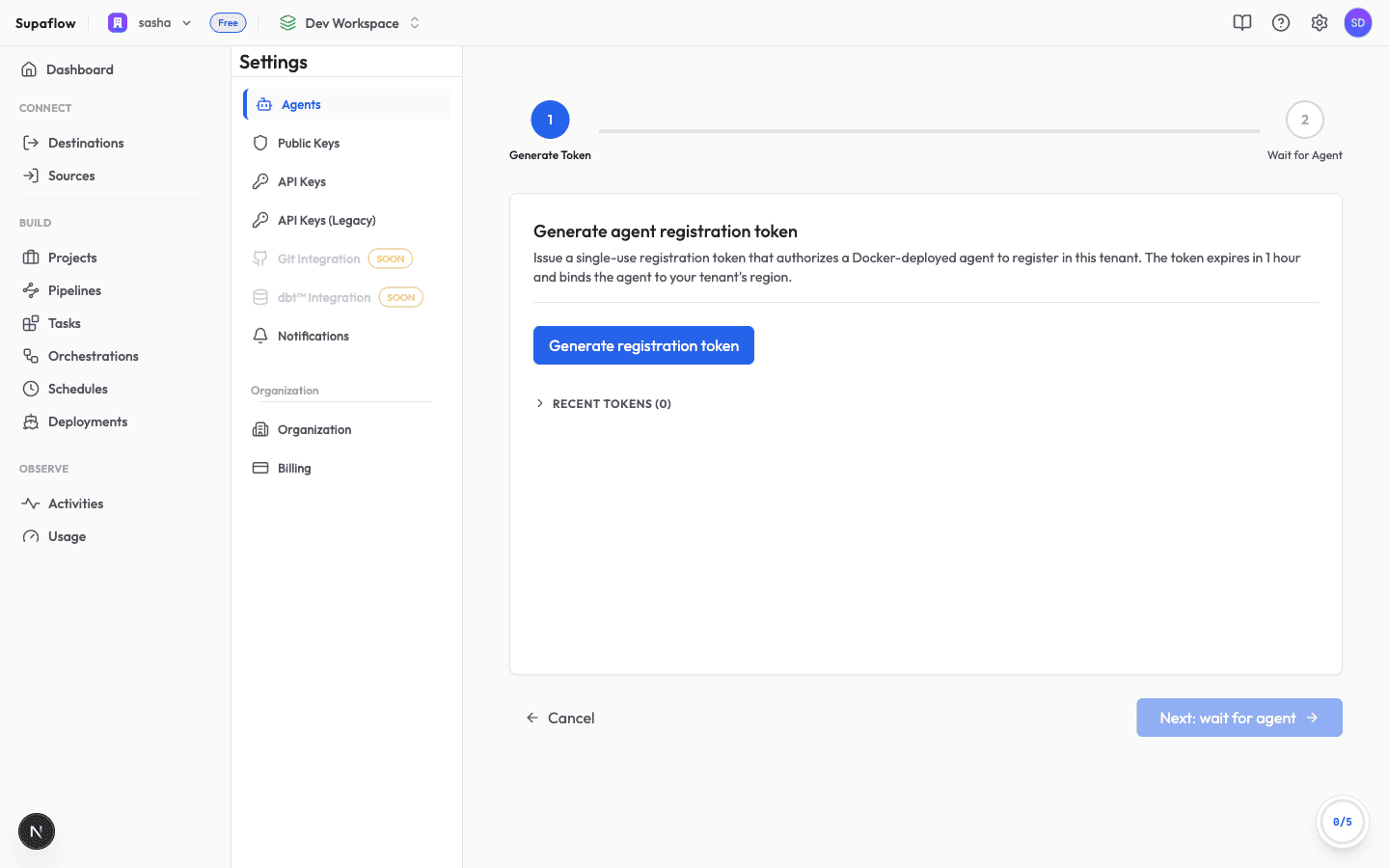
Click Generate registration token. The token is single-use, expires after about one hour, and binds the agent to your tenant's region. The wizard shows a ready-to-run Docker command with the token embedded.
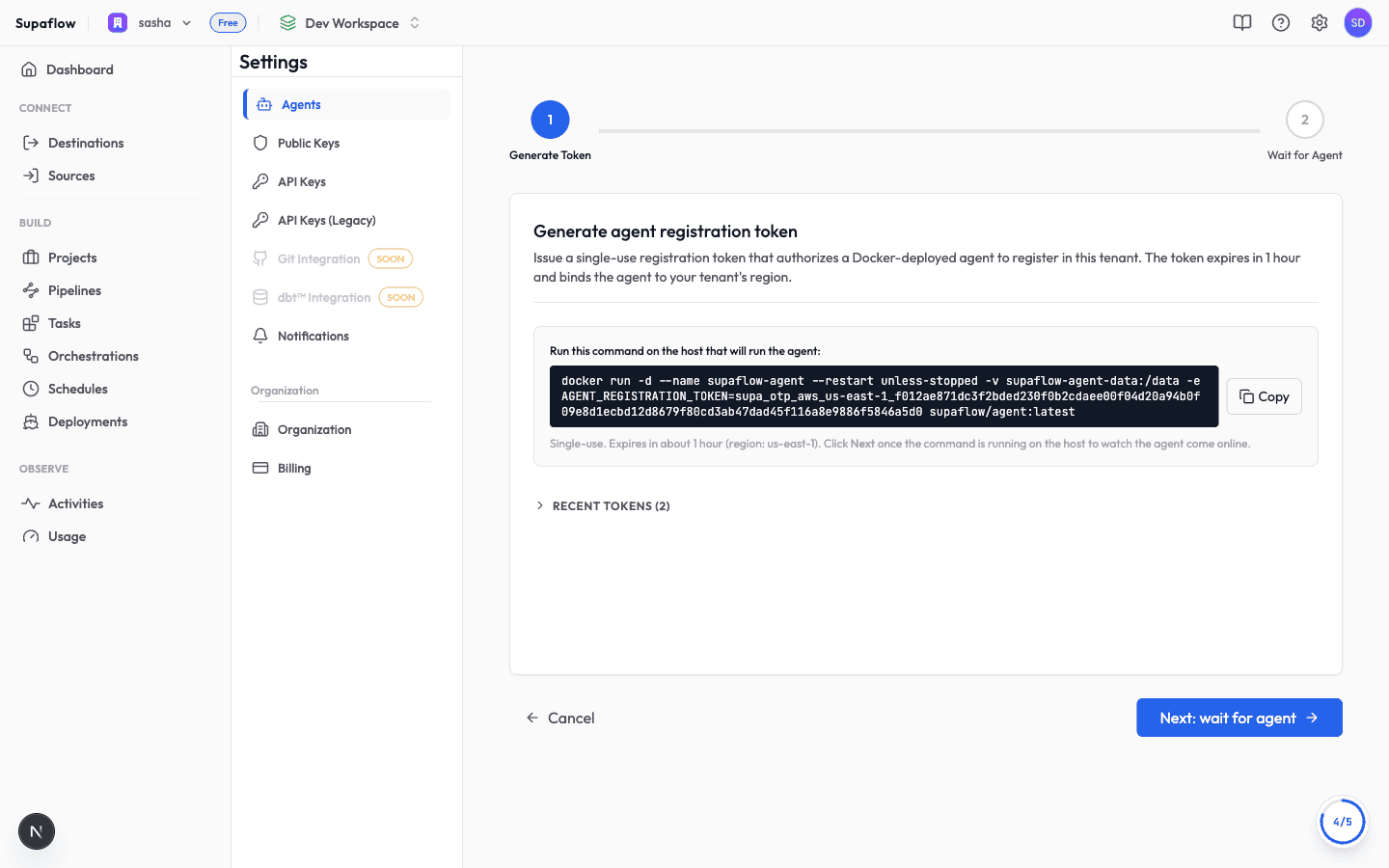
Treat the command as a secret while the token is valid.
Step 3: Run the Docker Command on Your Host
Copy the command and run it on the host that will run the agent. Then click Next: wait for agent — the wizard tracks registration progress in real time.
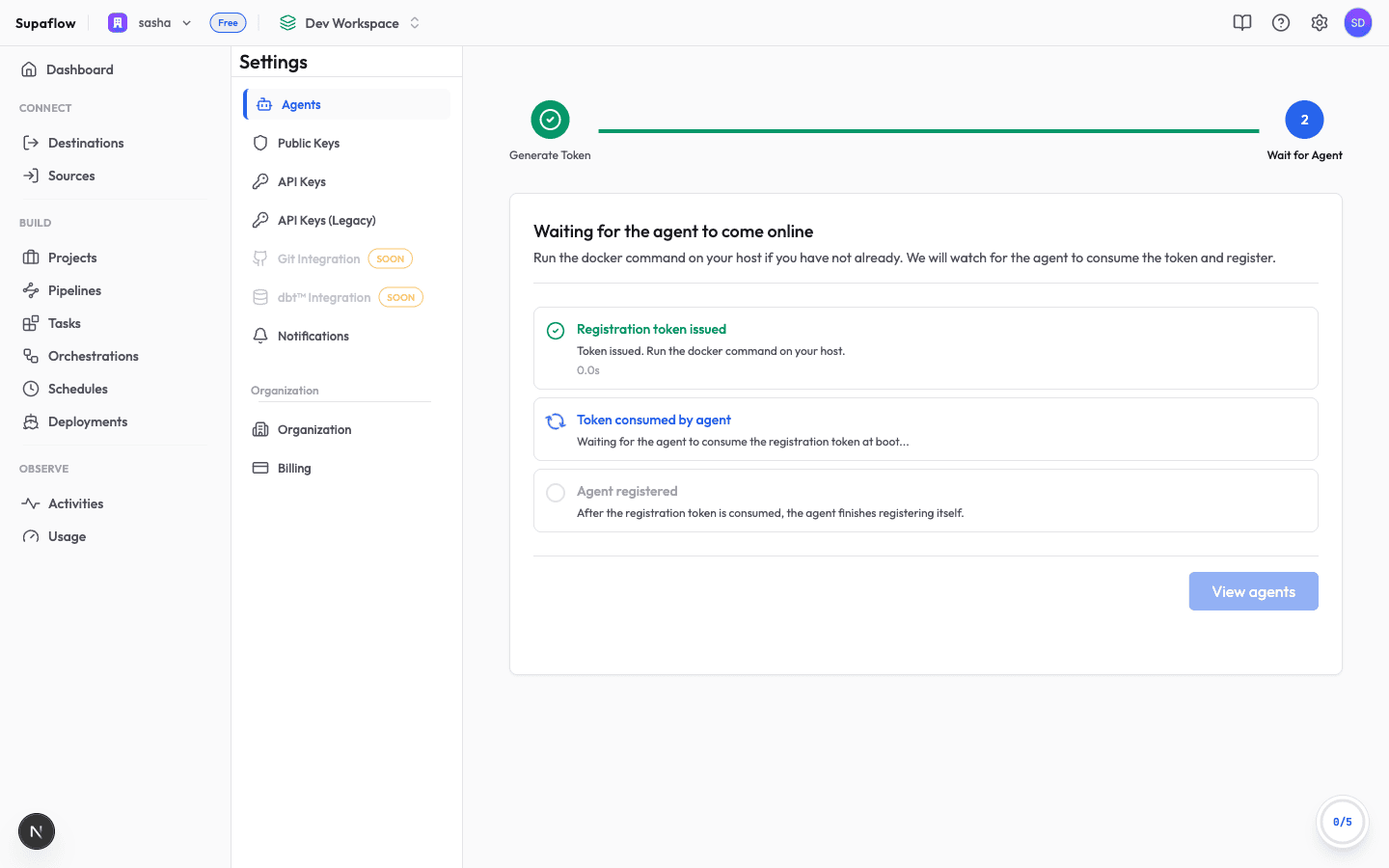
The generated command runs the agent detached with a restart policy and a named volume (supaflow-agent-data) mounted at /data. Keep the volume: it preserves the agent identity across container restarts, so a restarted agent reconnects in seconds without a new registration token or re-approval.
Step 4: Wait for the Agent to Register
On first start the agent generates its encryption keys locally — private keys never leave your host — then consumes the registration token and registers with Supaflow. This typically takes about a minute. The wizard confirms each stage as it happens.
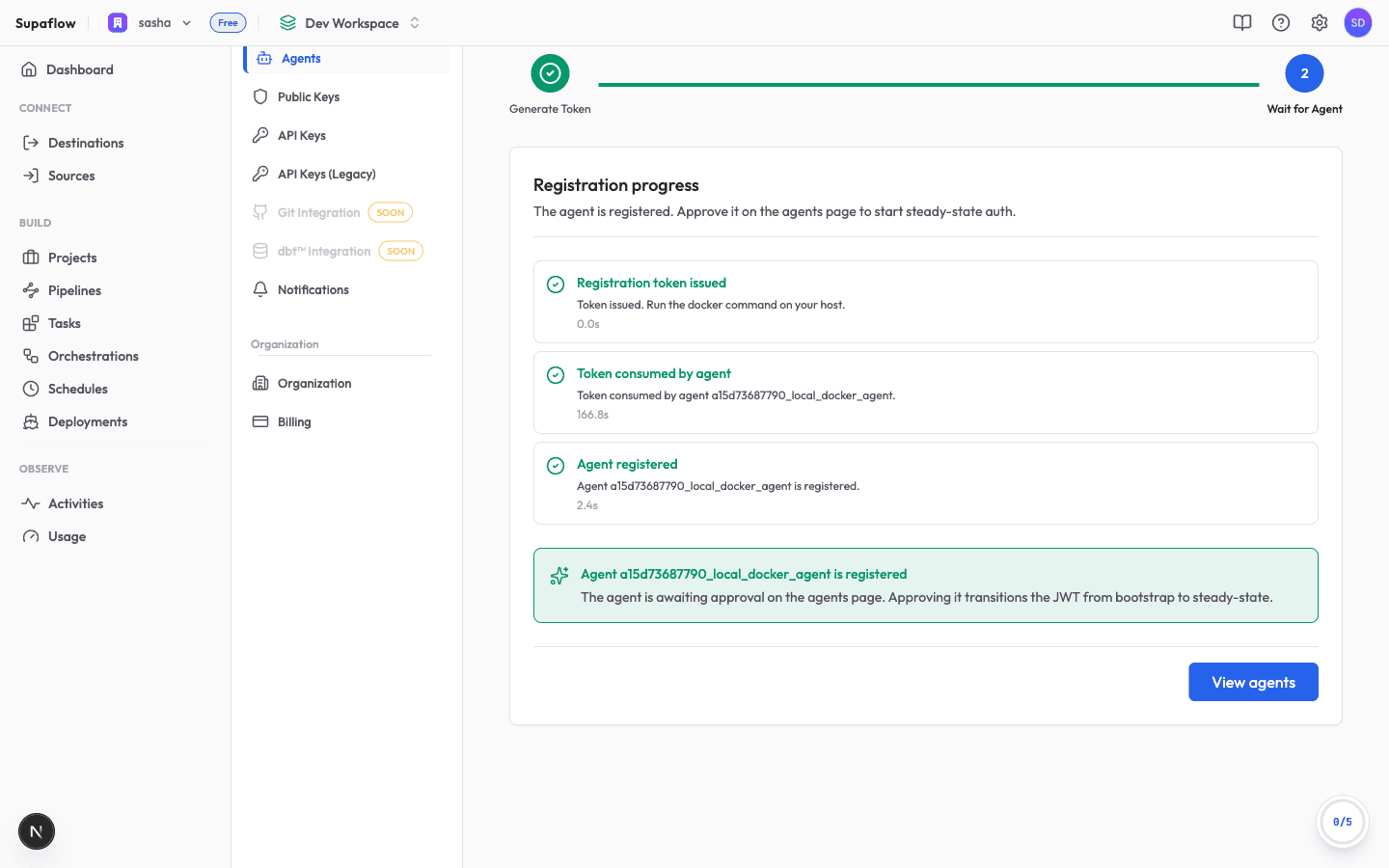
Step 5: Approve the Agent
Click View agents. The new agent appears in the Registered state with its heartbeat already reporting. Click Approve to authorize it to run jobs.
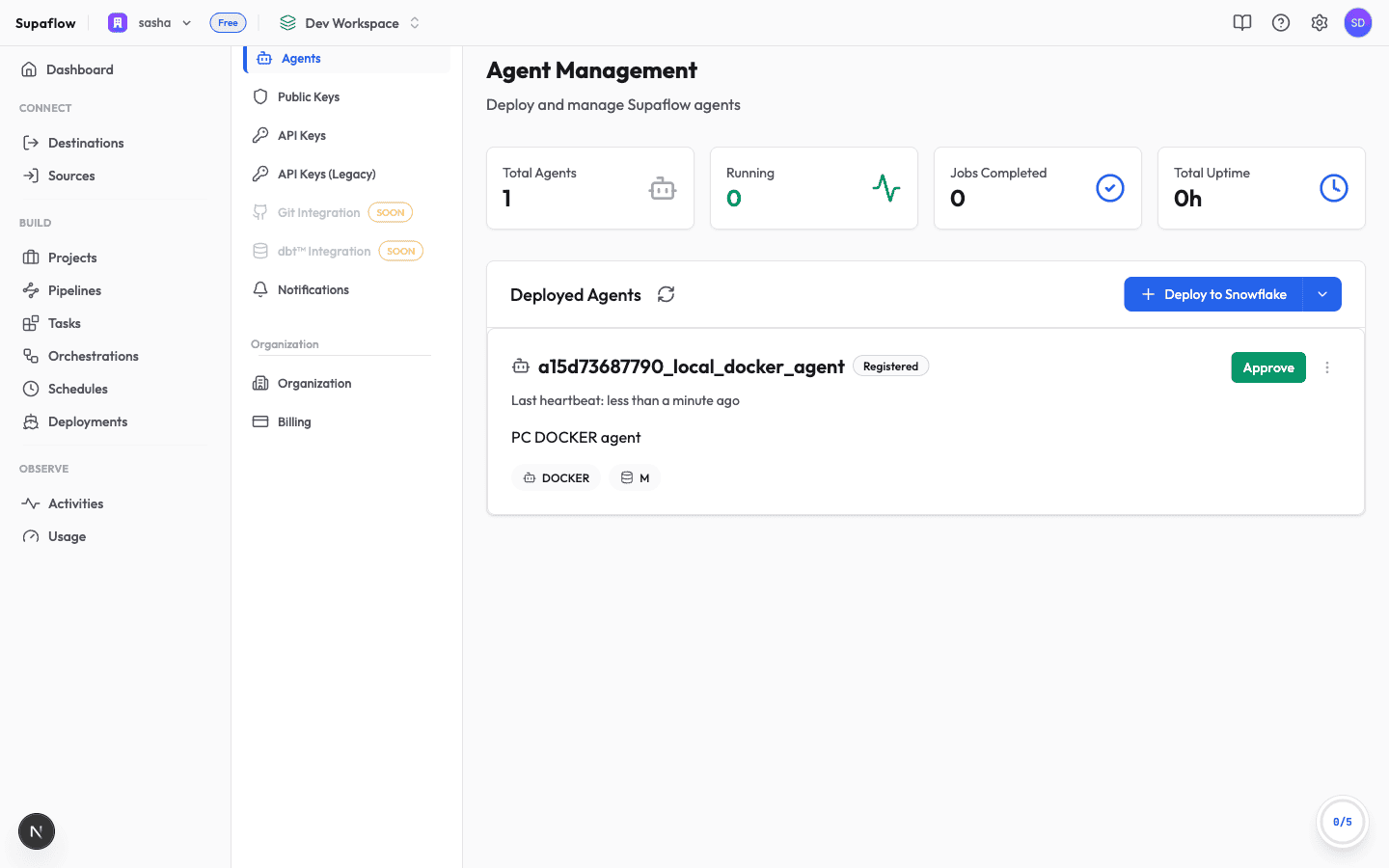
The agent picks up the approval within about 30 seconds and transitions to Running.
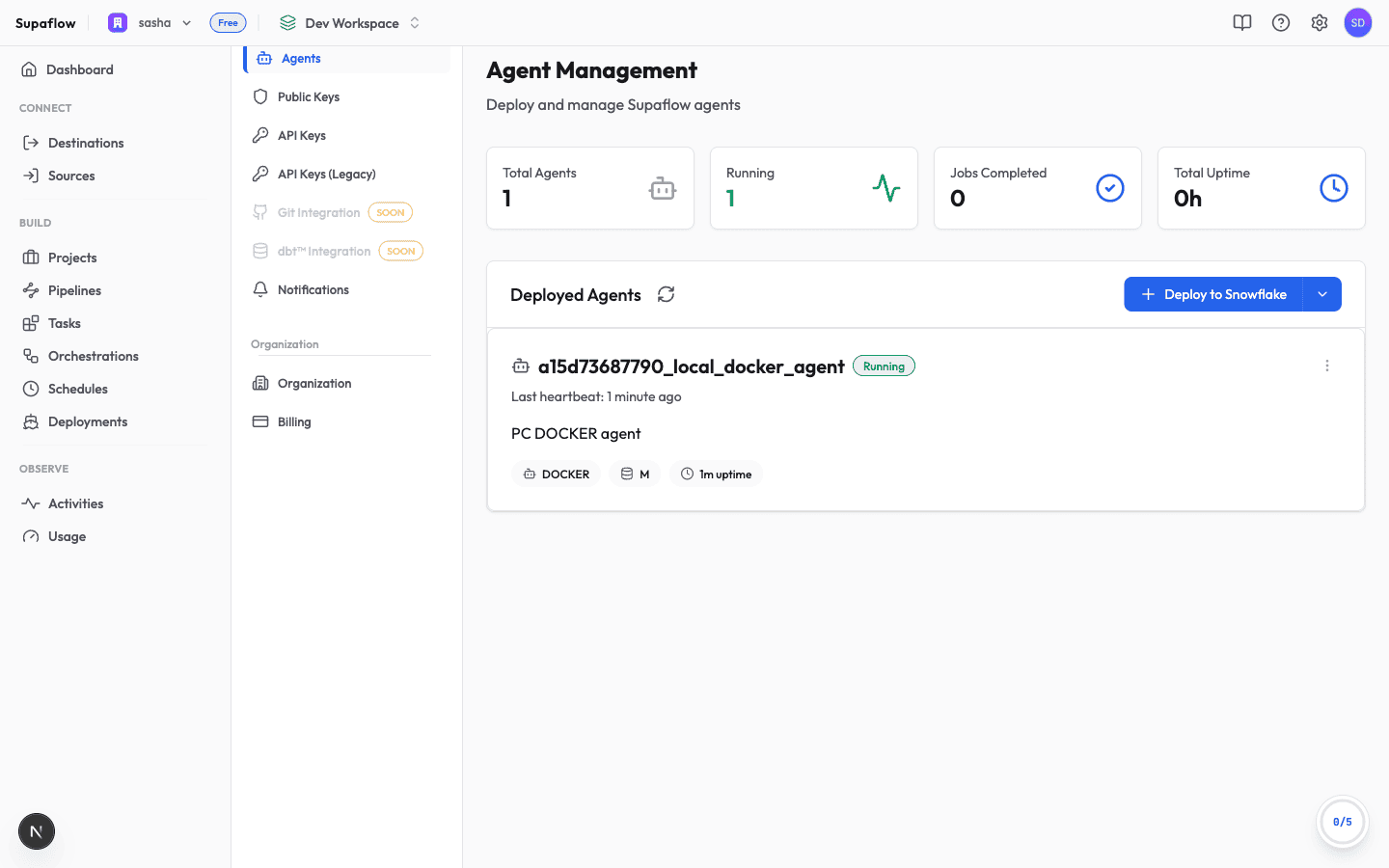
After Approval
- Job routing switches to your agent. Connection tests, schema refreshes, and pipeline runs for your tenant now execute on the private agent, inside your network.
- Credentials are re-bound automatically. Existing datasource credentials are re-encrypted to the new agent's keys; you will see a short "Re-encrypt datasources" job in Activities.
- Verify with a sync. Run a pipeline and confirm it completes in Activities; the agent card's heartbeat and uptime update as it works.
Redeploying on the Same Host
The generated command uses a stable container name (supaflow-agent) and a named volume (supaflow-agent-data). Which of them to keep depends on what you are doing:
Restarting the agent — keep the volume. The volume holds the agent's identity, so the agent reconnects in seconds without a new token or re-approval:
docker restart supaflow-agent
Upgrading the agent — use CLI 0.5.0+ and keep the volume. The upgrade command pulls the current agent image and validates the identity stored in the named volume before it stops the current container. It then checks that the replacement starts; if startup fails, it removes the failed replacement and attempts to restore the previous immutable image without requiring a new registration token:
supaflow agent upgrade
For a custom container name, pass the same name used during enrollment with --name. The default image is supaflow/supaflow-agent:latest. The named data volume and the container's saved bootstrap URL are preserved throughout the upgrade so the agent keeps its identity and filesystem keystore. A legacy container without a saved SUPAFLOW_API_URL requires --api-url. Use --no-pull only to install an image that is already present on the host.
Re-enrolling from scratch — remove the container and the volume. Do this after revoking or deactivating the agent, or if its local state is corrupted:
docker rm -f supaflow-agent
docker volume rm supaflow-agent-data
Then generate a fresh registration token and run the new command. This order matters: if the old volume is kept, the persisted identity takes precedence over a new registration token, so the agent keeps its old (possibly revoked) identity and the new token goes unused. The precedence is deliberate — restart policies re-run the container with the original token still in its environment, and a restart must never try to re-consume a spent token.
If a new deployment fails with Conflict. The container name "/supaflow-agent" is already in use, the previous container still exists — remove it first as shown above.
Production Recommendations
- Run the container on an always-on server or VM, not a developer laptop.
- Place it close to the database to keep the network path private and predictable.
- Mount a persistent volume at
/data(see Step 3) and set a restart policy so the agent identity and working data survive restarts. - Set resource limits and host monitoring as you would for any production service.
- Allow outbound HTTPS to Supaflow and the network destinations required by your pipelines.
- Monitor the agent heartbeat and pipeline completion after deployment.
For a short proof-of-concept connectivity test against a local SQL Server, a temporary TCP tunnel can be faster to set up. See Connect a Local SQL Server with ngrok or bore. Do not use a temporary public tunnel as the network path for production pipelines or sensitive data.
Deploying a Snowflake Agent
Why Deploy an Agent in Snowflake?
By deploying the agent within your Snowflake environment, you ensure that all data remains within your Snowflake account. This is important for:
- Compliance with regulatory requirements (HIPAA, SOC 2, etc.)
- Sensitive data that cannot be shared with another data processor
- Organizations that require complete data sovereignty
If these constraints don't apply to your use case, you can use a Supaflow-managed agent instead.
Deployment Workflow
Step 1: Start Deployment
- Go to Settings → Agents
- Click Deploy to Snowflake
Step 2: Run Snowflake Setup Script
Supaflow generates a deployment script that must run directly in your Snowflake account. This script:
- Grants required Snowpark Container Services privileges
- Creates schemas used by the agent
- Sets up the image repository and stage
- Defines outbound network rules and external access integration
To run the script:
- Click Copy Script in Supaflow
- Log in to Snowflake using Snowsight as an account admin
- Create a new worksheet and paste the script
- Review the script carefully - This is where you control network rules and restrict outbound access to only the systems the agent needs to reach
- Customize network rules if needed (add or remove endpoints for your specific data sources and destinations)
- Click Run All to execute the script
Important: The script provisions Snowflake resources required to run the agent as a native service. Review it thoroughly before running.
Step 3: Configure Agent Settings
After running the Snowflake script, return to Supaflow and configure how the agent will run:
- Controller datasource - Select the Snowflake datasource used to deploy and manage the agent
- Node size - Choose the agent compute size (determines processing power)
- Autoscaling limits - Configure min/max instances based on workload
These settings determine how much compute the agent has available and how it scales as workloads increase. The default settings work well for most workloads. You can always redeploy the agent later if you need to adjust these based on data volume or pipeline concurrency.
Step 4: Deploy the Agent
- Review your configuration
- Click Deploy Agent
- Monitor the deployment progress as Supaflow executes SQL statements in Snowflake to create and start the agent service
- Wait for the agent to finish starting and register successfully
- Click Done to return to the agents page
For Snowflake Native App agents: After deployment, grant the app role to your Supaflow users role so the controller datasource can manage the service:
GRANT APPLICATION ROLE <native_app_database>.app_public TO ROLE SUPA_ROLE;

-- Example (production):
GRANT APPLICATION ROLE SUPAFLOW_DI_AGENT.app_public TO ROLE SUPA_ROLE;
Step 5: Approve the Agent
- On the Agents page, you'll see your new agent with "Registered" or "Pending Approval" status
- Click the green Approve button
Why approval is required: Approval acts as a security gate, ensuring only explicitly trusted agents can run jobs. Once approved, the agent completes activation and prepares to accept work (this may take a few minutes).
Step 6: Verify Deployment
After deployment, verify everything is set up correctly:
In Supaflow:
- Refresh the agents page and confirm the agent shows "Running" status
- Navigate to Settings → Public Keys and verify there's an active public key for your tenant (this is used to encrypt job metadata)
In Snowflake:
- Confirm a dedicated Supaflow compute pool has been created
- Verify the
SUPAFLOW_AGENT_SERVICEis running - Optionally review the service configuration to confirm it matches your deployment settings
Your agent is now ready to process jobs!
Network Security
The deployment script creates network rules that control which external systems your agent can access. By default, the agent can only reach:
- Supaflow Cloud (for job polling and status updates)
- Endpoints you explicitly allow in the network rules
To add or remove allowed endpoints:
- Edit the deployment script before running it
- Add network rules for your specific data sources and destinations
- Remove any rules for systems you won't be connecting to
This ensures the agent can only communicate with approved systems, maintaining strict network security.
Understanding Agent Status
Lifecycle Status
| Status | What It Means |
|---|---|
| Registered | Agent connected but not yet approved for use |
| Pending Approval | Waiting for manual approval |
| Active | Approved and ready to process jobs |
| Suspended | Temporarily paused (Snowflake SPCS only) |
| Deactivated | Permanently stopped |
| Terminated | Service has been terminated |
Connectivity Status
Your agent's connectivity is shown on its card:
- Running - Agent is connected and processing jobs
- Connecting - Agent is initializing
- Stopped - No heartbeat received, agent may be down
Each agent card shows when the last heartbeat was received (e.g., "2 minutes ago") so you can monitor connection health.
Deployment Types
Supaflow supports three deployment options for agents:
Self-Hosted Docker
What it is: A Docker-deployed agent running on infrastructure you operate inside your LAN, data center, or VPC.
Key features:
- Direct private-network access to on-premises and private database endpoints
- Outbound-only communication with Supaflow for job polling and status updates
- Stable production network path without exposing database ports publicly
- Host, container, storage, and scaling controls managed by your team
Best for: Production pipelines that connect to databases or services inside a private network.
Snowflake SPCS
What it is: Native Snowflake deployment running on dedicated Snowflake compute resources.
Key features:
- Private encryption keys per service
- Suspend/resume controls to manage costs
- Automatic service cleanup when deactivated
- Runs directly in your Snowflake account
Best for: Organizations already using Snowflake who want native integration and maximum data security.
AWS ECS
What it is: Managed container infrastructure running on AWS Fargate.
Key features:
- Serverless containers (no server management)
- Automatic scaling
- Managed deployment and updates
- Uses system encryption keys (shared across agents)
Best for: AWS-based infrastructure with minimal management overhead.
Agent Actions
Approve Agent
When to use: After deploying a new agent that shows "Registered" or "Pending Approval" status.
What it does:
- Activates the agent's encryption key
- Authorizes the agent to process jobs (security gate)
- Allows the agent to start accepting work from the job queue
How to do it: Click the green Approve button next to the agent's status badge.
Security note: Approval ensures only explicitly trusted agents can run jobs in your organization. After approval, you may see a suggestion to rotate keys if you have existing datasources that could benefit from private encryption.
Rotate Encryption Keys
When to use: When you want to improve security by migrating datasources to private encryption or updating to newer keys.
Three scenarios:
Switch to Private Key
Use this when you have datasources encrypted with the system key and want to migrate them to your agent's private key for better security isolation.
What happens: Datasources are re-encrypted using your agent's private key instead of the shared system key.
Switch to Latest Key
Use this when datasources are using an older version of your private key and you want to catch them up to the current version.
What happens: Datasources are re-encrypted with the most recent key version.
Rotate Private Key
Use this when you want to generate a completely new encryption key (e.g., after a security incident or as part of regular security maintenance).
What happens:
- Agent generates a new key pair
- All datasources are re-encrypted with the new key
- Old key is retired
Note: The button label changes based on which scenario applies to your situation, and shows how many datasources will be affected.
Suspend Service (Snowflake SPCS Only)
When to use: Temporarily stop a Snowflake agent to save on compute costs.
What it does:
- Pauses the Snowflake service
- Stops compute billing immediately
- Preserves all configuration and state
- Prevents new jobs from running until resumed
Common use cases:
- Stop non-production agents outside business hours
- Pause testing environments when not in use
- Respond to incidents by preventing further job execution
How to resume: Use the Resume Service action when you're ready to restart.
Resume Service (Snowflake SPCS Only)
When to use: Restart a suspended Snowflake agent.
What it does:
- Restarts the Snowflake service
- Resumes compute billing
- Agent reconnects and starts processing queued jobs
Note: Resume typically takes less than 1 minute.
Deactivate Agent
When to use: Permanently remove an agent from your organization.
What it does:
- Optionally migrates datasource and linked-account credentials to system encryption (if this is your last agent with a particular key)
- Drops the Snowflake service (if applicable)
- Marks the agent as deactivated
- Stops all job processing
Important considerations:
- If you have datasources or linked accounts encrypted with this agent's private key, you'll be prompted to either:
- Leave them as-is if you have other agents with the same key
- Migrate to system encryption if this is your last agent with that key
- Deactivation is permanent — you cannot reactivate a deactivated agent
- Requires organization admin role
Monitoring Agent Health
Metrics Dashboard
At the top of the Agents page, you'll see key metrics:
- Total Agents - All agents including deactivated ones
- Running - Currently connected and active agents
- Jobs Completed - Total jobs executed across all agents
- Total Uptime - Cumulative uptime hours for all agents
These metrics help you understand your overall agent fleet health at a glance.
Agent Cards
Each agent displays:
- Agent identifier and current status
- Last heartbeat timestamp
- Deployment type description
- Service type badge (SPCS or ECS)
- Node size (if configured)
- Current session uptime
Use the three-dot menu on each card to access available actions based on the agent's status.
Troubleshooting
Agent Shows "Stopped" But Service is Running
What it means: The agent hasn't sent a heartbeat recently, even though the underlying service appears to be active.
How to resolve:
- Check the "last heartbeat" timestamp — if it's been more than 5 minutes, there's a connectivity issue
- For Snowflake agents, check if the service was manually suspended
- Review Snowflake service logs to identify container issues
- Verify network connectivity between your deployment environment and Supaflow
- Try resuming the service if it was suspended
- Contact support if the issue persists
Common causes:
- Snowflake network policies blocking outbound connections
- Service suspended manually in Snowflake
- Agent container crashed
Key Rotation Shows Count But Reports No Datasources
What it means: The displayed count may be stale or datasources may have been deleted/deactivated.
How to resolve:
- Refresh the agents page to update the encryption summary
- Verify datasources are in an active state (not draft or deleted)
- Check the Public Keys page to see which datasources are actually using each key
- Try the rotation again after refreshing
Deactivate Fails with Permission Error
What it means: You don't have the required permissions to deactivate agents.
How to resolve:
- Agent deactivation requires organization admin role
- Check your role in Settings → Organization
- Ask your organization owner to grant you admin permissions
- If you're the owner, contact support
Service Suspend/Resume Times Out
What it means: The Snowflake operation is taking longer than expected (>2 minutes).
How to resolve:
- Verify the Snowflake warehouse is running and has available resources
- Check that the agent's controller datasource is still valid
- Test the operation manually in Snowflake to see if there are account-level issues
- Check for locks on the service from other users or processes
- Review the service status in Snowflake
Common causes:
- Warehouse is suspended or out of resources
- Another service operation is in progress
- Snowflake account experiencing issues
Best Practices
Monitor Agent Connectivity Daily
What to check:
- All production agents show "Running" status
- Last heartbeat timestamps are recent (< 5 minutes)
- Uptime metrics are consistent (no frequent restarts)
Recommended:
- Set up external monitoring for critical agents
- Alert when an agent is disconnected for more than 10 minutes
- Track job completion rates to identify performance issues
Plan Key Rotations During Maintenance Windows
Why: Re-encryption jobs can take 1-2 minutes per 100 datasources.
Best approach:
- Schedule rotation during low-activity periods
- Notify your team about potential brief job delays
- Execute the rotation via the "Rotate Keys" button
- Monitor the operation until completion
- Verify the new key is active on the Public Keys page
Recommended frequency:
- System → Private migration: One-time per environment
- Private key rotation: Annually or after security incidents
Use Suspend/Resume for Cost Control
For Snowflake SPCS agents:
- Suspended services stop compute billing immediately
- Configuration and state are preserved
- Resume takes less than 1 minute
Good use cases:
- Suspend non-production agents outside business hours
- Stop testing environments when not actively used
- Temporarily halt job execution during incidents
Automation options:
- Use Snowflake scheduled tasks to suspend/resume on a schedule
- Call Supaflow API from your automation tools
- Set up cost monitoring alerts to catch unexpected usage
Deploy Multiple Agents for High Availability
Recommended setup:
Production:
- 2-3 agents in the same region
- Share the same encryption key
- Jobs automatically load balance across available agents
Staging:
- 1 agent (cost-effective for lower volume)
Development:
- 1 agent, suspend when not in use to save costs
Benefits:
- Zero-downtime deployments (deactivate one agent at a time)
- Automatic failover if an agent disconnects
- Higher job concurrency and throughput
- Better resilience during upgrades
Related Pages
- Public Keys - View encryption keys and datasource assignments
- Settings - Settings overview
- Activities - Monitor activities executed by agents
Support
Need help with agent management? Contact us at support@supa-flow.io
 Ask Claude