How to Connect a Local SQL Server with ngrok or bore

You want to try Supaflow against a SQL Server that runs on your own machine -- a developer install on your laptop or a server on your office network. There is no public IP, no port forwarding, and no VPN between that database and the cloud. A Supaflow-hosted Agent needs to reach the database over the network, so localhost in the datasource form will not work for this test.
A TCP tunnel is the fastest way to prove connectivity during a proof of concept (POC). This guide shows two temporary options: ngrok, the popular managed tunneling service, and bore, a minimal open-source alternative that needs no account. Both give you a public host and port that forward straight to your local SQL Server, and both plug into the Supaflow datasource form the same way.
For production pipelines, deploy a self-hosted Docker Agent on a stable host inside the same private network as SQL Server. The agent connects to SQL Server over the local network and polls Supaflow over outbound HTTPS, so the database port stays private. This removes the tunnel relay and changing public endpoint from the data path and gives long-running pipelines a predictable network path.
How a TCP Tunnel Works
The tunnel client runs on the same machine as SQL Server and opens an outbound connection to a relay server on the internet. The relay hands you a public endpoint -- a hostname and port such as 5.tcp.ngrok.io:17645. Anything that connects to that public endpoint is forwarded down the tunnel to your local port 1433.
Because the tunnel is an outbound connection from your machine, you do not need to open firewall ports, configure your router, or have a static IP. That is the whole trick.
Prerequisites: Make Your Local SQL Server Reachable
A default SQL Server installation on Windows is often not listening on TCP at all. Before starting a tunnel, check three things:
- Enable TCP/IP. Open SQL Server Configuration Manager > SQL Server Network Configuration > Protocols for MSSQLSERVER and set TCP/IP to Enabled.
- Enable SQL Server authentication. Windows Authentication does not work across a tunnel. In SSMS, open server Properties > Security and select SQL Server and Windows Authentication mode, then create a SQL login for Supaflow to use.
- Restart the SQL Server service. Neither change above takes effect until you do. After the restart, confirm SQL Server is listening on port 1433 (the default).
- Use a least-privilege login. Grant the login
db_datareaderon the database you want to sync (plusVIEW CHANGE TRACKINGif you plan to use Change Tracking mode). Do not tunnel withsa.
Verify locally before involving the tunnel:
sqlcmd -S localhost,1433 -U supaflow_reader -P '<password>' -Q "SELECT @@VERSION"
Option 1: ngrok
ngrok is the most widely used tunneling service. TCP tunnels require a free account, an authtoken, and a verified credit card on file -- an anti-abuse requirement for free-tier TCP endpoints; you are not charged for them.
Start the tunnel
Install ngrok (download, or brew install ngrok / choco install ngrok), add your authtoken once, and point a TCP tunnel at SQL Server's port:
ngrok config add-authtoken <your-token>
ngrok tcp 1433
ngrok prints a status screen with a Forwarding line:
Session Status                online
Account                       you@example.com (Plan: Free)
Forwarding                    tcp://5.tcp.ngrok.io:17645 -> localhost:1433
Read the endpoint correctly
The Forwarding address is the single most important line, and it is where most first attempts go wrong. tcp://5.tcp.ngrok.io:17645 is not your database's address with the usual port -- both the host and the port come from ngrok:
| Part of the forwarding address | Goes into this Supaflow field |
|---|---|
5.tcp.ngrok.io | Database Host |
17645 | Database Port |
Port 1433 does not appear anywhere in the Supaflow form. It is the local side of the tunnel -- the port ngrok forwards to on your machine. The public side (what Supaflow connects to) is whatever port ngrok assigned, 17645 in this example. Entering 1433 as the port with an ngrok host is the classic mistake, and it fails with a connection timeout.
Create the datasource
In Supaflow, go to Sources > New Source > SQL Server and fill in the form with the tunnel endpoint:
- Database Host:
5.tcp.ngrok.io - Database Port:
17645 - Database Name: your database, e.g.
SalesDB - Database Username / Password: the SQL login from the prerequisites
- Trust Server Certificate: enable it. The connection is encrypted by SQL Server's own TLS, but a default local install uses a self-signed certificate that no public authority vouches for, so certificate validation must be relaxed. (This is true with or without a tunnel.)
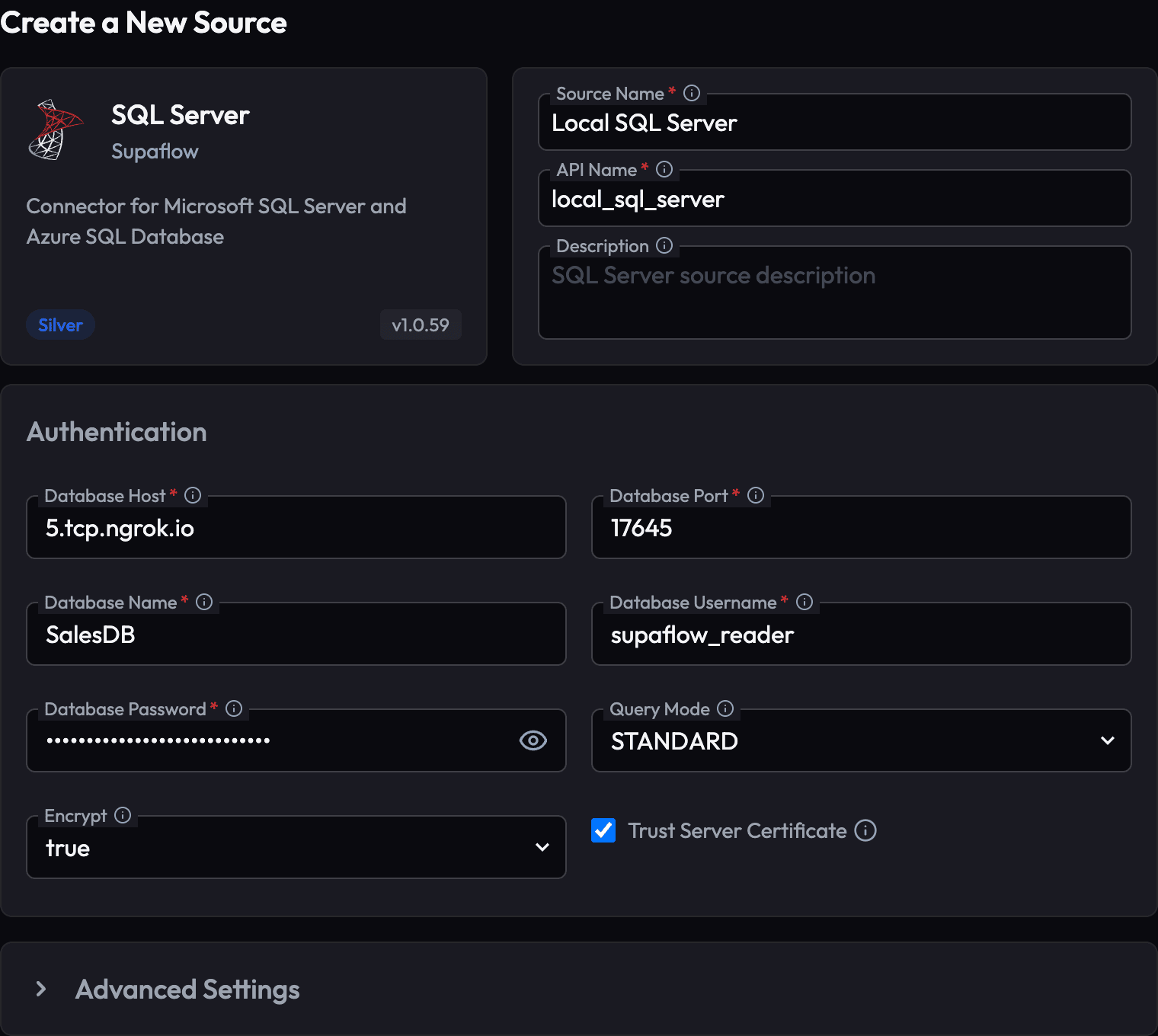
Click Test Connection. If SQL Server is listening on TCP and the login works locally, the test passes -- Supaflow connects to ngrok's relay, and the relay forwards to your machine.
Keep in mind
On the free plan, the forwarding address changes every time you restart ngrok. When it does, edit the datasource and update Database Host and Database Port -- everything else stays the same. Paid plans offer reserved TCP addresses that stay fixed.
Option 2: bore
bore is a small open-source tunneling tool written in Rust. There is no account, no authtoken, and no dashboard -- one command against the free public relay at bore.pub.
Start the tunnel
Install it with brew install bore-cli (macOS) or cargo install bore-cli (anywhere with a Rust toolchain), then:
bore local 1433 --to bore.pub
bore prints the assigned endpoint:
INFO bore_cli::client: connected to server remote_port=33417
INFO bore_cli::client: listening at bore.pub:33417
The same reading rule applies as with ngrok:
| Part of the bore output | Goes into this Supaflow field |
|---|---|
bore.pub | Database Host |
33417 | Database Port |
Again: the Supaflow port is the tunnel's public port (33417), never your local 1433.
Create the datasource
The form is identical to the ngrok case except for the endpoint values -- host bore.pub, port 33417, and Trust Server Certificate enabled:
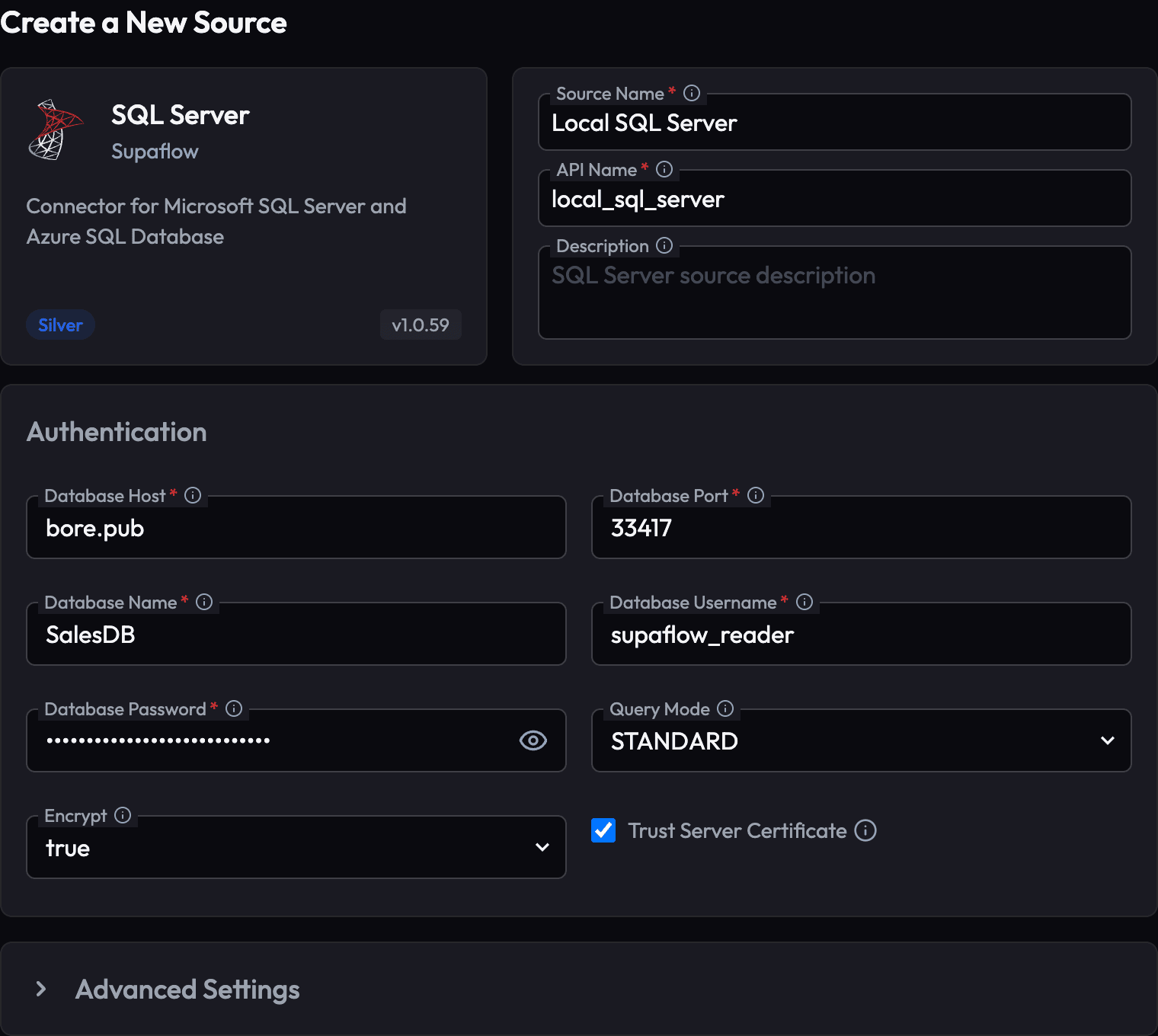
Keep in mind
- bore assigns a random port each run. You can request a specific one with
bore local 1433 --to bore.pub --port 41433, which succeeds if the port is free -- handy for keeping the datasource config stable across restarts. - Treat
bore.pubas an untrusted middleman. With Trust Server Certificate enabled, the connection is encrypted but the server's identity is never verified -- so whoever operates the relay could, in principle, impersonate your SQL Server. That trade-off is fine for a disposable test database with throwaway credentials; it is not fine for real data. bore.pubis also a free community relay with no uptime guarantees. If you need a controlled relay for extended testing, self-host bore: runbore serveron a small VPS you control and tunnel to that instead -- that removes both the trust and the availability concern.
ngrok or bore?
| ngrok | bore | |
|---|---|---|
| Account required | Yes (free tier, card verification for TCP) | No |
| Install | Binary download, brew, choco | brew, cargo |
| Stable endpoint | Paid plans (reserved TCP address) | --port flag (best effort) or self-host |
| Relay infrastructure | Managed, global | Community relay or self-hosted |
| Best for | Managed POC connectivity tests | Quick experiments and open-source POCs |
Security Notes
A tunnel makes your database reachable from the public internet for as long as it runs. Treat that with respect:
- Strong password, least privilege. The tunnel endpoint is guessable-by-scanning; without an IP allowlist (below), your SQL login is the only gate. Use a long random password and a read-only login scoped to one database.
- Run the tunnel only when you need it. Start it before a sync or while developing, stop it after. With ngrok's free tier the endpoint changes anyway, so there is no benefit to leaving it up.
- This is a POC pattern. For production, deploy a self-hosted Docker Agent inside the database's private network rather than routing pipelines through a temporary tunnel from a workstation.
Restrict the Tunnel to Supaflow's IP
Supaflow's hosted agents connect from a single egress IP -- 18.214.240.61, the same address the in-app setup guide tells you to whitelist. Locking the tunnel down to that IP turns "anyone who finds the endpoint" into "only Supaflow".
One thing that does not work: your own machine's firewall. By the time a connection reaches SQL Server it arrives from the local tunnel agent, not from the original caller, so the filtering has to happen at the tunnel's public edge.
ngrok supports this natively through a Traffic Policy. Save this as policy.yml:
on_tcp_connect:
  - actions:
      - type: restrict-ips
        config:
          enforce: true
          allow:
            - 18.214.240.61/32
Then start the tunnel with the policy attached:
ngrok tcp 1433 --traffic-policy-file policy.yml
Connections from any other address are closed before they ever reach your machine.
bore has no source-IP filtering, and on the shared bore.pub relay you cannot add any. If you want an allowlist with bore, self-host the relay: run bore server --min-port 41000 --max-port 41010 on a small VPS you control, and use that machine's firewall or cloud security group to allow inbound connections on the tunnel port range from 18.214.240.61 only.
Get Started
For a POC, sign up at app.supa-flow.io, start a tunnel, and your local SQL Server is a Supaflow source two minutes later. For production, move the connection to a self-hosted Docker Agent inside the database's private network. For full connector details, see the SQL Server source docs and the pipeline configuration guide. To replicate into a warehouse, the SQL Server to Snowflake guide picks up where this one ends. Questions? Reach out at support@supa-flow.io.
 Ask Claude