How to Export Salesforce Marketing Cloud Data to Snowflake

Salesforce Marketing Cloud Engagement stores useful analytics data across Data Extensions, subscribers, sends, journeys, and system Data Views such as _Sent, _Open, and _Click. Moving that data into Snowflake gives marketing, revenue, and data teams one place to analyze engagement alongside CRM, product, and transaction data.
The timing matters. Salesforce keeps only the most recent 180 days in Automation Studio Data Views. If you need a durable history, start exporting before older engagement records age out.
This guide shows how to export Salesforce Marketing Cloud data with Supaflow's SFMC-to-Snowflake connector, including the Installed Package permissions, the connector settings visible in the app, the objects to select, and the checks to run after the first load.
The Short Answer
To export Salesforce Marketing Cloud data to Snowflake:
- Create a server-to-server API integration in an SFMC Installed Package.
- Grant read access to the Marketing Cloud data you need. Grant Automation and Data Extension write access if you want Supaflow to sync Data Views.
- Create a Snowflake destination in Supaflow.
- Create a Salesforce Marketing Cloud source with the package Client ID, Client Secret, and tenant subdomain.
- Keep Sync Data Views enabled for a consolidated email engagement table, then select the Data Extensions and standard objects you need.
- Run the initial load, schedule incremental syncs, and validate event coverage in Snowflake.
This replaces the native multi-step pattern of querying Data Views into a Data Extension, extracting a file, transferring it to SFTP, and loading that file into the warehouse.
What You Will Build
The finished pipeline looks like this:
Salesforce Marketing Cloud Engagement
  ├─ Data Views: sends, opens, clicks, bounces, unsubscribes, complaints
  ├─ Data Extensions: local, shared, and Salesforce-synchronized
  ├─ Subscribers, lists, sends, campaigns, and email definitions
  └─ Journey Builder metadata
                         │
                         ▼
                  Supaflow pipeline
                         │
                         ▼
                      Snowflake
With Data Views enabled, Supaflow consolidates _Sent, _Open, _Click, _Bounce, _Unsubscribe, and _Complaint into one event object with an event_type discriminator. Jobs, journeys, subscribers, SMS tracking, and other available Data Views remain separate objects. Each selected Data Extension lands as its own table.
SFMC Export Options Compared
There is no single native “export everything to Snowflake” button in Marketing Cloud Engagement. The main approaches solve different problems.
| Approach | Automation | Best for | Main tradeoff |
|---|---|---|---|
| Manual CSV export | No | One-time investigation | Repetitive and easy to miss data |
| SQL Query Activity + Data Extension + extract + SFTP | Yes | Teams that want an SFMC-native file workflow | Multiple activities, files, and handoffs to maintain |
| Tracking Extract | Yes | Bulk tracking files | Different output and modeling path from Data Views |
| Custom REST/SOAP integration | Yes | Highly specialized engineering requirements | You own authentication, pagination, retries, schema changes, and loading |
| Managed SFMC-to-Snowflake pipeline | Yes | Ongoing analytics and warehouse history | Requires a connector and destination configuration |
Google's current results for “SFMC data views export to data warehouse” describe the SQL-to-Data-Extension-to-SFTP workflow. A managed pipeline is useful when you want the same source data in Snowflake without operating that chain yourself.
Marketing Cloud Engagement is not Salesforce Data Cloud
Search results often mix these products together. This guide covers Salesforce Marketing Cloud Engagement, including Email Studio, Automation Studio, Journey Builder, Data Extensions, and engagement tracking.
Salesforce Data Cloud has separate Snowflake data-sharing capabilities. A Data Cloud sharing guide will not tell you how to export Marketing Cloud Engagement Data Views such as _Open or _Click.
Know the Retention Window Before You Start
Salesforce currently documents three important retention behaviors:
- Automation Studio Data Views contain the most recent 180 days.
- Send and engagement data has a broader 730-day retention and access policy beginning June 16, 2025, but that does not extend the 180-day Data View window.
- User-created Data Extensions have no general platform retention limit unless you configure a retention policy on the Data Extension.
See Salesforce's current Data Retention Limits and Guidelines before choosing a historical start date.
A Snowflake pipeline preserves the records it has already loaded even after they age out of an SFMC Data View. It cannot recover records that were already inaccessible before the first successful export. Load any older files or archives as a separate backfill.
Prerequisites
You need:
- An active Supaflow account
- Access to Salesforce Marketing Cloud Engagement
- Permission to administer Installed Packages in SFMC
- A Snowflake account, warehouse, database, schema, and loading role
- Network access allowed between Supaflow and Snowflake
- A decision about which Business Units, Data Extensions, and engagement events belong in the first sync
Salesforce says creating an API integration requires the Installed Package | Administer permission. Its API Integration documentation also explains where to find the Client ID, Client Secret, and Authentication Base URI.
Step 1: Decide What to Export
Start with the reporting questions, not the complete object catalog.
For email performance and attribution, select:
- The consolidated
eventobject for sends, opens, clicks, bounces, unsubscribes, and complaints data_view_jobfor email name, subject, sender, and send-job contextjourneyand the available Journey Data Views for journey contextsubscribersordata_view_subscriberswhen subscriber status is required- The Data Extensions that contain campaign audience, customer, or conversion attributes
For a first load, include one high-volume event object and one representative Data Extension. That gives you a realistic test of both tracking data and tenant-specific custom fields before you expand the pipeline.
Step 2: Create the SFMC Installed Package
In Marketing Cloud Engagement:
- Go to Setup > Platform Tools > Apps > Installed Packages.
- Click New, name the package, and save it.
- Click Add Component and choose API Integration.
- Choose Server-to-Server.
- Grant only the scopes needed for the objects you will sync.
For the connector coverage in this guide, configure read access for Data Extensions, Contacts, Journeys, Email, Tracking Events, and the other selected surfaces. If Sync Data Views will remain enabled, also grant:
- Automations: Read, Write, Execute
- Data Extensions: Read, Write
Supaflow uses those permissions to automate the Data View extraction workflow. Salesforce recommends assigning only the scopes an integration needs; review its API Integration Permission Scopes when applying least privilege.
After saving the component, copy these three values into your approved secret-management workflow:
- Client ID
- Client Secret
- Tenant subdomain
The subdomain is the mc... value in the tenant-specific Authentication, REST, or SOAP URI. Do not paste the entire URL into Supaflow. Salesforce's tenant-specific endpoint guide explains where to find it.
For enterprise accounts, authorize the server-to-server integration for every Business Unit it must access. Salesforce notes that access tokens operate in a Business Unit context and that the target MID can be supplied as account_id.
Step 3: Create the Snowflake Destination
In Supaflow, open Destinations, click Create Destination, and choose Snowflake.
The current form defaults to key-pair authentication. Enter:
- Username
- Private Key and an optional Private Key Passphrase
- Account Identifier
- Warehouse
- Database
- Schema
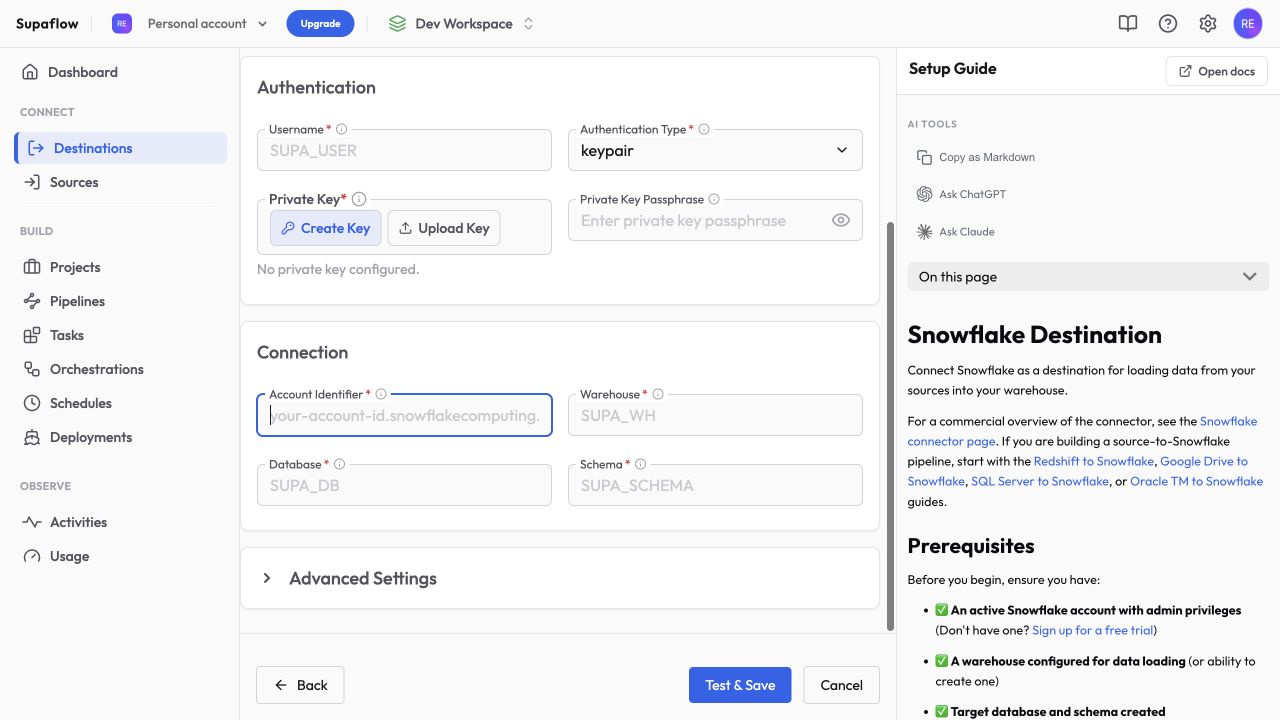
The destination role needs permission to use the warehouse and to create and load tables in the target schema. Follow the generated setup guide shown beside the form, then click Test & Save.
The complete role, key-pair, and network setup is in the Snowflake destination documentation.
Step 4: Create the Salesforce Marketing Cloud Source
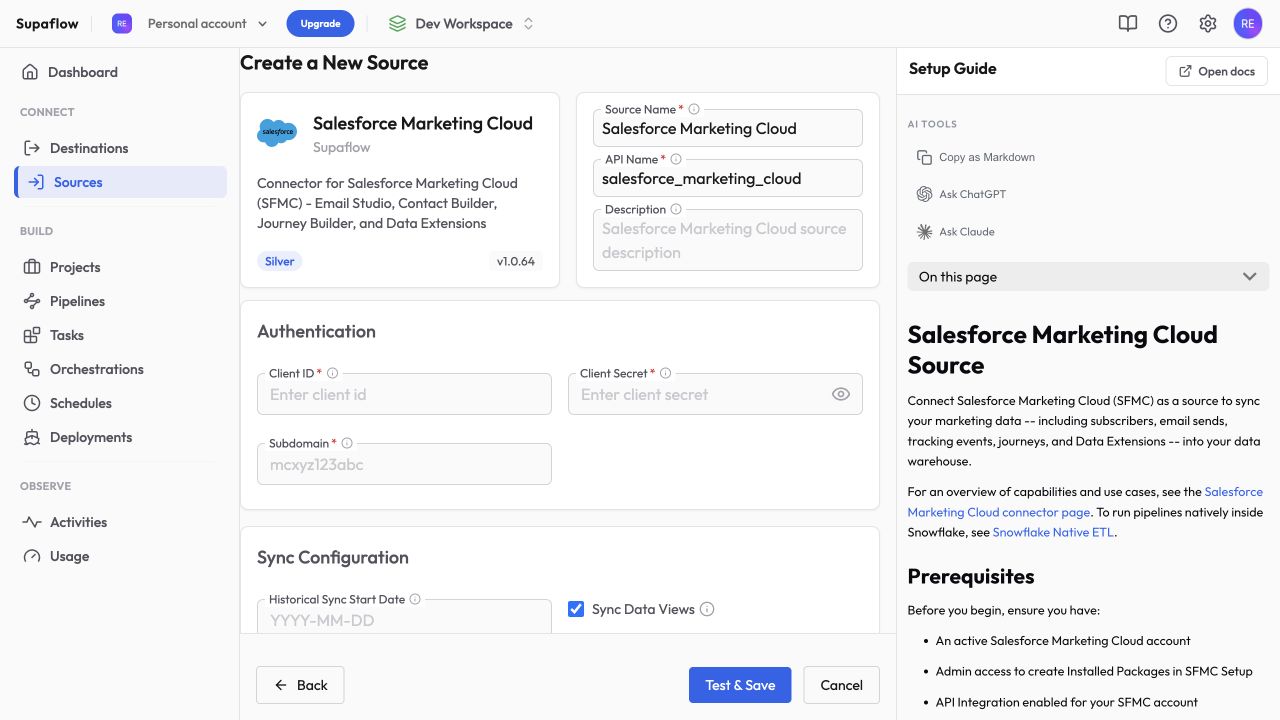
Open Sources, click Create Source, and choose Salesforce Marketing Cloud.
Enter the package credentials:
- Client ID
- Client Secret
- Subdomain -- only the tenant's
mc...value
Then set Historical Sync Start Date. If you leave it blank, the connector defaults to the first day of the month 180 days ago. For Data Views, keep the date inside Salesforce's accessible retention window.
Leave Sync Data Views enabled when you want the consolidated engagement-event model.
When to disable Sync Data Views
Disable it when the Installed Package cannot create the Automation Studio resources required for Data View extraction or when you intentionally want the standard tracking event objects as separate tables.
With Data Views disabled, Supaflow exposes separate incremental objects for sent, open, click, bounce, unsubscribe, and not-sent events. This is a fallback data model, not a switch that extends Salesforce's Data View retention period.
Step 5: Review the Advanced SFMC Settings
The visible defaults in the current app are:
| Setting | Default | What to do |
|---|---|---|
| Include Shared Data Extensions | Enabled | Keep enabled if enterprise-shared DEs are in scope |
| Include Salesforce Data Extensions | Enabled | Keep enabled for DEs synchronized through Marketing Cloud Connect |
| Page Size | 2,500 | Use the default unless troubleshooting a specific endpoint |
| Rate Limit Per Second | 10 | Lower it if other integrations share the SFMC API allowance |
| Max Retries | 5 | Keep the default for transient failures |
| Connection Timeout | 30 seconds | Increase only for a confirmed connection issue |
| Read Timeout | 60 seconds | Increase for slow responses after checking SFMC status |
| Schema Refresh Interval | 60 minutes | Set to 0 for discovery before every run or -1 to disable automatic refresh |
| Lookback Time Seconds | 0 | Consider 300–600 seconds for late-arriving events in production |
Account ID MID is optional. Add it when you need explicit Business Unit context or correct classification of shared Data Extensions.
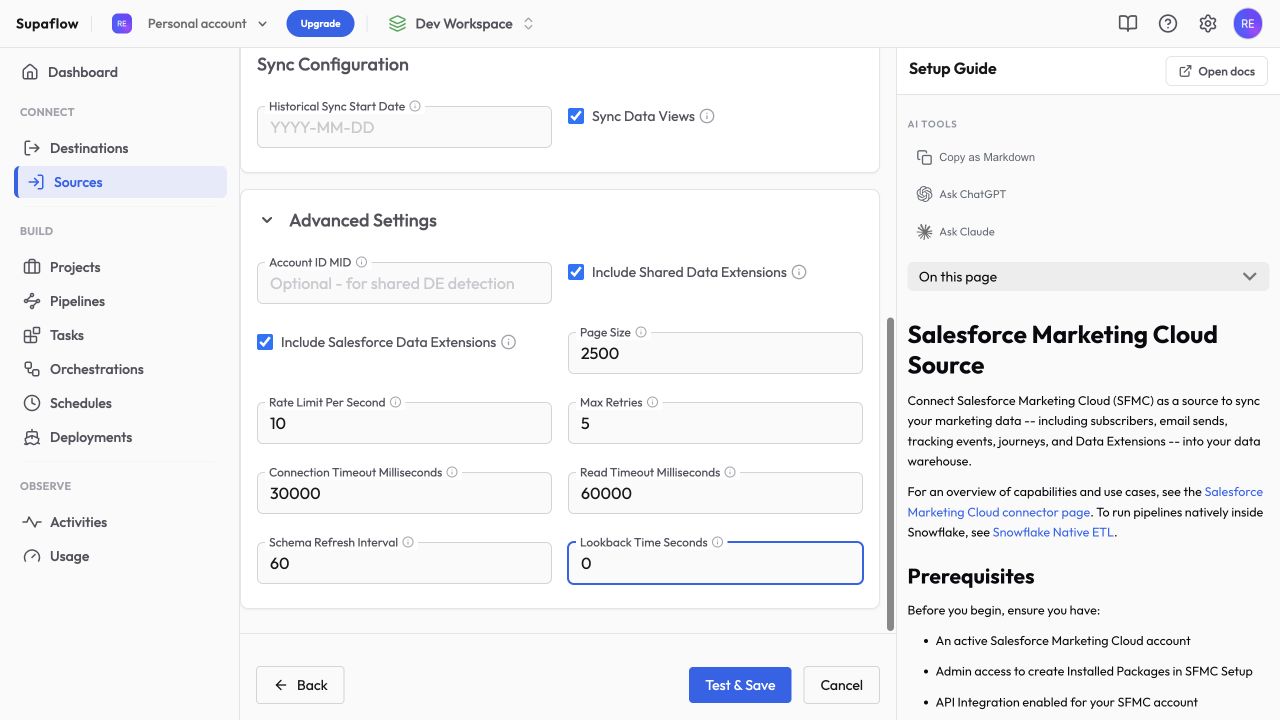
Click Test & Save. If authentication succeeds but expected Data Extensions are missing, check the package's Business Unit access and the Data Extensions read scope before changing pagination or timeout settings.
Step 6: Create and Run the Pipeline
Create or open a Supaflow project that uses the Snowflake destination, then create a pipeline with the Salesforce Marketing Cloud source.
For the first run:
- Select the
eventobject, keep itsURLfield selected for link-level click identity, and adddata_view_jobplus one representative Data Extension. - Use a historical-plus-incremental ingestion mode for objects that expose a reliable cursor.
- Load into a dedicated Snowflake schema or namespace so the first run is easy to inspect and remove.
- Run the pipeline manually before adding a schedule.
- Open Activities and confirm that each selected object completed and loaded records.
After validation, add the remaining objects in waves. Schedule the pipeline frequently enough to meet reporting needs and comfortably inside the source's retention and operational limits.
Data Extensions are refreshed because SFMC does not expose a universal, reliable modification timestamp for every custom table. High-volume tracking objects use windowed or incremental reads where the source supports them.
Step 7: Validate the Snowflake Data
A successful job is necessary, but it is not a complete data-quality check.
Check event types and date coverage
Run a query against the loaded engagement table, adjusting the database, schema, table, and identifier casing to match your pipeline:
SELECT
  event_type,
  COUNT(*) AS event_count,
  MIN("EventDate") AS first_event,
  MAX("EventDate") AS latest_event
FROM ANALYTICS.SFMC.EVENT
GROUP BY event_type
ORDER BY event_type;
Expect only the event types that exist in the selected period. An account can legitimately have no complaints or unsubscribes in a small test window.
Check record identity
The consolidated table includes an id for deduplication. Compare total and distinct IDs:
SELECT
  COUNT(*) AS row_count,
  COUNT(DISTINCT id) AS distinct_event_ids
FROM ANALYTICS.SFMC.EVENT;
Investigate a mismatch before building attribution metrics. For click events, the connector adds link-level information to id only when the URL field is selected. Keep URL in the pipeline when separate links must remain distinct.
Reconcile against SFMC
Choose one completed send and compare:
- Send count
- Unique and total opens
- Unique and total clicks
- Bounces
- Unsubscribes
Use the same Job ID, Business Unit, and event-date boundary on both sides. SFMC timestamps and warehouse timestamps can be represented in different time zones, so compare an explicit closed interval rather than “today.”
Validate Data Extensions separately
For each selected Data Extension, compare:
- Total rows
- Primary-key or composite-key uniqueness
- Null counts on required business fields
- A sample of high-value records
- The source retention policy
Do not join a Data Extension to engagement events until you have confirmed the intended key. SubscriberKey, contact keys, CRM IDs, and email addresses are not interchangeable identifiers.
Common Failure Modes
Authentication fails
Verify the Client ID and Client Secret, confirm that the package is enabled, and enter only the tenant subdomain—not the full Authentication Base URI. Permission edits can take several minutes to appear in newly issued tokens.
Data Views fail but standard objects work
The package usually lacks Automation write/execute access or Data Extension write access. Confirm that the account allows Query Activities and Automations, then retry the connection.
Shared Data Extensions are missing
Enable Include Shared Data Extensions, enter the Account ID MID, and verify that the Installed Package is authorized for the parent and child Business Units involved.
The event table starts later than expected
Check the Historical Sync Start Date and the 180-day Data View retention boundary. A connector cannot query Data View rows that SFMC no longer exposes.
Events arrive late
Set Lookback Time Seconds to 300–600 so an incremental run rechecks the tail of the previous window. Deduplication depends on stable event identity, so validate distinct IDs after enabling lookback.
API requests receive 429 errors
Lower Rate Limit Per Second, avoid overlapping heavy automations, and schedule large backfills outside peak SFMC activity. Supaflow retries transient rate limits with backoff, but a lower request cap can reduce repeated throttling.
Frequently Asked Questions
Can Salesforce Marketing Cloud export directly to Snowflake?
Marketing Cloud Engagement does not provide one universal native export that continuously loads every Data View, Data Extension, and Journey object into Snowflake. You can build an Automation Studio and SFTP workflow, write a custom API pipeline, or use a managed connector such as Supaflow.
Which SFMC Data Views does Supaflow consolidate?
The default event object combines _Sent, _Open, _Click, _Bounce, _Unsubscribe, and _Complaint. It adds event_type so the records remain distinguishable. Other supported Data Views appear as separate objects.
Can Supaflow sync custom Data Extensions?
Yes. It discovers standard, shared, Salesforce-synchronized, and synchronized Data Extensions when the package, Business Unit context, and connector settings make them visible.
Can I backfill more than 180 days from Data Views?
Not from Automation Studio Data Views after those rows have aged out. Start the pipeline before the retention boundary and load any older exports or archives separately.
Is this the same as Salesforce Data Cloud to Snowflake sharing?
No. Data Cloud sharing is a different product path. This guide covers Marketing Cloud Engagement data such as Email Studio tracking, Journey Builder metadata, subscribers, and Data Extensions.
Build the Warehouse History Before the Window Closes
The hardest part of SFMC analytics is not loading one CSV. It is preserving a consistent engagement history across Data Views, custom Data Extensions, Business Units, and changing schemas.
Start with one representative send and one Data Extension, validate the model in Snowflake, and then expand in waves. The Salesforce Marketing Cloud source documentation has the complete object catalog and troubleshooting reference, while the SFMC-to-Snowflake connector page summarizes the production architecture and connector capabilities.
 Ask Claude