SQL Server Destination
Connect Microsoft SQL Server, Azure SQL Database, or Microsoft Fabric Warehouse as a destination for data loaded from supported Supaflow sources.
For Microsoft Fabric Warehouse, first follow Prepare Microsoft Fabric Warehouse for Supaflow to create the service principal and configure Fabric access. See the Microsoft Fabric Warehouse connector overview for capabilities and use cases.
Prerequisites
For SQL Server and Azure SQL Database, ensure you have:
- A SQL Server instance (SQL Server 2016 or higher, or Azure SQL Database)
- Network connectivity between Supaflow and your SQL Server
- A database user that can create schemas and tables and write data (see below) -- a read-only login is not sufficient for a destination
- Firewall configured to allow connections from Supaflow IP
For Fabric Warehouse, use an active capacity-backed Warehouse and grant the service principal the Contributor workspace role as described in the setup guide.
Add the Supaflow IP to your firewall rules:
18.214.240.61
Azure SQL Database: This is a mandatory step. In the Azure portal, go to your SQL server > Networking > Firewall rules and add the IP above. Without this, connections will be refused.
On-premises SQL Server: Add the IP to your Windows Firewall or network security group if inbound connections are restricted.
Create a dedicated user for Supaflow with permission to create schemas and tables and write data. The simplest setup grants db_owner on the target database; for least privilege, grant the three roles shown in the last example.
On-premises SQL Server (db_owner):
USE [master];
CREATE LOGIN supaflow_writer WITH PASSWORD = 'your_secure_password';

USE [your_database];
CREATE USER supaflow_writer FOR LOGIN supaflow_writer;
ALTER ROLE db_owner ADD MEMBER supaflow_writer;
Azure SQL Database (contained user, db_owner):
USE [your_database];
CREATE USER supaflow_writer WITH PASSWORD = 'your_secure_password';
ALTER ROLE db_owner ADD MEMBER supaflow_writer;
Least privilege (instead of db_owner): grant the roles that let Supaflow create objects, write rows, and read for incremental loads:
ALTER ROLE db_ddladmin ADD MEMBER supaflow_writer;    -- create and alter schemas/tables
ALTER ROLE db_datawriter ADD MEMBER supaflow_writer;  -- insert and update rows
ALTER ROLE db_datareader ADD MEMBER supaflow_writer;  -- read for incremental loads
Replace your_database and the password with your actual values.
Microsoft Entra Service Principal for Azure SQL
Azure SQL Database grants data and schema access inside the target database. The app registration supplies the connector identity; the database user and database roles supply its permissions.
Do not add Microsoft Graph or Azure Resource Manager permissions on the app's API permissions page for a normal Azure SQL connector connection. Those permissions do not grant access to database data or schemas.
1. Register the application
- In the Microsoft Entra admin center, select Identity > Applications > App registrations.
- Select New registration.
- Enter a descriptive, unique name such as
Supaflow Azure SQL Connector. - Under Supported account types, select Accounts in this organizational directory only. For this setup, create the application in the same Entra tenant that is configured for the Azure SQL logical server.
- Leave Redirect URI blank and select Register.
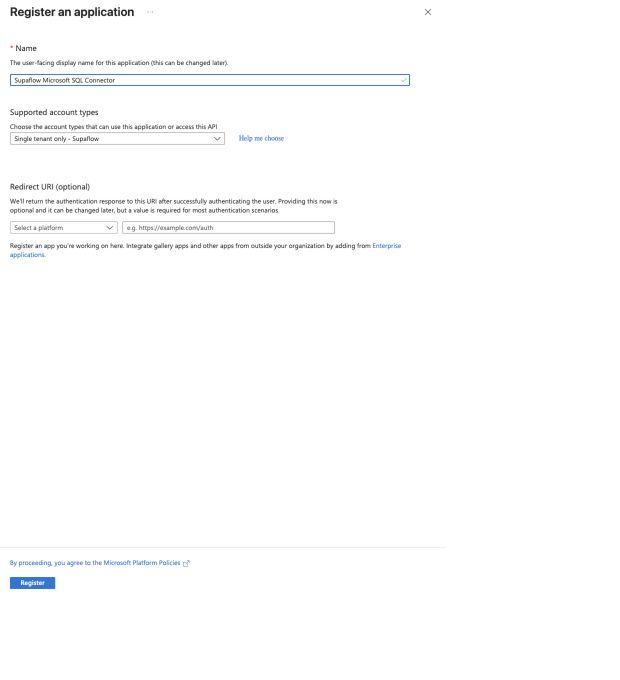
On the application's Overview page, record:
- Application (client) ID -- enter this as Client Application ID in Supaflow.
- Directory (tenant) ID -- enter this as Tenant ID in Supaflow.
Do not use the Object ID in place of either value.
2. Create a client secret
- In the app registration, select Certificates & secrets > Client secrets.
- Select New client secret.
- Enter a description, choose an expiration period allowed by your security policy, and select Add.
- Copy the secret's Value immediately. Microsoft displays it only once. Enter the Value, not the Secret ID, as Client Secret in Supaflow.

Store the secret in your approved secret manager and schedule its rotation before it expires.
3. Configure the Azure SQL Entra administrator
- In the Azure portal, open the Azure SQL logical server that contains the destination database.
- Select Settings > Microsoft Entra ID.
- Set an Entra user or group that your database administrator can use, then save the configuration.
This administrator is used to create the connector's contained database user. It is separate from the connector application.
4. Create the database user and grant roles
- Open the intended destination SQL database, not the
masterdatabase. - Select Query editor (preview) and connect with Microsoft Entra authentication as the configured Entra administrator.
- Replace
app-namebelow with the app registration's display name, then run:
CREATE USER [app-name]
FROM EXTERNAL PROVIDER;

ALTER ROLE db_datareader
ADD MEMBER [app-name];

ALTER ROLE db_datawriter
ADD MEMBER [app-name];

ALTER ROLE db_ddladmin
ADD MEMBER [app-name];
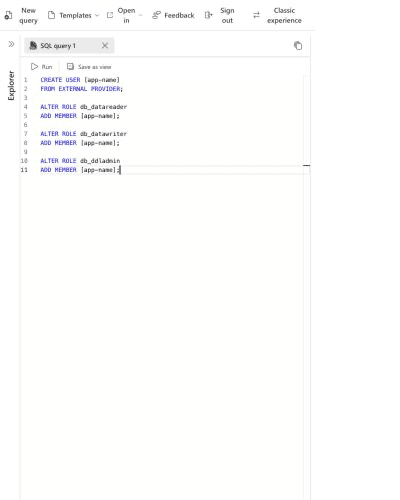
These roles allow the destination to read existing rows, write data, and create or alter database objects. They do not grant ownership of the database or permission to manage the Azure SQL logical server. Use a dedicated destination database when your access policy does not allow database-wide DDL privileges.
Verify the user and its role memberships before configuring the connector:
SELECT r.name AS role_name
FROM sys.database_role_members AS m
JOIN sys.database_principals AS r
    ON m.role_principal_id = r.principal_id
JOIN sys.database_principals AS u
    ON m.member_principal_id = u.principal_id
WHERE u.name = 'app-name'
ORDER BY r.name;
The result should include db_datareader, db_datawriter, and db_ddladmin.
5. Configure Supaflow
Create the SQL Server destination with these values:
- Database Host: the Azure SQL logical-server hostname, such as
myserver.database.windows.net. - Database Port:
1433, unless your endpoint uses a different port. - Database Name: the database in which you created the user.
- Authentication Method: Entra Service Principal.
- Tenant ID: the app registration's Directory (tenant) ID.
- Client Application ID: the app registration's Application (client) ID.
- Client Secret: the client-secret Value.
- Fabric Workspace ID: leave blank for Azure SQL Database.
- Database Flavor: Auto or SQL Server.
- Encrypt: enabled.
- Trust Server Certificate: disabled for Azure SQL.
Select Test & Save. A successful test confirms that Supaflow can authenticate and connect; the database roles are also required when the first load creates and writes destination objects.
For current Azure SQL requirements, see Configure Microsoft Entra authentication and Create database users.
Configuration
Step 1: Connection
Database Host*SQL Server hostname or IP address
Example: myserver.database.windows.net (Azure), db.example.com, 192.168.1.100
Port on which SQL Server is listening
Default: 1433
Name of the target database to load into
Example: analytics_db; for Fabric, use the Warehouse item name
Authentication used for the connection
Options: SQL Password (default), Entra Service Principal
Fabric Warehouse requires Entra Service Principal
Username for SQL Password authentication
Required for SQL Password; example: supaflow_writer
Password for SQL Password authentication
Required for SQL Password; stored encrypted
The following fields appear when Authentication Method is Entra Service Principal:
Tenant ID*Directory ID of the Microsoft Entra tenant that owns the application
Client Application ID*Application (client) ID of the Microsoft Entra service principal
Client Secret*Client-secret value for the Microsoft Entra service principal
Stored encrypted; enter the secret value, not the Secret ID
Workspace identifier used to initialize Fabric service-principal access
Required for Fabric Warehouse; find it after /groups/ in the Fabric workspace URL. Leave blank for SQL Server and Azure SQL Database.
Whether to encrypt the connection to SQL Server
Options: true (default), false, strict
Keep true for Azure SQL Database and Fabric Warehouse; use strict for supported TDS 8.0 endpoints
Trust the server certificate without validation
Default: unchecked (false)
Enable only for self-signed certificates or development environments
Step 2: Advanced Settings (Optional)
Noop QueryQuery to test connectivity without returning data
Default: SELECT 1
Additional JDBC connection parameters
Format: key=value pairs separated by semicolons
Example: loginTimeout=30
Select the database behavior to use
Options: Auto (default), SQL Server, Fabric Warehouse
Keep Auto for standard Fabric hostnames; force Fabric Warehouse only for custom DNS or proxy endpoints
Step 3: Test & Save
After configuring all required properties, click Test & Save to verify the connection and save the destination.
Schema Evolution
Supaflow creates the target schema and tables on the first load and keeps them in step with your source:
- New columns in the source are added to the destination table
- New tables are created when you add objects to the pipeline
- Type widening is applied when a source column's type grows in SQL Server or Azure SQL Database
- Removed columns are kept in the destination; existing data is not dropped
Keeping the destination in step requires the user to create and alter its own tables, which is why the destination user needs the privileges listed in Prerequisites.
Fabric Warehouse supports adding new nullable columns. Existing-column type changes fail validation instead of applying an unsupported change.
Microsoft Fabric Destination Behavior
- Use a Fabric Warehouse item. A Lakehouse SQL analytics endpoint is read-only and cannot be used as a destination.
- Set Error Handling Mode to Abort on Any Error (
STRICT). Fabric direct bulk copy does not support Continue with Warnings (MODERATE) and rejects that configuration before loading data. - Leave Perform Hard Deletes disabled. Fabric destination loads fail before writing data when physical hard deletes are enabled.
- Concurrent pipelines writing the same target table are unsupported. Fabric may reject one of the writers with a concurrency error.
- Keep Database Flavor set to Auto for standard Fabric hostnames and keep connection encryption enabled.
Troubleshooting
Common issues and their solutions:
Insufficient permissions
Problem:
- "CREATE SCHEMA permission denied" or "CREATE TABLE permission denied"
- The connection test passes but loads fail with a permission error
Solutions:
- Confirm the user can create and write objects. A read-only login (only
db_datareaderorSELECT) cannot create schemas or tables. Grantdb_owner, ordb_ddladmin+db_datawriter+db_datareader:ALTER ROLE db_ddladmin ADD MEMBER supaflow_writer;
ALTER ROLE db_datawriter ADD MEMBER supaflow_writer;
ALTER ROLE db_datareader ADD MEMBER supaflow_writer; - Verify role membership:
SELECT r.name AS role_name
FROM sys.database_role_members m
JOIN sys.database_principals r ON m.role_principal_id = r.principal_id
JOIN sys.database_principals u ON m.member_principal_id = u.principal_id
WHERE u.name = 'supaflow_writer'; - Azure SQL: make sure you created the user in the target database, not
master.
Connection refused
Problem:
- Cannot connect to SQL Server
- "Connection refused" or network timeout error
Solutions:
- Verify firewall rules:
- Add Supaflow IP (18.214.240.61) to allowed IPs
- For Azure SQL: add it under Networking > Firewall rules in the Azure portal
- For on-premises: check Windows Firewall and network security groups
- Check SQL Server is reachable on the configured host and port (default 1433), and that TCP/IP is enabled.
Authentication failed
Problem:
- "Login failed for user"
- Error 18456
Solutions:
- Verify the username and password.
- On-premises: SQL Server must allow SQL Server authentication (mixed mode).
- Azure SQL: confirm the user exists in the target database:
SELECT name FROM sys.database_principals WHERE name = 'supaflow_writer'; - Entra Service Principal: confirm all of the following:
- The application was created in the Entra tenant configured for the Azure SQL logical server.
- Tenant ID is the Directory (tenant) ID, and Client Application ID is the Application (client) ID, not an Object ID.
- Client Secret contains the secret Value, not the Secret ID, and the secret has not expired.
- The contained user was created in the configured destination database, not
master. - Fabric Workspace ID is blank for Azure SQL Database.
TLS / encryption errors
Problem:
- "The driver could not establish a secure connection"
- Certificate verification errors
Solutions:
- Azure SQL requires encryption -- keep Encrypt set to
true. - On-premises with a self-signed certificate: enable Trust Server Certificate, or set Encrypt to
falsefor testing only. - Strict TLS (TDS 8.0): set Encrypt to
strict(requires SQL Server 2022 or Azure SQL with a properly signed certificate).
Fabric destination load fails
Problem:
- The connection test succeeds but a load reports a read-only endpoint, unsupported schema change, hard-delete, or concurrency error
Solutions:
- Confirm the connection uses a Fabric Warehouse item rather than a Lakehouse SQL analytics endpoint.
- Grant the service principal the Contributor workspace role and verify Database Name exactly matches the Warehouse item name.
- Set Error Handling Mode to Abort on Any Error (
STRICT). - Leave Perform Hard Deletes disabled.
- Allow only one pipeline at a time to write a given target table.
- Add new columns as nullable. For an existing-column type change, update the target deliberately or load into a new table.
Related Pages
- SQL Server connector overview
- Microsoft Fabric Warehouse connector overview
- Prepare Microsoft Fabric Warehouse
- SQL Server source
- Create an ingestion pipeline
Support
Need help? Contact us at support@supa-flow.io
 Ask Claude