Google BigQuery Destination
Use Google BigQuery as a destination for data loaded from any supported Supaflow source.
For capabilities and use cases, see the Google BigQuery connector overview. To replicate data out of BigQuery, see Google BigQuery Source.
Prerequisites
Before you begin, ensure you have:
- A billing-enabled Google Cloud project with the BigQuery API enabled
- The Cloud Storage API enabled in the project that owns the staging bucket
- A dedicated BigQuery data project, recommended because Supaflow's default namespace rules can create datasets from each pipeline's prefix and source namespaces
- A default BigQuery dataset in the destination location
- A BigQuery location that matches the destination dataset and staging bucket
- An existing, customer-owned Cloud Storage bucket for destination staging
- A supported Google Cloud identity with permission to create jobs, create and manage destination datasets, and use the staging bucket
Default Dataset and GCS Staging Bucket are required for destination use. The default dataset is a fallback and is the target when a pipeline uses Destination Defined namespace rules. With the default namespace rules, Supaflow creates pipeline-derived datasets such as salesforce and salesforce_2. Supaflow does not create or substitute a managed staging bucket.
If you need to create the project, dataset, bucket, or IAM grants, follow Prepare Google Cloud for a BigQuery Destination. That companion guide includes console screenshots, a CLI handoff, and an end-to-end validation checklist.
Authentication
Supaflow-managed service account (recommended)
- Create the Google BigQuery destination in Supaflow and leave Authentication Method set to managed service account.
- Copy the pre-filled Service Account Email. The field is read-only in Supaflow.
- Grant that identity the project and bucket roles in Destination IAM.
- Return to Supaflow and click Test & Save.
Supaflow manages short-lived credentials for this identity. Supaflow-hosted customers do not run gcloud auth or upload a key for the managed-service-account path.
Customer service-account key
Choose service account only when your organization deliberately uses a user-managed service-account key. Upload the complete JSON credential through Service Account Key. Supaflow stores the credential encrypted.
Google recommends avoiding user-managed keys where a managed identity is available. Review Google's service-account key guidance before choosing this method.
Application Default Credentials
Choose ADC only for a private or self-hosted agent whose runtime already provides Application Default Credentials. This is not part of the Supaflow-hosted setup path.
gcloud auth login authenticates the Google Cloud CLI; it does not configure ADC for an agent runtime. Use the identity mechanism approved for the host where the agent runs, preferably an attached service account rather than a local key.
Destination IAM
Grant the connector identity only the access required for the destination. Google's BigQuery IAM and Cloud Storage IAM references describe the permissions included in each role.
| Scope | Google Cloud role | When required |
|---|---|---|
| BigQuery data project | BigQuery Data Editor (roles/bigquery.dataEditor) | Required by the default namespace behavior to create pipeline-derived datasets and manage their tables |
| Billing/job project | BigQuery Job User (roles/bigquery.jobUser) | Required to create load and query jobs; grant it on Project ID when Billing Project ID is blank |
| Customer-owned staging bucket | Storage Object User (roles/storage.objectUser) | Required to create, read, list, update, and delete staged objects |
| Customer-owned staging bucket | Storage Bucket Viewer (roles/storage.bucketViewer) | Required to read bucket metadata so Supaflow can validate existence and location |
Storage Object User does not include storage.buckets.get. Supaflow validates the bucket with a metadata read, so Storage Bucket Viewer is also required. Both storage roles can be scoped to the staging bucket.
Pipeline datasets and IAM scope
By default, Supaflow derives BigQuery dataset names from the pipeline's destination prefix and the source namespace. For a source without schemas, the first Salesforce pipeline may use salesforce, while another may use salesforce_2. Supaflow creates each required dataset when it does not exist.
Grant BigQuery Data Editor on the BigQuery data project for this default behavior. At project scope, the role includes bigquery.datasets.create and the table permissions required for future pipelines. The dataset-creation permission by itself is not sufficient for destination loading. Because this role applies across the data project, use a dedicated project when you need to isolate Supaflow-managed data from other BigQuery workloads.
If your organization cannot grant project-scoped BigQuery Data Editor, use this restricted alternative for every pipeline that shares the connection:
- Pre-create the dataset entered in Default Dataset.
- Grant BigQuery Data Editor on that dataset to the connector identity.
- Set Destination Namespace Rules to Destination Defined when creating each pipeline.
This alternative keeps all pipeline tables in the configured default dataset. Do not leave a pipeline on the default namespace rules with only dataset-scoped access; it will try to create a pipeline-named dataset and fail.
Location Requirements
Set Location to the BigQuery location used by the destination dataset and jobs. The existing Cloud Storage staging bucket must use a matching location. The connector rejects cross-location loading rather than moving staged data between locations.
Review Google's BigQuery location guidance before creating the dataset and bucket. Multi-region and single-region names must match the resources you configure; for example, US and us-central1 are different locations.
Configure the Staging Bucket
The staging bucket is customer-owned and must already exist. Supaflow writes temporary load objects below GCS Staging Prefix, which defaults to supaflow.
Successful loads remove their staged objects. Failed loads can retain staged evidence for troubleshooting. Configure a Cloud Storage lifecycle rule that deletes objects under the configured prefix after no more than three days as an interrupted- or failed-job backstop. Scope the rule to the prefix so it does not affect unrelated objects.
You retain control of the bucket's IAM, encryption and CMEK, retention policies, soft-delete settings, legal holds, audit logs, and network policies. Ensure those controls still allow the connector identity to stage and remove temporary objects. Retention or hold policies can delay cleanup.
Set Up Google BigQuery as a Destination
For a screenshot-led walkthrough from project creation through Test & Save, use Prepare Google Cloud for a BigQuery Destination.
- In Supaflow, navigate to Destinations and click Create Destination.
- Select Google BigQuery, enter a destination name, and leave Authentication Method set to managed service account for the recommended setup.
- Copy the generated Service Account Email.
- In Google Cloud, create the default dataset and staging bucket in the same location.
- Grant the generated identity BigQuery Data Editor on the BigQuery data project, BigQuery Job User on the billing/job project, and Storage Object User plus Storage Bucket Viewer on the staging bucket.
- Return to Supaflow and enter Project ID, Default Dataset, and Location. Set Billing Project ID only when a different project should own the jobs.
- Under Destination Staging, enter the bucket name without
gs://. Keep the default prefix or enter a dedicated prefix for Supaflow files. - Leave Enable Source Schema Discovery disabled, and leave Additional Source Projects, Dataset Inclusion Patterns, and Dataset Exclusion Patterns blank when this connection is used only as a destination.
- Click Test & Save.
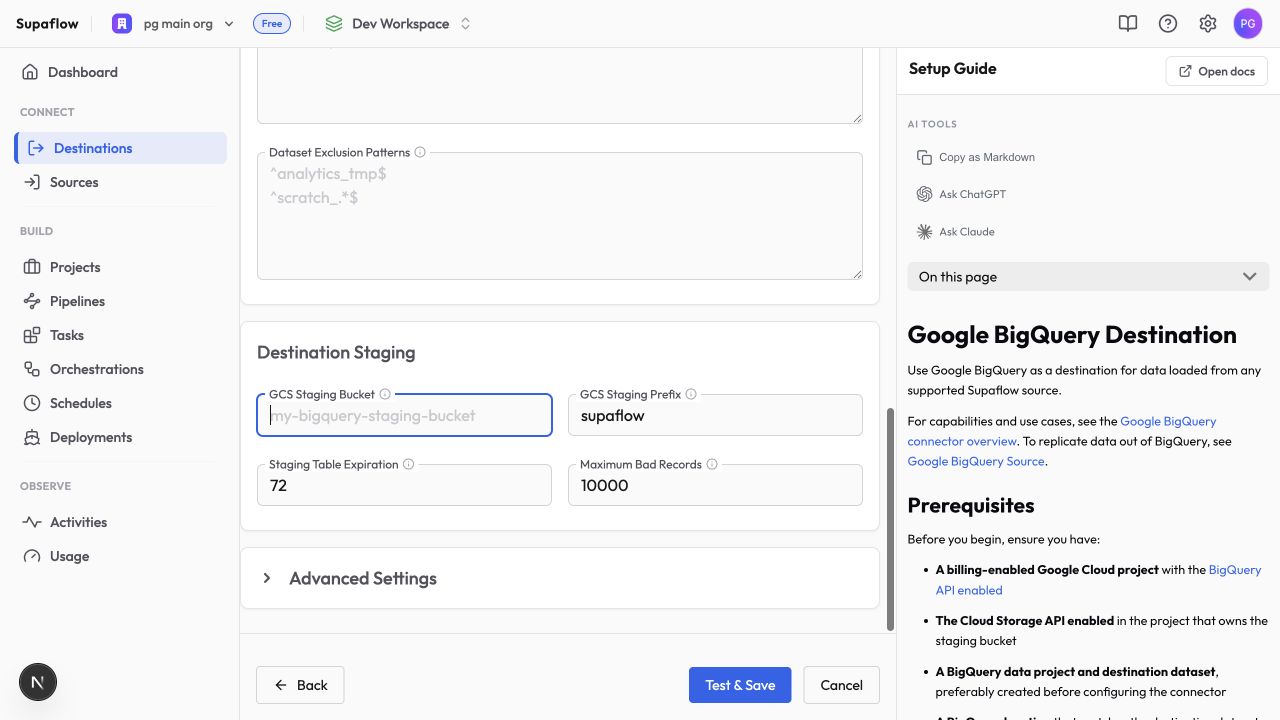
Configuration
Authentication
Authentication Method*Authentication used by the connection
Options: managed service account, service account, ADC; default: managed service account
Complete JSON service-account credential, required only when Authentication Method is service account
Uploaded as a file and stored encrypted
Google Cloud identity generated for managed-service-account authentication
This field is read-only in Supaflow
Connection
Project ID*Default BigQuery data project
Example: my-gcp-project
Project that owns query and load jobs
Defaults to Project ID
Fallback dataset for destination operations; receives pipeline tables when Destination Namespace Rules is Destination Defined
Required for destination use; default namespace rules can create separate pipeline-derived datasets
BigQuery dataset and job location; must match the destination dataset and staging bucket
Examples: US, EU, us-central1
Optional comma-separated projects used only when this connection also acts as a source
Dataset Discovery
Enable Source Schema DiscoveryEnable only when the same connection will also be used as a source. Leave disabled for destination-only connections so schema refreshes skip source catalog discovery.
Default: disabled
Optional source-discovery patterns; does not replace Default Dataset for destination use
Dataset Exclusion PatternsOptional source-discovery exclusions; exclusions take precedence
Destination Staging
GCS Staging Bucket*Existing customer-owned Cloud Storage bucket used for destination staging
Required for destination use
Bucket prefix reserved for Supaflow staging objects
Default: supaflow
Hours before orphaned BigQuery staging tables expire
Default: 72 hours; range: 1-168 hours
Maximum invalid records BigQuery may skip during a load. Supaflow reports the total rejected-row count and up to five error samples returned by BigQuery. Accepted rows may continue according to the pipeline's error-handling mode; exceeding the limit fails the load.
Default: 10,000; minimum: 0
Advanced Settings
Enable High Throughput ReadsAllow the JDBC driver to use the BigQuery Storage Read API when this connection also acts as a source
Default: enabled
Optional per-query billed-byte safeguard
Default: 0, meaning no connector-supplied limit
Maximum BigQuery read or write job runtime in seconds
Default: 0, meaning no connector timeout; maximum: 86,400 seconds
Optional allowlisted, non-secret BigQuery JDBC properties as semicolon-separated key=value pairs
Test & Save
For a destination-only connection, confirm Enable Source Schema Discovery remains disabled before clicking Test & Save. Test & Save verifies authentication, job permissions, default-dataset access, and the staging bucket's existence and location. It does not create a future pipeline's dataset or write a destination table; run a small pipeline to validate the complete write path.
Loading Behavior
With the default namespace rules, Supaflow derives destination dataset names from the pipeline prefix and source namespace and creates them when necessary. Project-scoped BigQuery Data Editor supplies both the dataset-creation and table-management permissions. With Destination Defined namespace rules, Supaflow writes into Default Dataset instead.
For keyed updates, the destination applies incoming rows to existing rows, honors hard-delete markers, and can replace rows within a selected time window. Configure stable keys before relying on update or delete behavior.
Schema Evolution
The destination supports additive and compatible schema changes:
- New tables are created as selected objects are added to a pipeline.
- New columns can be added to existing tables when schema evolution allows it.
- Decimal precision and scale can widen within BigQuery's supported
NUMERICandBIGNUMERICenvelopes. - Removed source columns remain in the destination instead of being dropped automatically.
- Incompatible narrowing or unsupported conversions fail instead of silently losing values.
- Table recreation preserves compatible BigQuery partitioning and clustering settings when their referenced columns remain available.
Data Type Mapping
Supaflow maps portable pipeline values to these BigQuery physical types:
| Pipeline value | BigQuery destination type |
|---|---|
| Boolean | BOOL |
| Integer | INT64 |
| Floating-point number | FLOAT64 |
| Decimal | NUMERIC or BIGNUMERIC, selected from precision and scale |
| String and XML text | STRING |
| Binary | BYTES |
| Date | DATE |
| Local date and time | DATETIME |
| UTC instant | TIMESTAMP |
| JSON | JSON |
BigQuery-specific source values use portable representations when they do not have a direct canonical type. A BigQuery TIME value is represented as a microsecond-preserving string and loads as STRING. STRUCT and ARRAY/repeated RECORD values are preserved as JSON objects and arrays and load as JSON, not native destination STRUCT or ARRAY columns. GEOGRAPHY, INTERVAL, and RANGE values are preserved as strings and load as STRING. A BIGNUMERIC value outside Supaflow's portable decimal envelope is also preserved as a lossless string.
This provides lossless value representation for the validated types without claiming identical physical BigQuery type parity.
Costs and Quotas
BigQuery query and load jobs are owned by Billing Project ID, or Project ID when no billing project is set. Review BigQuery pricing, quota controls, and cost-control guidance before large loads.
Maximum Bytes Billed provides a per-query safeguard; it does not cap Cloud Storage usage or every possible BigQuery charge. Cloud Storage staging, retention, soft delete, and lifecycle settings can also affect storage cost.
Troubleshooting
GCS staging bucket not found or not accessible
Problem:
- Test & Save reports
GCS staging bucket not found or not accessible
Solutions:
- Confirm GCS Staging Bucket contains the bucket name, not a
gs://URL or prefix. - Grant Storage Bucket Viewer and Storage Object User on that bucket to the connector identity.
- Confirm the Cloud Storage API is enabled and the bucket is in the expected Google Cloud project.
GCS staging bucket location ... does not match BigQuery location ...
Problem:
- Test & Save reports that the staging bucket location does not match the configured BigQuery location
Solutions:
- Set Location to the bucket's location and use a destination dataset in that same location.
- If the dataset location cannot change, create a compatible staging bucket in that location.
- Do not use a cross-location bucket; cross-location loading is not supported.
BigQuery dataset location ... does not match configured location ...
Problem:
- Test & Save or a load reports that the destination dataset location does not match Location
Solutions:
- Use a destination dataset in the configured Location.
- Alternatively, update Location to the dataset's location and use a staging bucket in that same location.
Default Dataset is required for a BigQuery destination
Problem:
- Test & Save reports
Default Dataset is required for a BigQuery destination
Solutions:
- Enter the destination dataset ID in Default Dataset.
- Ensure that dataset exists in the configured Location and the connector identity can read its metadata.
- Remember that the default namespace rules can still create separate pipeline-derived datasets; Default Dataset does not replace the project-scoped role in that mode.
Failed to create BigQuery dataset ... bigquery.datasets.create
Problem:
- A pipeline fails while creating a dataset such as
salesforceorsalesforce_2 - The error says the connector identity does not have
bigquery.datasets.createin the project
Solutions:
- For the default per-pipeline dataset behavior, grant BigQuery Data Editor (
roles/bigquery.dataEditor) to the connector identity on the Google Cloud project entered in Project ID. This supplies dataset creation and the table permissions the pipeline also needs. - Confirm the grant is for the exact Service Account Email shown by Supaflow and the exact Project ID used by the destination, then retry after IAM propagation.
- If project-scoped access is not allowed, pre-create Default Dataset, grant BigQuery Data Editor on that dataset, and set Destination Namespace Rules to Destination Defined on every pipeline that uses the connection.
- Do not grant only
bigquery.datasets.create; destination loads also create, update, and load tables.
GCS Staging Bucket is required for a BigQuery destination
Problem:
- Test & Save reports
GCS Staging Bucket is required for a BigQuery destination
Solutions:
- Create or choose a customer-owned Cloud Storage bucket in the destination location.
- Grant Storage Bucket Viewer and Storage Object User on that bucket.
- Enter the bucket name in GCS Staging Bucket.
Destination table requires a partition filter
Problem:
- Job Details reports
BigQuery destination table ... requires a partition filter, which is incompatible with Supaflow's _supa_id MERGE. Disable require_partition_filter before syncing.
Solutions:
- Disable
require_partition_filteron the destination table before running the pipeline. - If your governance policy requires partition filters, load into a separate destination table that does not enforce the setting and apply the policy in a downstream table or view.
The billing project cannot create jobs
Problem:
- Test & Save or a load fails because the connector identity cannot create BigQuery jobs
Solutions:
- Grant BigQuery Job User on Billing Project ID, or on Project ID when the billing project is blank.
- Confirm billing is enabled and the BigQuery API is available in that project.
- Retry after Google Cloud propagates the IAM change.
Authentication fails
Problem:
- Test & Save or a load fails with a credential, token, or ADC error
Solutions:
- Managed service account: confirm the generated Service Account Email received the required grants.
- Service account: upload a valid, active JSON key for the intended service account and confirm the key has not been disabled.
- ADC: confirm the private agent runtime, not only your interactive CLI session, receives ADC.
A load reports rejected rows
Problem:
- A load completes with rejected rows or fails after exceeding Maximum Bad Records
Solutions:
- Open Job Details and review the reported per-object rejections.
- Correct incompatible values or schema expectations.
- Adjust Maximum Bad Records only when accepting those rejected rows matches your data-quality policy.
- Review retained staged evidence before the bucket lifecycle rule removes it.
A job reports quotaExceeded
Problem:
- A query or load job stops with
quotaExceededin Job Details
Solutions:
- Review BigQuery quotas for the configured billing/job project, including any custom daily query quota.
- Increase or remove the limiting custom quota, wait for the quota period to reset, or request a quota increase where applicable.
- Reduce the selected data or schedule large initial loads off-peak.
A query exceeds Maximum Bytes Billed or Job Timeout
Problem:
- Job Details reports that a query exceeded Maximum Bytes Billed or Job Timeout
Solutions:
- Review the failed object's expected query cost or runtime.
- Reduce the selected data or load scope.
- Increase the configured safeguard only after confirming the expected workload.
Support
Need help? Contact us at support@supa-flow.io
 Ask Claude