dbt Core Transformations
Build and run dbt Core projects in Supaflow. Start with a new project or import an existing repository, then edit models, preview results, and run dbt commands from the project.
Prerequisites
Before you begin, ensure you have:
- An active Snowflake, PostgreSQL, Amazon Redshift, Google BigQuery, or Databricks datasource
- Permission to create and update objects in the target schema, dataset, or namespace
- A linked Git account when importing a private repository or pushing project changes
Use a dedicated development target when you are evaluating a project. Commands such as dbt run, dbt seed, dbt snapshot, and dbt build can create or update warehouse objects.
Create a Transformation Project
- Navigate to Projects
- Click Create Project
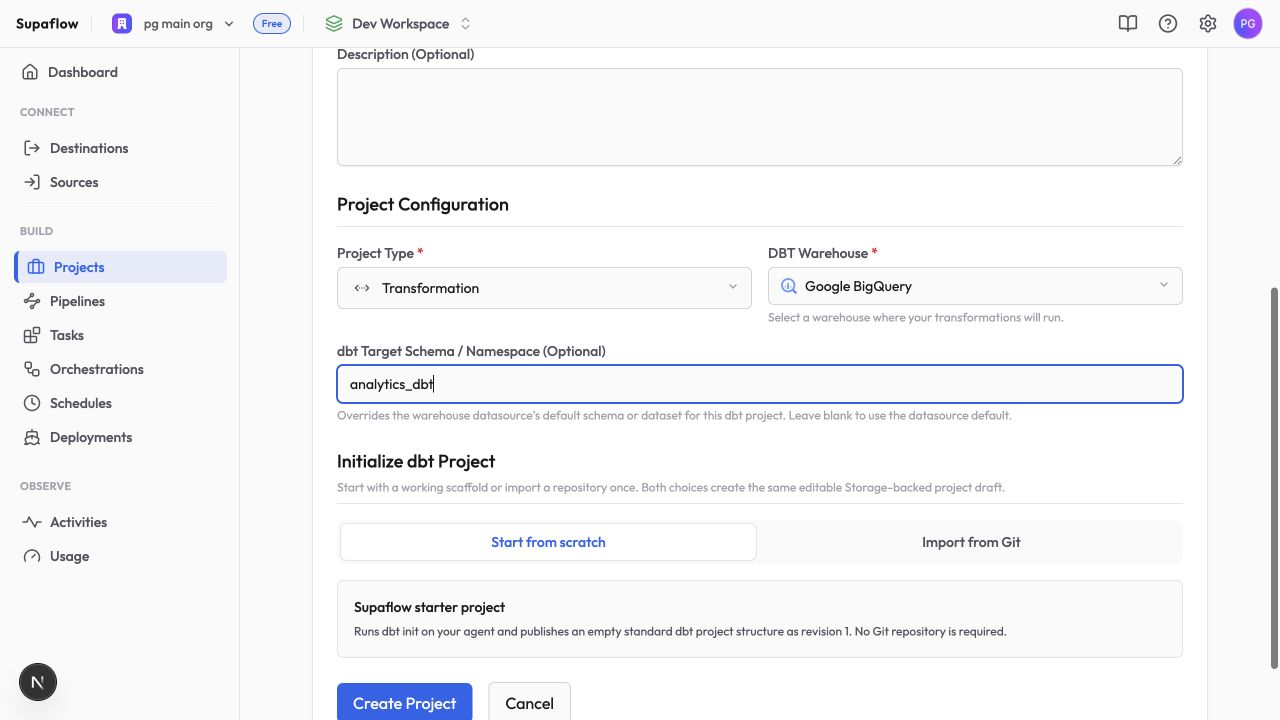
- Select Transformation as the project type
- Enter the project name, API name, and optional description
- Select the DBT Warehouse that dbt should use
- Set dbt Target Schema / Namespace. This field is required for PostgreSQL. For other supported warehouses, leave it blank to use the datasource default or set it to a dedicated target
- Choose how to initialize the project:
- Start from scratch creates a standard dbt starter project
- Import from Git imports an existing dbt project
- Click Create Project
The project type and datasource cannot be changed after creation. Create a separate project if you need a different warehouse or adapter.
Import from Git
For a Git import, provide:
- Git Repository URL
- A matching Linked account for a private HTTPS or SSH repository; public HTTPS repositories need no account
- An optional Git Ref, such as a branch, tag, or commit
- An optional dbt Project Subdirectory when the repository contains the dbt project below its root
The import runs as a background job. Wait for the project to finish provisioning before opening its files. Supaflow keeps the repository information available for project Git actions, but the imported default branch remains read-only. Create or select a personal feature branch before editing. See Git workflow for branches, commits, pulls, and pushes.
For a complete first-run workflow, see validate a dbt project end to end.
Supported Datasources
| Datasource | dbt adapter |
|---|---|
| Snowflake | snowflake |
| PostgreSQL | postgres |
| Amazon Redshift | redshift |
| Google BigQuery | bigquery |
| Databricks | databricks |
Supaflow builds the dbt connection profile from the selected datasource. Credentials remain part of the datasource configuration; you do not add a separate profiles.yml credential to the project.
Work with a Transformation Project
Open a transformation project to:
- Browse and edit project files
- Save models and YAML configuration
- Preview a saved SQL model
- Review compiled SQL, logs, documentation, and catalog metadata
- Run supported dbt Core commands
- Review Git changes and work on a feature branch
Start with working with a transformation project, then review dbt commands and the Git workflow.
Current Scope
Transformation projects run dbt Core directly in Supaflow. Supaflow does not connect to dbt Cloud or trigger dbt Cloud jobs.
Run dbt commands directly from the transformation project for development and ad hoc work. To coordinate dbt with data movement, add the transformation project to an orchestration between ingestion and activation pipelines. SQL and Python tasks remain separate features under Tasks.
Troubleshooting
No compatible datasource is listed
Problem: The datasource you want is missing when you create a transformation project.
Solution: Transformation projects list only eligible datasources in the current workspace. Confirm that the datasource is active, supports dbt, and is one of the warehouses listed above. Test its connection before creating the project. If the form reports No dbt warehouses available with required capabilities, switch to the workspace that contains the warehouse or create and test a supported datasource in the current workspace.
Project creation does not finish
Problem: A scratch project or Git import remains queued or fails.
Solution: Project initialization and Git import run as background jobs, so the project may briefly show a provisioning state. If it remains there or fails, test the selected warehouse connection. For a private Git import, confirm that the repository URL is correct and the linked account can read it. Reconnect the account if needed, then retry. If import completed but the Git controls are not visible, refresh the project once.
dbt cannot create models
Problem: A command connects to the warehouse but fails when creating or updating a relation.
Solution: Grant the datasource identity the required permissions on the configured target schema, dataset, or namespace. If the project has a target override, check that location rather than only the datasource default.
Related Pages
- Work with a transformation project
- Validate a dbt project end to end
- Run dbt commands
- Git workflow for transformation projects
- Orchestrations
- Projects
Support
Need help? Contact us at support@supa-flow.io
 Ask Claude