SharePoint Destination
Connect SharePoint Online or OneDrive for Business as a destination to deliver pipeline output as CSV files or Excel .xlsx workbooks.
For an overview of capabilities and use cases, see the SharePoint connector page. To read files from SharePoint instead, see SharePoint Source.
Prerequisites
Before you begin, ensure you have:
- A Microsoft work or school account in the tenant that owns the destination folder
- Edit access to the SharePoint Online document library or OneDrive for Business folder
- Allow Write Access enabled on the SharePoint connection
- SharePoint Online or OneDrive for Business in the worldwide commercial Microsoft cloud
For Microsoft 365 Multi-Geo tenants, an account writing to content in another geo may also need Limited access to the root site collection in that geo. See Microsoft's Multi-Geo access note.
Use a folder dedicated to pipeline output when possible. This keeps Supaflow-managed files separate from user content and makes name conflicts easier to resolve.
Output Formats and Layout
SharePoint destination output is organized beneath the configured folder by its resolved pipeline namespace. With the default Fivetran Naming namespace rule, that namespace normally combines the pipeline's Destination Prefix and the source schema. For example, destination prefix postgres and source schema public resolve to postgres_public.
Other namespace rules can produce a different folder name. If the pipeline does not resolve a namespace, Supaflow writes the managed object folders or workbooks directly beneath the configured destination folder.
Supaflow creates two visible operational folders directly beneath the configured destination folder: _supaflow_staging and _supaflow_archive. They are reserved for safe publication and recovery operations. Do not rename, move, or delete them while the destination is in use.
CSV Files
CSV output creates one managed child folder for each mapped object. An append run publishes one or more new CSV part files in the object's folder. A truncate-and-load run replaces the managed folder contents with the rows from the current run.
Configured SharePoint folder
`-- postgres_public/                         --> Resolved namespace
    +-- contacts/                            --> Mapped object: "contacts"
    |   +-- _supa_job_<token>_contacts_..._part_0.csv
    |   `-- _supa_job_<token>_contacts_..._part_1.csv
    `-- orders/                              --> Mapped object: "orders"
        `-- _supa_job_<token>_orders_..._part_0.csv
The short job token at the beginning remains available for identifying the publishing batch even when SharePoint path limits shorten the readable portion of a long filename.
On the first run, Supaflow does not adopt a non-empty folder that has the expected table name. The run fails instead of mixing pipeline data with existing files.
You can rename a Supaflow-managed object folder within its namespace folder without breaking later writes. Keep the folder in that namespace and do not copy it there; if Supaflow finds more than one managed folder for the same object, the run stops rather than choosing one arbitrarily.
Excel Workbooks
Excel output supports two layouts:
- File per object (default) creates one
.xlsxworkbook for each mapped object. - Single workbook creates one pipeline workbook with one managed worksheet for each mapped object.
File-per-object output is organized as:
Configured SharePoint folder
`-- postgres_public/                         --> Resolved namespace
    +-- contacts.xlsx
    |   `-- contacts                         --> Managed object worksheet
    `-- orders.xlsx
        `-- orders                           --> Managed object worksheet
Single-workbook output is organized as:
Configured SharePoint folder
`-- postgres_public/                         --> Resolved namespace
    `-- Postgres to SharePoint.xlsx          --> Pipeline workbook
        +-- contacts                         --> Managed object worksheet
        `-- orders                           --> Managed object worksheet
File-per-object layout scales better when the pipeline has many or large objects. Single-workbook layout keeps a small set of related objects together for browsing and sharing. Workbook and worksheet names can be shortened or given a stable suffix when required by SharePoint or Excel naming limits.
Workbooks are written inside the resolved namespace folder. If no namespace is resolved, they are written directly in the configured destination folder.
Write Semantics
The destination supports two load modes:
- Append (default) adds rows to existing managed output. CSV output adds new part files; Excel output appends rows below the managed header.
- Truncate and load replaces the managed rows with the rows supplied by the current run. Use it when the upstream pipeline provides a complete snapshot.
Merge is not supported.
Known limitation: A normal run that produces zero staged rows does not publish a SharePoint destination batch. Existing output remains unchanged, including for Truncate and load. Do not use a zero-row truncate-and-load run to clear existing SharePoint output.
CSV Append Delivery
CSV append is at-least-once if the agent process stops after a part file becomes visible but before the pipeline records completion. A later job can publish those rows again. If duplicates are not acceptable, use truncate-and-load with a complete snapshot or deduplicate downstream.
Published System Columns
CSV and Excel output include these Supaflow-managed columns:
| Column | Meaning |
|---|---|
_supa_synced | Time the destination prepared the row for the current run |
_supa_deleted | Whether the row represents a deletion |
_supa_index | Source row ordering carried through the pipeline |
_supa_id | Pipeline row identifier |
_supa_job_id | Job Details identifier for the destination batch |
Use _supa_job_id to identify rows or CSV parts from a repeated append batch when resolving at-least-once delivery after a process failure.
Workbook Behavior and Limits
Supaflow updates only the managed object worksheets and preserves unrelated worksheets in the same workbook. You can rename a managed workbook or worksheet without breaking later updates, provided the workbook remains in its resolved namespace folder (or the configured destination folder when no namespace is resolved) and keeps its .xlsx extension.
Do not copy a Supaflow-managed workbook into the same resolved namespace folder. A copied workbook carries the same managed identity, so Supaflow stops rather than choosing one copy arbitrarily.
If a workbook changes while Supaflow is preparing an update, the run fails without overwriting the newer version. Wait for active editors or automations to finish, then retry.
Excel output enforces these limits:
- Up to 5 million managed cells per object
- Up to 10 million managed cells per workbook
- Up to 50 managed object worksheets in single-workbook layout
- Up to 32,767 characters per cell
- A 512 MB in-place workbook update limit
- Excel's standard worksheet row and column limits
For larger outputs, use file-per-object layout or CSV files.
Reading Destination Output Back
You can point a SharePoint source at the destination folder and select the matching source file type.
- CSV output is discovered through its per-object child folders.
- Excel output exposes each managed object worksheet as a source object. With single-workbook layout, the worksheets share one workbook but remain separate source objects.
Source discovery looks through exactly one destination namespace layer, so objects written under paths such as postgres_public/contacts remain discoverable from the configured destination root. It does not descend into deeper folders or connector operational folders.
Authentication
SharePoint uses Microsoft OAuth with delegated access. Sign in with a Microsoft work or school account that can edit the destination folder. Personal Microsoft accounts and cross-tenant Microsoft Entra B2B guest access are not supported.
Supaflow uses a Supaflow-managed multi-tenant Microsoft Entra application. You do not need to register your own application or provide a client ID, client secret, or certificate.
For this managed OAuth flow, there is no separate setup step in the SharePoint Admin Center. The signed-in account still needs edit access to the selected folder, and your organization's Microsoft Entra consent policy may require administrator approval.
Microsoft consent includes delegated file read/write access for files the signed-in account can access, plus site read access used to resolve direct SharePoint site URLs. Allow Write Access is an additional Supaflow safety gate and must be enabled before this connection can be used as a destination.
Your Microsoft Entra consent policy may require an administrator to approve these permissions. This is common in new tenants because Microsoft's recommended user-consent policy excludes broad file and site permissions from end-user consent. If Microsoft asks for administrator approval, ask an Entra administrator to review and grant the requested permissions. See Microsoft's app consent policy guidance.
A direct SharePoint Online or OneDrive for Business folder URL is preferred. Recognized sharing URLs are also accepted, but resolving one accepts the sharing gesture and can grant the signed-in account durable access to the shared item. Microsoft describes this as equivalent to opening the sharing link.
This destination supports the worldwide commercial Microsoft cloud. Microsoft 365 GCC High, DoD, and 21Vianet-operated clouds are not supported.
Prepare and Authorize the Destination Folder
- In SharePoint, create or open a folder dedicated to pipeline output.
- Confirm the Microsoft account you will use with Supaflow can create, edit, and delete files in that folder.
- Copy the folder URL from the browser address bar.
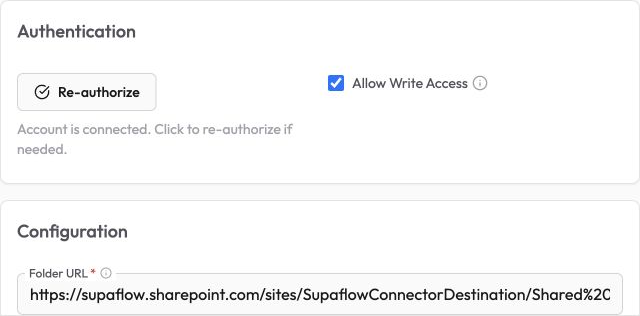
- In Supaflow, create a new SharePoint destination and click Authorize.
- Sign in with the Microsoft work or school account that can edit the folder. If your tenant has already granted consent, Microsoft returns you to Supaflow without showing the permissions prompt again.
- Enable Allow Write Access, paste the folder URL into Folder URL, and click Test & Save after choosing the output layout.
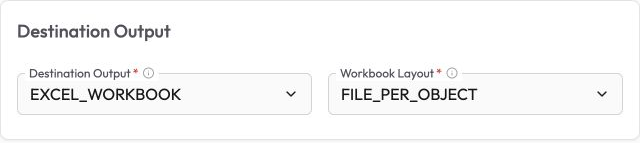
When writing Excel workbooks, select the workbook layout that matches how you want mapped objects organized:
Administrator Approval
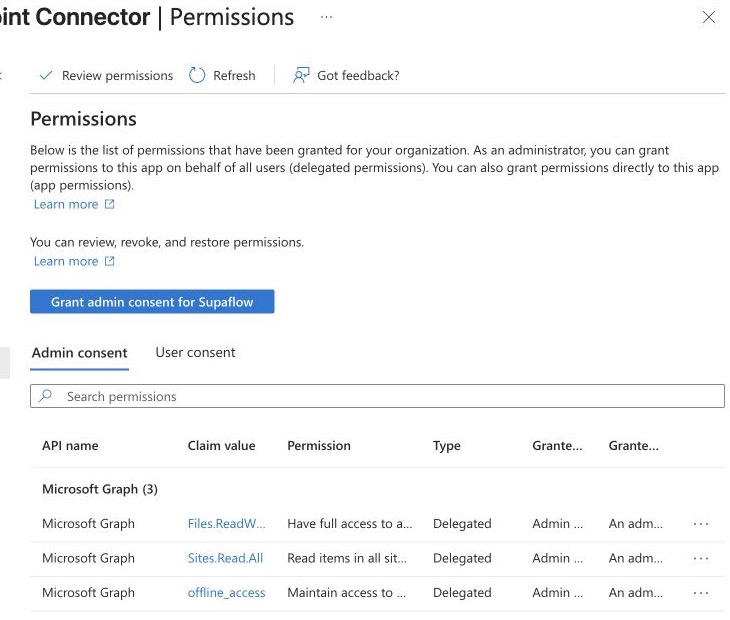
If Microsoft reports that administrator approval is required, ask an Entra administrator who is permitted to grant tenant-wide application consent to complete these steps:
- In the Microsoft Entra admin center, go to Entra ID > Enterprise apps > All applications.
- Open Supaflow SharePoint Connector and go to Security > Permissions.
- Review the delegated Microsoft Graph permissions:
Files.ReadWrite.All,Sites.Read.All, andoffline_access. - Click Grant admin consent for your tenant and confirm the approval.
- Return to Supaflow and click Authorize again.
Configuration
In Supaflow, create a new SharePoint destination with these settings:
Authentication
Authorize*Click Authorize and sign in with the Microsoft work or school account that can edit the destination folder.
Allow Write AccessEnable write access for destination use.
Default: Off
Folder
Folder URL*The SharePoint Online document library folder or OneDrive for Business folder where Supaflow will create output.
Example: https://contoso.sharepoint.com/sites/Finance/Shared%20Documents/Exports
Destination Output
Destination Output*Select the format Supaflow writes.
Options:
- CSV_FILES — plain CSV files in one managed folder per object
- EXCEL_WORKBOOK — Excel
.xlsxworkbooks
Default: CSV_FILES
Workbook Layout*Choose how objects are grouped when Destination Output is EXCEL_WORKBOOK.
Options:
- FILE_PER_OBJECT — one workbook per mapped object
- SINGLE_WORKBOOK — one pipeline workbook with one managed worksheet per object
Default: FILE_PER_OBJECT
Test & Save
After configuring all required properties, click Test & Save to verify authentication, folder access, and write permission.
Rate Limiting
SharePoint Online and OneDrive for Business apply API rate limits. Supaflow retries transient throttling and server errors with bounded backoff and honors Microsoft's retry delay when provided. Large jobs can take longer or may need a narrower workload or off-peak schedule. See Microsoft's throttling guidance.
Troubleshooting
Connection test fails with a write permission error
Problem:
- Test & Save reports that Supaflow cannot write to the configured folder
Solutions:
- Confirm Allow Write Access is enabled.
- Open the folder while signed in with the same Microsoft work or school account and confirm it can create and edit files.
- If Microsoft asks for administrator approval, ask an Entra administrator to review and grant the requested permissions.
- Authorize the connection again if the account, consent, or Conditional Access policy changed.
- Confirm the URL points to a folder, not an individual file or unsupported SharePoint List.
First CSV run finds an existing non-empty table folder
Problem:
- The first run fails because the expected object folder already contains files
Solutions:
- Use a new empty destination folder for the pipeline.
- Move unrelated content out of the expected object folder.
- Do not rely on Supaflow to adopt or overwrite a folder it does not already manage.
An unrelated file or worksheet blocks the output name
Problem:
- The run reports a name collision with user-created content
Solutions:
- Rename or move the unrelated item, then retry.
- Use a destination folder dedicated to pipeline output.
- Do not copy managed workbooks within the same resolved namespace folder.
Excel workbook changed during publication
Problem:
- The run reports that the workbook changed while Supaflow was preparing an update
Solutions:
- Wait for active editors and other automations to finish.
- Retry the run. Supaflow does not replace the newer workbook with a stale local version.
A CSV reset preserves data in a recovery envelope
Problem:
- A truncate-and-load run reports that new data was preserved in a named recovery envelope
Solutions:
- Open the named recovery folder and confirm that it contains the newly prepared CSV output.
- Check the SharePoint recycle bin for the previously published object folder.
- Preserve or restore any data you still need before retrying the job.
- After resolving the underlying SharePoint access or publication issue, retry the run. Remove an old recovery folder only after confirming that its contents are no longer needed.
Managed workbook was renamed without the XLSX extension
Problem:
- A previously managed workbook is found under a name that no longer ends in
.xlsx
Solutions:
- Rename the workbook so its name ends in
.xlsx. - Retry schema discovery or the destination run after the rename is visible in SharePoint.
Excel output exceeds a workbook limit
Problem:
- The run reports a worksheet, cell, text-length, or workbook-size limit
Solutions:
- Switch Workbook Layout to FILE_PER_OBJECT.
- Reduce the number of selected objects or columns.
- Use CSV_FILES for larger outputs.
Multi-Geo folder access fails
Problem:
- The account can access the tenant but cannot write to a site in another geo
Solutions:
- Ask a SharePoint administrator to grant the account at least Limited access to the root site collection in the target geo.
- Confirm the folder URL points to the intended geo and retry Test & Save.
Related Pages
- SharePoint connector overview
- SharePoint source
- Create an ingestion pipeline
- Google Drive destination
Support
Need help? Contact us at support@supa-flow.io
 Ask Claude