Databricks Destination
Use Databricks as a destination for data loaded from any supported Supaflow source.
For capabilities and use cases, see the Databricks connector overview. To replicate data out of Databricks, see Databricks Source.
Prerequisites
Before you begin, ensure you have:
- A Databricks workspace with Unity Catalog enabled
- A running SQL warehouse that the connector identity can use
- The Server Hostname and HTTP Path from the warehouse's connection details
- A Databricks service principal with an OAuth secret for production, or a personal access token for testing
- An existing target catalog
- Permission to create and update tables in the target location
- An existing Unity Catalog volume that Supaflow can read from and write to
Databricks recommends OAuth for unattended workloads. See OAuth machine-to-machine authentication and SQL warehouse connection details.
Prepare Unity Catalog Access
Open the Databricks SQL editor and run the following statements as a catalog owner or another identity that can grant access. Replace every placeholder, including the angle brackets.
For OAuth, use the service principal's application ID as principal. For personal access token authentication, use the token owner's Databricks email address.
GRANT USE CATALOG ON CATALOG `<target-catalog>`
TO `<principal>`;

GRANT CREATE SCHEMA ON CATALOG `<target-catalog>`
TO `<principal>`;

GRANT USE SCHEMA, CREATE TABLE, SELECT, MODIFY
ON SCHEMA `<target-catalog>`.`<target-schema>`
TO `<principal>`;

GRANT USE CATALOG ON CATALOG `<staging-catalog>`
TO `<principal>`;

GRANT USE SCHEMA ON SCHEMA `<staging-catalog>`.`<staging-schema>`
TO `<principal>`;

GRANT READ VOLUME, WRITE VOLUME
ON VOLUME `<staging-catalog>`.`<staging-schema>`.`<staging-volume>`
TO `<principal>`;
The destination identity needs:
- Can use on the SQL warehouse
USE CATALOGandCREATE SCHEMAon the target catalogUSE SCHEMA,CREATE TABLE,SELECT, andMODIFYon target schemasUSE CATALOGandUSE SCHEMAfor the staging volume's parentsREAD VOLUMEandWRITE VOLUMEon the staging volume
If the target and staging volume use the same catalog or schema, you do not need to repeat identical usage grants. Grant access only to the catalogs, schemas, and volume that Supaflow should use.
Tables created by the connector are owned by the configured identity. If a pipeline can recreate a pre-existing table owned by another identity, also grant MANAGE on that specific table:
GRANT MANAGE ON TABLE `<target-catalog>`.`<target-schema>`.`<target-table>`
TO `<principal>`;
Review the current Unity Catalog privileges reference before granting access.
Configure a Staging Volume
Databricks destination loads require an existing Unity Catalog volume. Supaflow writes temporary files below the configured Staging Path Prefix and removes job files after successful loads.
The volume can be managed or external. It must be available to the selected SQL warehouse and connector identity.
See Create and manage Unity Catalog volumes and volume privileges.
Authentication
OAuth machine-to-machine (recommended)
Use a dedicated Databricks service principal for an unattended Supaflow connection.
Step 1: Create the Service Principal
- In the Databricks workspace, click your username in the top bar and select Settings.
- Under Workspace admin, select Identity and access.
- Next to Service principals, click Manage.
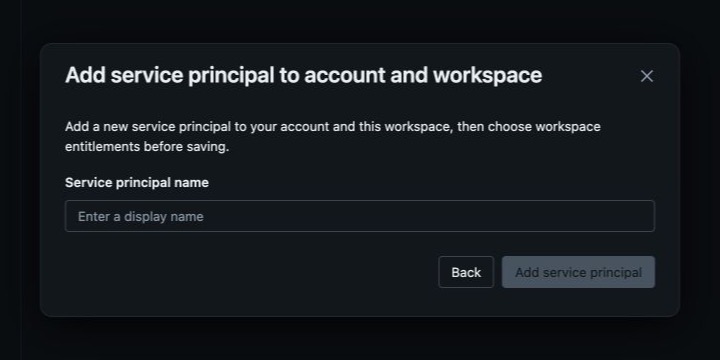
- Click Add service principal.
- Open the service principal selector and choose Add new service principal to account and workspace.
- Enter a descriptive name, such as
Supaflow connector, and click Add service principal. - Open the new service principal and confirm that the Databricks SQL access entitlement is enabled.
See Manage service principals for the equivalent account-console workflow.
Step 2: Grant SQL Warehouse Access
- In the Databricks sidebar, click SQL Warehouses.
- Find the warehouse Supaflow will use, open its actions menu, and select Permissions.
- Add the service principal and set its permission to Can use.
Can use is a workspace permission on the SQL warehouse. It is separate from the Unity Catalog grants above.
Step 3: Create the OAuth Secret
- Return to Settings → Identity and access → Service principals.
- Open the service principal and select the Secrets tab.
- Click Generate secret.
- Enter a lifetime between 1 and 730 days, then click Generate.
- Copy the client ID and secret immediately. The secret is shown only once, and the client ID is the service principal's application ID.

Step 4: Enter the OAuth Credentials in Supaflow
In the Databricks destination form, leave Authentication Method set to OAuth machine to machine. Enter the application ID in OAuth Client ID and the generated secret in OAuth Client Secret.
Personal access token
Use a personal access token for testing or when service-principal OAuth is not yet available in your workspace. The token authenticates as its owner, so grant that user Can use on the SQL warehouse and the same Unity Catalog access shown above.
- In Databricks, click your username and select Settings.
- Under User, select Developer.
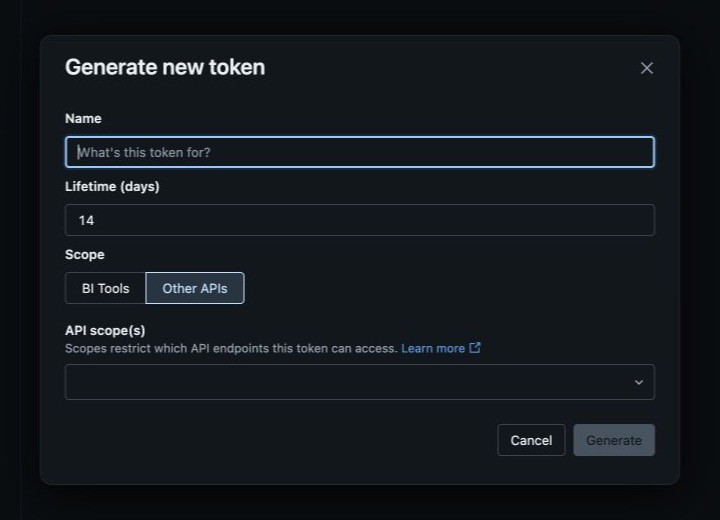
- Next to Access tokens, click Manage, then click Generate new token.
- Enter a name and lifetime.
- Under Scope, select Other APIs and add the
sqlandfilesAPI scopes. The destination usessqlfor warehouse operations andfilesfor Unity Catalog volume staging. - Click Generate and copy the token immediately.
- In Supaflow, set Authentication Method to Personal access token and enter the token in Personal Access Token.
If Generate new token is unavailable, ask a workspace administrator to enable personal access token authentication and grant the user Can use token permission. See Manage personal access token permissions.
Databricks classifies personal access token authentication as a legacy method and recommends OAuth where possible. See Databricks personal access tokens.
Set Up Databricks as a Destination
- In Databricks, open the SQL warehouse and copy its Server Hostname and HTTP Path from Connection details.
- Create the target catalog and an existing Unity Catalog volume for staging.
- Complete the OAuth or personal access token setup and Unity Catalog grants above.
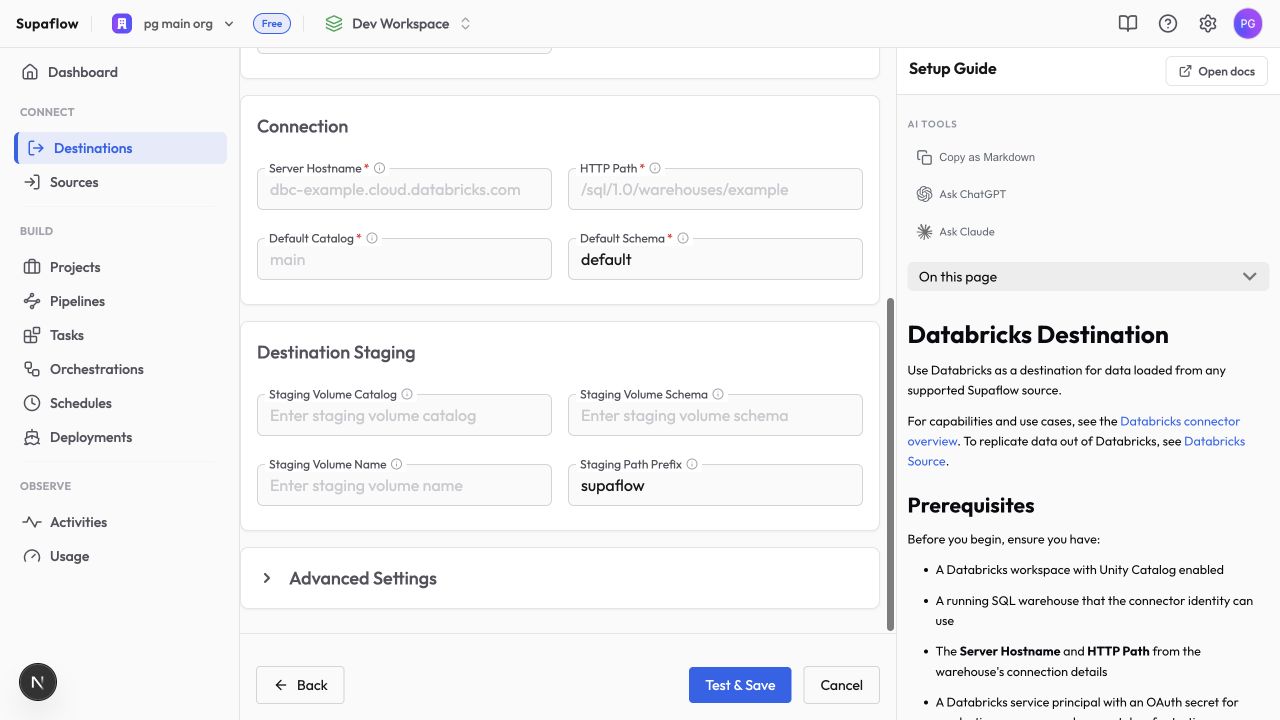
- In Supaflow, navigate to Destinations and click Create Destination.
- Select Databricks, enter a destination name, and choose the authentication method you prepared.
- Complete the authentication and connection fields. Under Destination Staging, enter the existing volume name. Leave the staging catalog or schema blank when the volume uses Default Catalog or Default Schema.
- Click Test & Save.
Configuration
Authentication
Authentication Method*How Supaflow authenticates to Databricks
Options: OAuth machine-to-machine, Personal access token; default: OAuth machine-to-machine
Application ID of the Databricks service principal
Required for OAuth machine-to-machine
OAuth secret created for the Databricks service principal
Required for OAuth machine-to-machine; stored encrypted
Workspace personal access token
Required only for Personal access token; stored encrypted
Connection
Server Hostname*Hostname from the SQL warehouse connection details, without https://, a port, or a path
Example: dbc-example.cloud.databricks.com
HTTP path from the SQL warehouse connection details
Example: /sql/1.0/warehouses/abc123
Existing Unity Catalog catalog used as the connection default
Example: main
Default destination schema
Default: default
Destination Staging
Staging Volume CatalogCatalog that contains the existing Unity Catalog volume
Default: the configured Default Catalog
Schema that contains the existing Unity Catalog volume
Default: the configured Default Schema
Existing Unity Catalog volume used for destination staging
Staging Path PrefixRelative path reserved for Supaflow files inside the volume
Default: supaflow
Advanced Settings
JDBC Connection PropertiesOptional allowlisted, non-secret Databricks JDBC properties as semicolon-separated key=value pairs
Test & Save
Click Test & Save to verify authentication, SQL warehouse access, target catalog and schema access, and the staging volume.
Loading Behavior
Supaflow creates destination tables when needed and applies the pipeline's configured load behavior. Keyed update paths update existing rows and add new rows. Replacement paths recreate or clear target data when the selected operation requires it.
Schema Evolution
Supaflow adds compatible columns and applies supported type changes when schema evolution permits them. Removed source columns remain in the destination instead of being dropped automatically. Incompatible conversions fail rather than silently losing values.
Costs and Capacity
Databricks manages SQL warehouse concurrency and query limits. The connector does not add a Databricks-specific retry layer beyond the JDBC driver's behavior. Large loads may take longer or need a larger warehouse, narrower pipeline scope, or off-peak scheduling.
Troubleshooting
Staging volume is missing or inaccessible
Problem:
- Test & Save reports that the volume was not found or cannot be used
Solutions:
- Confirm the catalog, schema, and volume names refer to an existing Unity Catalog volume.
- Grant
USE CATALOG,USE SCHEMA,READ VOLUME, andWRITE VOLUMEto the connector identity. - Confirm the SQL warehouse uses Unity Catalog-compatible compute.
Destination cannot create or update a table
Problem:
- A load fails with a catalog, schema, table, or permission error
Solutions:
- Grant the connector identity permission to create and update tables in the target schema.
- If destination namespaces are created automatically, grant schema-creation access on the target catalog.
- Confirm the pipeline maps to the expected catalog and schema.
OAuth authentication fails
Problem:
- Test & Save returns an authentication or authorization error
Solutions:
- Confirm OAuth Client ID is the service principal application ID.
- Replace an expired or incorrectly copied OAuth secret.
- Confirm the service principal is assigned to the workspace and has CAN USE on the SQL warehouse.
Load is slow or remains queued in Databricks
Problem:
- The Supaflow activity is running, but warehouse work starts slowly
Solutions:
- Check SQL warehouse status and query history in Databricks.
- Review warehouse concurrency and scaling settings.
- Schedule large loads outside other warehouse-heavy workloads.
Related Pages
- Databricks connector overview
- Databricks source
- Create an ingestion pipeline
- dbt Core transformations
- SQL Script tasks
Support
Need help? Contact us at support@supa-flow.io
 Ask Claude