Google BigQuery Source
Connect Google BigQuery as a source to replicate warehouse data into any supported Supaflow destination.
For capabilities and use cases, see the Google BigQuery connector overview. To load pipeline data into BigQuery, see Google BigQuery Destination.
Prerequisites
Before you begin, ensure you have:
- A billing-enabled Google Cloud project with the BigQuery API enabled
- A BigQuery data project and location for the datasets you want to read
- An optional billing project if query jobs should be billed separately from the data project
- A supported Google Cloud identity with permission to create jobs and read the selected datasets
A source-only connection does not require a Cloud Storage staging bucket.
Authentication
Supaflow-managed service account (recommended)
- Create the Google BigQuery connection in Supaflow and leave Authentication Method set to managed service account.
- Copy the pre-filled Service Account Email. The field is read-only in Supaflow.
- Grant that identity the project and dataset roles in Source IAM.
- Return to Supaflow and click Test & Save.
Supaflow manages short-lived credentials for this identity. Supaflow-hosted customers do not run gcloud auth or upload a key for the managed-service-account path.
Customer service-account key
Choose service account only when your organization deliberately uses a user-managed service-account key. Upload the complete JSON credential through Service Account Key. Supaflow stores the credential encrypted.
Google recommends avoiding user-managed keys where a managed identity is available. Review Google's service-account key guidance before choosing this method.
Application Default Credentials
Choose ADC only for a private or self-hosted agent whose runtime already provides Application Default Credentials. This is not part of the Supaflow-hosted setup path.
gcloud auth login authenticates the Google Cloud CLI; it does not configure ADC for an agent runtime. Use the identity mechanism approved for the host where the agent runs, preferably an attached service account rather than a local key.
Source IAM
Grant the connector identity only the access required for the projects and datasets selected in your pipelines. Google's BigQuery IAM reference describes the permissions included in each role.
| Scope | Google Cloud role | When required |
|---|---|---|
| Billing/job project | BigQuery Job User (roles/bigquery.jobUser) | Required to create query jobs |
| Billing/job project | BigQuery Read Session User (roles/bigquery.readSessionUser) | Required when high-throughput reads are enabled; enabled by default |
| Each source dataset | BigQuery Data Viewer (roles/bigquery.dataViewer) | Required to discover and read that dataset's supported objects |
BigQuery Job User and BigQuery Read Session User are project-level roles. Grant BigQuery Data Viewer on each dataset instead of granting broad project-wide data access when dataset-level access meets your needs.
Cross-project sources
For every additional data project:
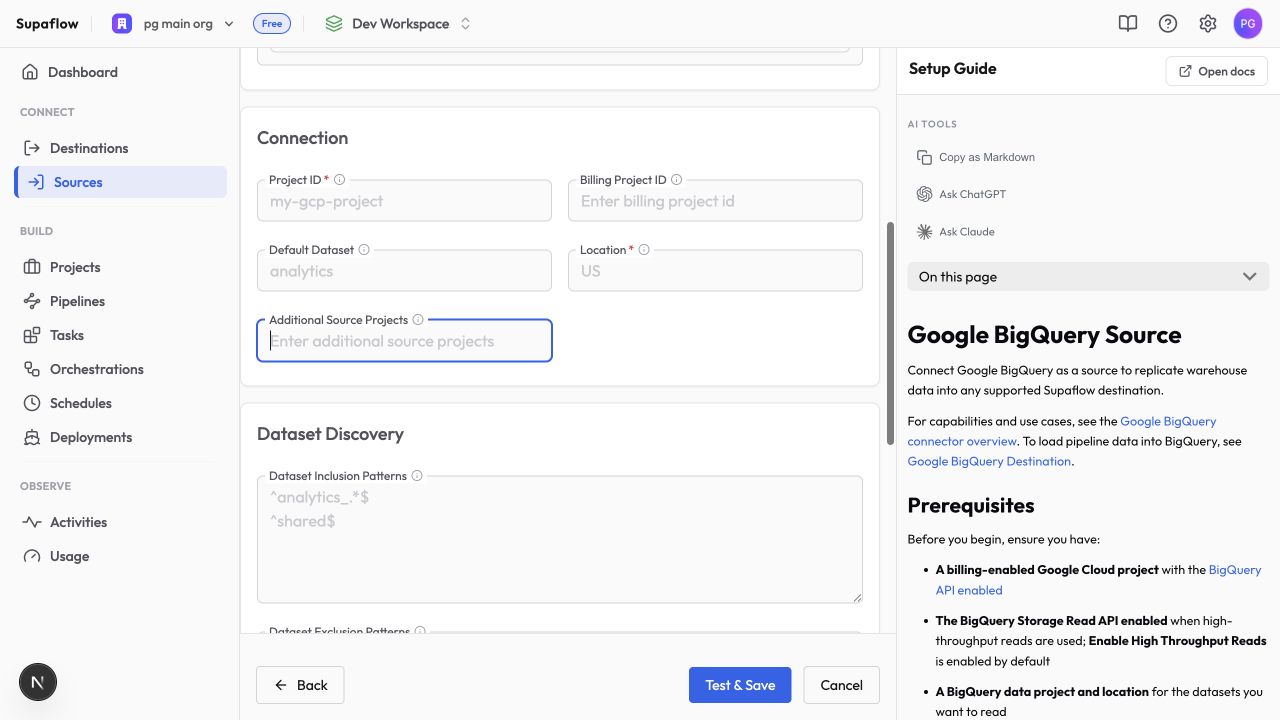
- Add the project ID to Additional Source Projects.
- Grant the connector identity BigQuery Data Viewer on each dataset to expose.
- Grant job permissions in the configured billing/job project. If a different project should own query jobs, set Billing Project ID explicitly.
Projects that are not listed in Project ID or Additional Source Projects are not included in discovery.
Set Up Google BigQuery as a Source
- In Supaflow, navigate to Sources and click Create Source.
- Select Google BigQuery, enter a source name, and leave Authentication Method set to managed service account for the recommended setup.
- Copy the generated Service Account Email.
- In Google Cloud, grant that identity BigQuery Job User on the billing/job project, BigQuery Read Session User when high-throughput reads are enabled, and BigQuery Data Viewer on each source dataset.
- Return to Supaflow and enter Project ID and Location. Set Billing Project ID only when a different project should own query jobs.
- Under Dataset Discovery, turn on Enable Source Schema Discovery. This is required for every BigQuery connection used as a source and is disabled by default.
- Add any Additional Source Projects and optional dataset inclusion or exclusion patterns.
- Leave Destination Staging blank for a source-only connection.
- Click Test & Save.
What Gets Synced
Supaflow discovers accessible BigQuery objects in a project -> dataset -> table hierarchy. Supported objects include:
- Tables, including accessible snapshots and clones
- External tables supported through BigQuery
- Views
- Materialized views
Object visibility follows Google Cloud IAM. You choose the projects, datasets, tables, and columns to include in each pipeline.
Sync Modes
Full refresh reads all selected rows on each sync. Use it for small tables or objects without a reliable cursor.
Incremental sync reads rows in the selected cursor window. Use a date or timestamp column that advances whenever a row is inserted or updated.
The Google BigQuery source does not read change logs for CDC and does not automatically detect hard deletes in source tables. Use full refresh when the destination must reflect source-side removals and no suitable incremental strategy exists.
Dataset Discovery
Turn on Enable Source Schema Discovery before refreshing a BigQuery source schema. This setting is disabled by default. If it remains disabled, a refresh does not discover source projects, datasets, tables, or views.
Dataset Inclusion Patterns and Dataset Exclusion Patterns accept one Java-compatible regular expression per line:
- Each expression must match the complete dataset ID. Use
.*when you need a partial match. - Exclusions take precedence over inclusions.
- Leaving inclusion patterns blank includes every accessible dataset in the configured projects, except excluded datasets.
- Default Dataset provides connection and destination context; it does not restrict source discovery.
After changing project access or patterns, refresh the source schema in Supaflow.
Configuration
Authentication
Authentication Method*Authentication used by the connection
Options: managed service account, service account, ADC; default: managed service account
Complete JSON service-account credential, required only when Authentication Method is service account
Uploaded as a file and stored encrypted
Google Cloud identity generated for managed-service-account authentication
This field is read-only in Supaflow
Connection
Project ID*Default BigQuery data project
Example: my-gcp-project
Project that owns query and load jobs
Defaults to Project ID
Optional source connection context for unqualified queries; does not restrict discovery
Required when the same connection is used as a destination
BigQuery dataset and job location
Examples: US, EU, us-central1
Comma-separated project IDs allowed during source discovery
Dataset Discovery
Enable Source Schema DiscoveryDiscover source projects, datasets, tables, and views during schema refreshes. Turn this on for every connection used as a source.
Default: disabled
Optional dataset-ID regular expressions, one per line; each pattern must match the complete ID
Dataset Exclusion PatternsOptional dataset-ID regular expressions, one per line; exclusions take precedence
Advanced Settings
Enable High Throughput ReadsAllow the JDBC driver to use the BigQuery Storage Read API for large query results
Default: enabled
Optional per-query billed-byte safeguard
Default: 0, meaning no connector-supplied limit
Maximum BigQuery read or write job runtime in seconds
Default: 0, meaning no connector timeout; maximum: 86,400 seconds
Optional allowlisted, non-secret BigQuery JDBC properties as semicolon-separated key=value pairs
Test & Save
Before clicking Test & Save, confirm Enable Source Schema Discovery is turned on. Test & Save verifies authentication, project access, the configured location, and source metadata access. After saving, refresh the source schema and confirm the expected datasets and objects appear.
Costs and Quotas
BigQuery query usage is billed to the project that owns the job: Billing Project ID, or Project ID when no billing project is set. Review BigQuery pricing, quota controls, and cost-control guidance before large initial syncs.
Set Maximum Bytes Billed when you want a per-query safeguard. BigQuery rejects a query before execution when its estimated billed bytes exceed the limit. Use incremental sync, narrower object selection, and off-peak scheduling to control large workloads.
Data Type Support
Supaflow converts BigQuery values into portable pipeline values. This preserves values across destinations but does not imply identical physical types in every target.
| BigQuery source type | Supaflow source representation |
|---|---|
BOOL | Boolean |
INT64 | Integer |
FLOAT64 | Floating-point number |
NUMERIC | Decimal |
BIGNUMERIC | Decimal when it fits the portable decimal envelope; otherwise a lossless string |
STRING | String |
BYTES | Binary value |
DATE | Date |
TIME | String preserving microsecond precision |
DATETIME | Local date and time |
TIMESTAMP | UTC instant |
JSON | JSON value |
STRUCT | JSON object preserving field names and nulls |
ARRAY / repeated RECORD | JSON array; nested records preserve field names |
GEOGRAPHY | String representation |
INTERVAL | String representation |
RANGE | String representation |
When these values are loaded into another destination, that destination's type mapper chooses the physical type. See Google BigQuery Destination for BigQuery destination mappings.
Private and Self-Hosted Agents
Supaflow-hosted agents and the official Docker agent include the JVM access required by the Arrow-based BigQuery read path. If you launch the agent JAR through a custom command, include:
--add-opens=java.base/java.nio=ALL-UNNAMED
This is needed only for custom agent launchers. It is not a hosted Supaflow setup step.
Troubleshooting
Missing bigquery.readsessions.create
Problem:
- Source reads fail with a permission error that mentions
bigquery.readsessions.create
Solutions:
- Grant BigQuery Read Session User to the connector identity on the configured billing/job project.
- Confirm the role was granted on Billing Project ID, or on Project ID when the billing project is blank.
- If you intentionally cannot grant the role, disable Enable High Throughput Reads and retest with the standard read path.
High-throughput reads cannot access the Storage Read API
Problem:
- High-throughput reads fail because the BigQuery Storage Read API is unavailable
Solutions:
- Confirm the BigQuery API is enabled; Google automatically enables the BigQuery Storage Read API with it.
- Confirm the connector identity has BigQuery Read Session User on the billing/job project.
- Retry after Google Cloud propagates the API and IAM changes.
An expected dataset is missing
Problem:
- The connection succeeds, but an expected dataset does not appear during source discovery
Solutions:
- Confirm the dataset's project is in Project ID or Additional Source Projects.
- Confirm the dataset matches the configured Location. Use a separate BigQuery source connection for datasets in another location.
- Grant BigQuery Data Viewer on the dataset.
- Check Dataset Inclusion Patterns and Dataset Exclusion Patterns. Patterns match the complete dataset ID and exclusions take precedence.
- Refresh the source schema.
The billing project cannot create jobs
Problem:
- Test & Save or a source sync fails because the connector identity cannot create BigQuery jobs
Solutions:
- Grant BigQuery Job User on Billing Project ID, or on Project ID when the billing project is blank.
- Confirm billing is enabled and the BigQuery API is available in that project.
- Retry after Google Cloud propagates the IAM change.
Authentication fails
Problem:
- Test & Save or a source sync fails with a credential, token, or ADC error
Solutions:
- Managed service account: confirm the generated Service Account Email received the required grants.
- Service account: upload a valid, active JSON key for the intended service account and confirm the key has not been disabled.
- ADC: confirm the private agent runtime, not only your interactive CLI session, receives ADC.
A custom agent reports an Arrow or Java module-access error
Problem:
- A custom agent launcher reports an Arrow or Java module-access error during a high-throughput read
Solutions:
- Add
--add-opens=java.base/java.nio=ALL-UNNAMEDto the custom Java launcher. - Use the official Supaflow Docker agent when you do not need a custom launcher; it already includes the required option.
A query exceeds Maximum Bytes Billed or Job Timeout
Problem:
- Job Details reports that a query exceeded Maximum Bytes Billed or Job Timeout
Solutions:
- Review the failed object's expected query cost or runtime.
- Reduce the selected data or use a suitable incremental cursor.
- Increase the configured safeguard only after confirming the expected workload.
Related Pages
- Google BigQuery connector overview
- Create an ingestion pipeline
- Google BigQuery destination guide
- Amazon Redshift source
- PostgreSQL source
Support
Need help? Contact us at support@supa-flow.io
 Ask Claude