Databricks Source
Connect Databricks as a source to replicate warehouse data into any supported Supaflow destination.
For capabilities and use cases, see the Databricks connector overview. To load pipeline data into Databricks, see Databricks Destination.
Prerequisites
Before you begin, ensure you have:
- A Databricks workspace with Unity Catalog enabled
- A running SQL warehouse that the connector identity can use
- The Server Hostname and HTTP Path from the warehouse's connection details
- A Databricks service principal with an OAuth secret for production, or a personal access token for testing
USE CATALOG,USE SCHEMA, andSELECTaccess for the catalogs, schemas, tables, and views you want to sync
Databricks recommends OAuth for unattended workloads. See OAuth machine-to-machine authentication and SQL warehouse connection details.
What Gets Synced
Supaflow discovers accessible Unity Catalog tables and views in a catalog → schema → object hierarchy. information_schema is excluded from pipeline selection.
Object visibility follows the permissions of the configured service principal or token owner. An object is available only when the identity can see its columns and read its data.
The connector does not read Delta Change Data Feed or another native change log. It does not automatically detect hard deletes in source tables.
Sync Modes
Full refresh reads all selected rows on each sync. Use it for small objects, views, or objects without a reliable cursor column.
Incremental sync reads rows in the selected cursor window. Use a date or timestamp column that advances whenever a row is inserted or updated.
If the destination must reflect source-side removals and no reliable cursor strategy exists, use full refresh.
Authentication
OAuth machine-to-machine (recommended)
Use a dedicated Databricks service principal for an unattended Supaflow connection.
Step 1: Create the Service Principal
- In the Databricks workspace, click your username in the top bar and select Settings.
- Under Workspace admin, select Identity and access.
- Next to Service principals, click Manage.
- Click Add service principal.
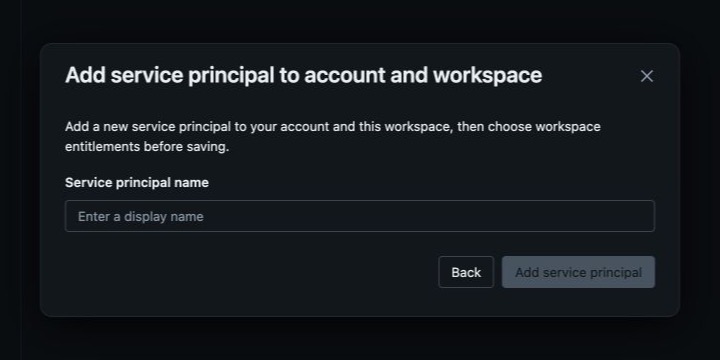
- Open the service principal selector and choose Add new service principal to account and workspace.
- Enter a descriptive name, such as
Supaflow connector, and click Add service principal. - Open the new service principal and confirm that the Databricks SQL access entitlement is enabled.
See Manage service principals for the equivalent account-console workflow.
Step 2: Grant SQL Warehouse Access
- In the Databricks sidebar, click SQL Warehouses.
- Find the warehouse Supaflow will use, open its actions menu, and select Permissions.
- Add the service principal and set its permission to Can use.
Can use is a workspace permission on the SQL warehouse. It is not granted with a Unity Catalog SQL statement.
Step 3: Grant Read Access
Open the Databricks SQL editor and run the following statements as a catalog owner or another identity that can grant access. Replace every placeholder, including the angle brackets. Use the service principal's application ID as the principal.
GRANT USE CATALOG ON CATALOG `<source-catalog>`
TO `<service-principal-application-id>`;

GRANT USE SCHEMA ON SCHEMA `<source-catalog>`.`<source-schema>`
TO `<service-principal-application-id>`;

GRANT SELECT ON SCHEMA `<source-catalog>`.`<source-schema>`
TO `<service-principal-application-id>`;
Repeat the schema grants for every schema you want to sync. For narrower access, grant SELECT on individual tables or views instead of the entire schema.
Step 4: Create the OAuth Secret
- Return to Settings → Identity and access → Service principals.
- Open the service principal and select the Secrets tab.
- Click Generate secret.
- Enter a lifetime between 1 and 730 days, then click Generate.
- Copy the client ID and secret immediately. The secret is shown only once, and the client ID is the service principal's application ID.

Step 5: Enter the OAuth Credentials in Supaflow
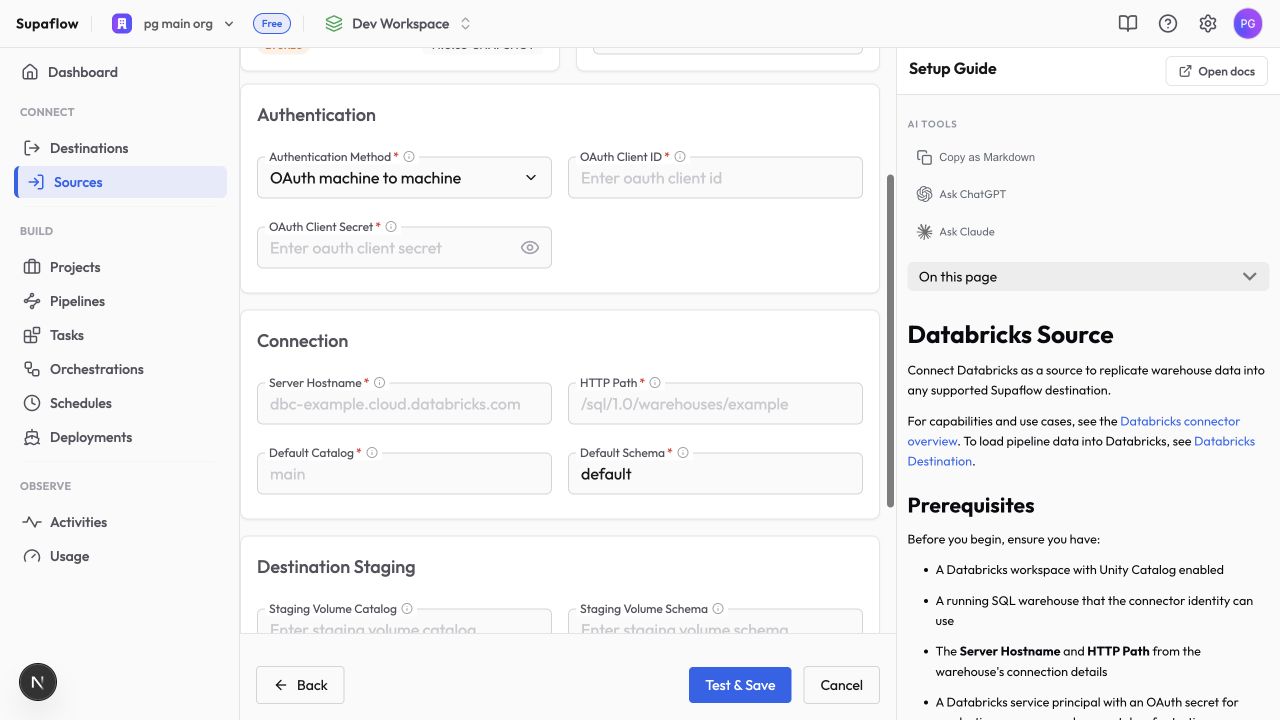
In the Databricks source form, leave Authentication Method set to OAuth machine to machine. Enter the application ID in OAuth Client ID and the generated secret in OAuth Client Secret.
OAuth uses short-lived access tokens and is the recommended production path for an unattended connection.
Personal access token
Use a personal access token for testing or when your workspace has not yet adopted service-principal OAuth. The token authenticates as its owner and applies to one workspace.
- Grant the token owner Can use on the SQL warehouse.
- In Databricks, click your username and select Settings.
- Under User, select Developer.
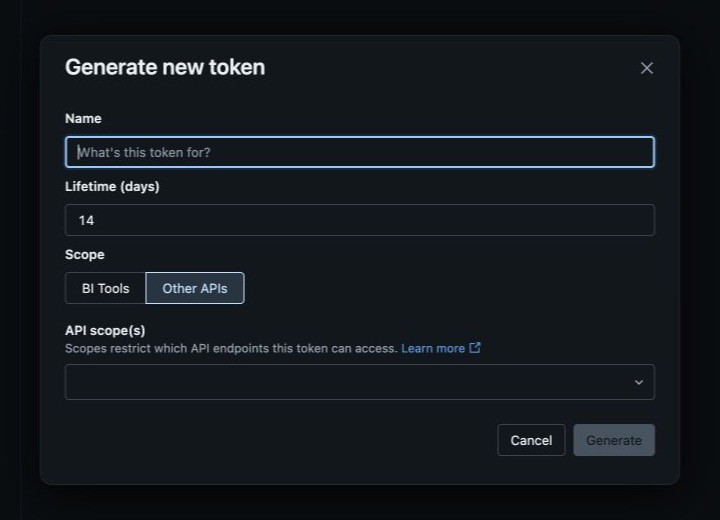
- Next to Access tokens, click Manage, then click Generate new token.
- Enter a name and lifetime.
- Under Scope, select Other APIs and add the
sqlAPI scope. - Click Generate and copy the token immediately.
- In Supaflow, set Authentication Method to Personal access token and enter the token in Personal Access Token.
Grant the token owner read access with the same catalog and schema pattern. Use the owner's Databricks email address as the principal:
GRANT USE CATALOG ON CATALOG `<source-catalog>`
TO `<token-owner-email>`;

GRANT USE SCHEMA ON SCHEMA `<source-catalog>`.`<source-schema>`
TO `<token-owner-email>`;

GRANT SELECT ON SCHEMA `<source-catalog>`.`<source-schema>`
TO `<token-owner-email>`;
If Generate new token is unavailable, ask a workspace administrator to enable personal access token authentication and grant the user Can use token permission. See Manage personal access token permissions.
Databricks classifies personal access token authentication as a legacy method and recommends OAuth where possible. See Databricks personal access tokens.
Set Up Databricks as a Source
- In Databricks, open the SQL warehouse and copy its Server Hostname and HTTP Path from Connection details.
- Complete the OAuth or personal access token setup above.
- In Supaflow, navigate to Sources and click Create Source.
- Select Databricks, enter a source name, and choose the authentication method you prepared.
- Complete the authentication fields, then enter Server Hostname, HTTP Path, Default Catalog, and Default Schema.
- Leave the Destination Staging fields blank for a source-only connection.
- Click Test & Save.
Configuration
Authentication
Authentication Method*How Supaflow authenticates to Databricks
Options: OAuth machine-to-machine, Personal access token; default: OAuth machine-to-machine
Application ID of the Databricks service principal
Required for OAuth machine-to-machine
OAuth secret created for the Databricks service principal
Required for OAuth machine-to-machine; stored encrypted
Workspace personal access token
Required only for Personal access token; stored encrypted
Connection
Server Hostname*Hostname from the SQL warehouse connection details, without https://, a port, or a path
Example: dbc-example.cloud.databricks.com
HTTP path from the SQL warehouse connection details
Example: /sql/1.0/warehouses/abc123
Existing Unity Catalog catalog used as the connection default
Example: main
Schema used when a request does not name one
Default: default
Advanced Settings
JDBC Connection PropertiesOptional allowlisted, non-secret Databricks JDBC properties as semicolon-separated key=value pairs
Test & Save
Click Test & Save to verify authentication, the SQL warehouse connection, and access to the configured catalog and schema.
Costs and Capacity
Databricks manages SQL warehouse concurrency and query limits. The connector does not add a Databricks-specific retry layer beyond the JDBC driver's behavior. Large initial reads may take longer or need a larger warehouse, narrower object selection, or off-peak scheduling.
Troubleshooting
OAuth authentication fails
Problem:
- Test & Save returns an authentication or authorization error
Solutions:
- Confirm OAuth Client ID is the service principal application ID, not its display name.
- Create a new OAuth secret if the current secret expired or was copied incorrectly.
- Confirm the service principal is assigned to the workspace and has Can use on the selected SQL warehouse.
SQL warehouse cannot be reached
Problem:
- The connection times out or reports an invalid hostname or HTTP path
Solutions:
- Copy Server Hostname and HTTP Path from the SQL warehouse Connection details tab.
- Remove
https://and any path from Server Hostname. - Confirm the Agent can reach the Databricks workspace over HTTPS.
- Start the SQL warehouse or enable its normal auto-start behavior.
Catalog, schema, or table is missing
Problem:
- The connection succeeds, but an expected object does not appear
Solutions:
- Grant the connector identity
USE CATALOGandUSE SCHEMAon the parent objects. - Grant
SELECTon the table or view. - Confirm the catalog is visible from the selected SQL warehouse.
- Refresh the source schema in Supaflow.
Incremental sync misses updates
Problem:
- Recently changed rows do not appear in an incremental run
Solutions:
- Choose a date or timestamp column that changes on every insert and update.
- Use full refresh when the object has no reliable cursor.
- Do not rely on cursor-based incremental sync to detect hard deletes.
Related Pages
- Databricks connector overview
- Databricks destination
- Google BigQuery source
- Amazon Redshift source
- Create an ingestion pipeline
- Snowflake destination
- dbt Core transformations
Support
Need help? Contact us at support@supa-flow.io
 Ask Claude