SharePoint Source
Connect SharePoint Online or OneDrive for Business as a source to read structured files from a selected folder. CSV and TSV folders map to source objects, while worksheets in Excel workbooks become source objects.
SharePoint can also supply source objects for activation pipelines that send selected file or worksheet data to supported business applications.
For an overview of capabilities and use cases, see the SharePoint connector page. To write pipeline output to SharePoint instead, see SharePoint Destination.
Prerequisites
Before you begin, ensure you have:
- A Microsoft work or school account in the tenant that owns the SharePoint or OneDrive content
- Read access to the document library or OneDrive for Business folder you want to sync
- The URL of the folder that contains the files you want to read
- SharePoint Online or OneDrive for Business in the worldwide commercial Microsoft cloud
For Microsoft 365 Multi-Geo tenants, an account accessing content in another geo may also need Limited access to the root site collection in that geo. See Microsoft's Multi-Geo access note.
Supported Content
| Source File Type | Source Object | Discovery Scope |
|---|---|---|
| CSV | A selected folder; matching files directly in that folder contribute rows to one object | The configured folder, direct table folders, and one optional namespace layer |
| TSV | A selected folder; matching files directly in that folder contribute rows to one object | The configured folder, direct table folders, and one optional namespace layer |
| XLSX | A worksheet in a matching Excel workbook | Recursively beneath the configured folder |
CSV and TSV Folder Mapping
For CSV and TSV files, each qualifying folder becomes one source object. All matching files in that folder contribute rows to the same object.
Direct table folders and one optional namespace layer are supported:
Configured SharePoint folder
+-- contacts/                              --> Object: "contacts"
|   +-- contacts_january.csv                   (rows from this file)
|   `-- contacts_february.csv                  (rows from this file)
`-- postgres_public/                       --> Optional namespace layer
    +-- projects/                          --> Object: "postgres_public__projects"
    |   `-- projects_part_0.csv                 (rows from this file)
    `-- users/                             --> Object: "postgres_public__users"
        `-- users_part_0.csv                    (rows from this file)
The optional namespace layout lets a SharePoint destination be read back as a source without moving its output folders.
If no supported child folder qualifies, matching files directly in the configured folder form one source object named after that folder:
Quarterly Exports (configured)             --> Object: "Quarterly Exports"
+-- contacts_january.csv                       (rows from this file)
`-- contacts_february.csv                      (rows from this file)
Root fallback and child-folder layouts are not combined. When a qualifying supported child folder exists, files directly in the configured folder are not exposed as a separate object. Supaflow does not descend below the optional namespace and table levels. The Supaflow-managed _supaflow_staging and _supaflow_archive folders are excluded at every scanned level.
All matching files in a selected object folder are read using a shared, inferred schema. File matching is based on the filename extension and the optional File Pattern, not the file's reported content type.
Excel Worksheet Mapping
For XLSX sources, Supaflow searches recursively beneath the configured folder. Each qualifying worksheet becomes a source object, and the first physical row is treated as its header row.
Configured SharePoint folder
+-- Finance.xlsx
|   +-- Revenue                            --> Object: "Finance_Revenue"
|   `-- Expenses                           --> Object: "Finance_Expenses"
`-- Regional/
    `-- Inventory.xlsx
        `-- Stock                          --> Object: "Regional__Inventory_Stock"
For a workbook in the configured folder, the object name combines the workbook and worksheet names. For a workbook in a subfolder, the relative folder path is added so worksheets in different locations remain distinguishable.
An Excel worksheet needs at least one nonblank data row within its header range to be discovered. Individual workbooks larger than 50 MiB are rejected with an error rather than silently omitted.
Not Yet Supported
- SharePoint Lists and other non-file SharePoint content
- Personal OneDrive accounts
- Legacy
.xlsfiles and file formats other than CSV, TSV, and XLSX - SharePoint Server hosted on-premises
- Cross-tenant access through a Microsoft Entra B2B guest account
- Microsoft 365 GCC High, DoD, and 21Vianet-operated clouds
Incremental Sync
SharePoint uses file-modification incremental sync:
- The initial run reads all matching files available before the run's snapshot boundary.
- Later runs read files that are new or whose Microsoft 365 modified time falls after the previous successful boundary.
- The unit of change is the entire file, not an individual row. When a CSV or TSV file changes, all qualifying rows in that file are emitted again.
- When an Excel workbook changes, each selected worksheet in that workbook is read again.
If a file changes while Supaflow is downloading it, the connector defers that file to the next run instead of publishing a mixture of versions.
Use Lookback Time Seconds when upstream file timestamps can arrive late. A lookback intentionally reprocesses files near the boundary, so an append-only destination can receive repeated rows.
Activation Pipelines
Use SharePoint as an activation source when teams prepare or review operational changes in CSV, TSV, or Excel files. In the activation wizard, choose a discovered folder or worksheet under Select Source Objects, then map its fields to the destination object.
For updates to existing destination records, include the stable identifier required by the destination and map it as the merge key. Use a dedicated writeback file or worksheet rather than activating directly from a workbook that another pipeline continuously replaces.
See Activation Pipelines for pipeline settings and field mapping.
Authentication
SharePoint uses Microsoft OAuth with delegated access. Sign in with a Microsoft work or school account; personal Microsoft accounts are not supported. Supaflow can access only content that the signed-in account can access, and tenant Conditional Access policies continue to apply.
Supaflow uses a Supaflow-managed multi-tenant Microsoft Entra application. You do not need to register your own application or provide a client ID, client secret, or certificate.
For this managed OAuth flow, there is no separate setup step in the SharePoint Admin Center. The signed-in account still needs access to the selected folder, and your organization's Microsoft Entra consent policy may require administrator approval.
Microsoft consent includes delegated file read/write access for files the signed-in account can access, plus site read access used to resolve direct SharePoint site URLs. Allow Write Access controls whether Supaflow permits this connection to be used as a destination; disabling it does not narrow the Microsoft OAuth grant.
Your Microsoft Entra consent policy may require an administrator to approve these permissions. This is common in new tenants because Microsoft's recommended user-consent policy excludes broad file and site permissions from end-user consent. If Microsoft asks for administrator approval, ask an Entra administrator to review and grant the requested permissions. See Microsoft's app consent policy guidance.
Use a member account in the tenant that owns the content. Cross-tenant B2B guest access is not supported.
Prepare the SharePoint Folder
- In SharePoint, open the document library and folder that contains the files you want to sync.
- Confirm the Microsoft account you will use with Supaflow can open the folder and its files.
- Copy the folder URL from the browser address bar. Use the folder page URL, not the URL of an individual file.
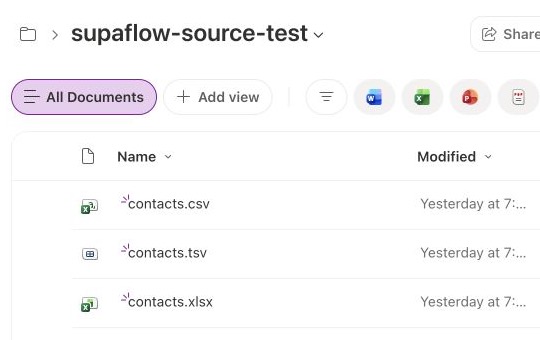
For example, this folder contains supported CSV, TSV, and XLSX source files:
Authorize Supaflow
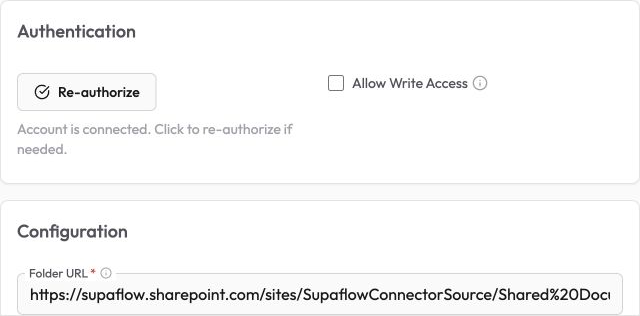
- In Supaflow, create a new SharePoint source.
- Click Authorize and sign in with the Microsoft work or school account that can read the folder.
- Review and accept the Microsoft permissions prompt. If your tenant has already granted consent, Microsoft returns you to Supaflow without showing the prompt again.
- Paste the SharePoint folder URL into Folder URL.
- Select the source file type and any parsing settings, then click Test & Save.
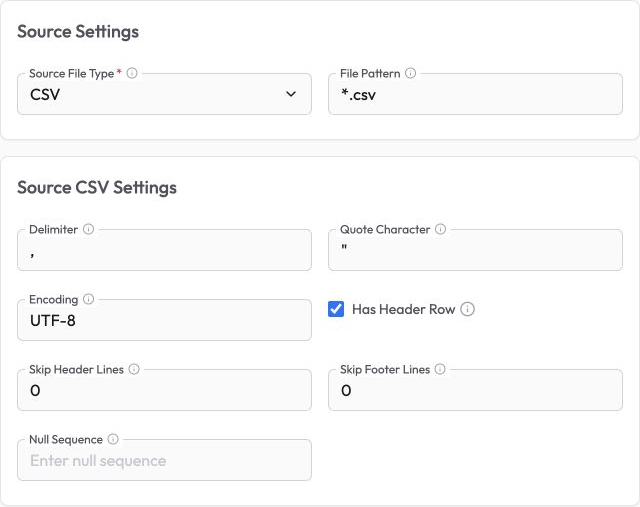
Select the file type, optional file pattern, and parsing controls that match the files in the folder:
Administrator Approval
If Microsoft reports that administrator approval is required, ask an Entra administrator who is permitted to grant tenant-wide application consent to complete these steps:
- In the Microsoft Entra admin center, go to Entra ID > Enterprise apps > All applications.
- Open Supaflow SharePoint Connector.
- Go to Security > Permissions.
- Review the delegated Microsoft Graph permissions:
Files.ReadWrite.All,Sites.Read.All, andoffline_access. - Click Grant admin consent for your tenant and confirm the approval.
- Return to Supaflow and click Authorize again.
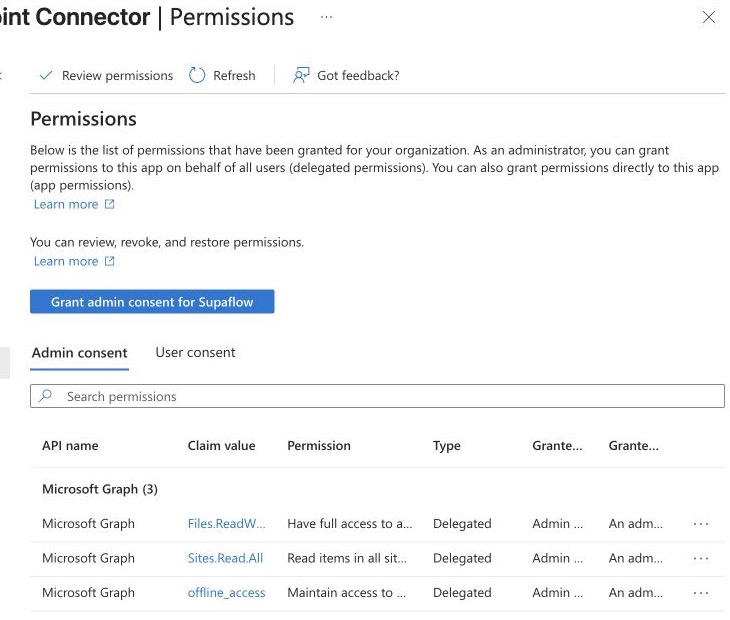
The Entra application appears under Enterprise apps after it has been introduced to the tenant through authorization or administrator consent. It does not need to appear under the customer's App registrations.
Folder and Sharing URLs
A direct SharePoint Online or OneDrive for Business folder URL is preferred. Recognized sharing URLs are also accepted, but resolving one accepts the sharing gesture and can grant the signed-in account durable access to the shared item. This is the same access effect Microsoft documents for opening a sharing link.
Configuration
In Supaflow, create a new SharePoint source with these settings:
Authentication
Authorize*Click Authorize and sign in with the Microsoft work or school account that can read the selected folder.
Allow Write AccessLeave this disabled for a source-only connection. Enable it only when the same connection will also be used as a SharePoint destination.
Default: Off
Folder
Folder URL*The SharePoint document library folder or OneDrive for Business folder to read.
Example: https://contoso.sharepoint.com/sites/Finance/Shared%20Documents/Exports
Source Settings
Source File Type*Select the type of files to discover and read.
Options:
- CSV — comma-separated files
- TSV — tab-separated files
- XLSX — Excel workbooks
Default: CSV
File PatternOptional case-insensitive filename pattern. * matches any sequence and ? matches one character; the pattern must match the full filename.
Example: sales_*.csv
CSV and TSV Settings
These settings apply only when Source File Type is CSV or TSV.
DelimiterThe single character that separates columns. TSV uses a tab when this setting remains at its comma default.
Default: ,
The single character used to quote fields that contain delimiters.
Default: "
The character encoding used to read files.
Default: UTF-8
Whether the first data row contains column names.
Default: On
Number of lines to skip before the header row.
Range: 0–100. Default: 0
Number of lines to omit at the end of each file.
Range: 0–100. Default: 0
Optional text value to interpret as null.
Example: NULL
Advanced Settings
Schema Sample SizeMaximum number of files sampled when inferring an object's schema.
Range: 1–50. Default: 5
Maximum qualifying data rows sampled per file for type inference.
Range: 1–100,000. Default: 10,000
Number of seconds subtracted from the incremental lower boundary. Increase this only when file modifications can be recorded late.
Range: 0–86,400. Default: 0
Choose how source file parsing errors are handled.
Options:
- FAIL — stop the sync when a file cannot be parsed
- SKIP — omit only the file with the parse error and continue with other files
Authentication, access, transport, and pipeline-processing errors still stop the sync.
Default: FAIL
Test & Save
After configuring all required properties, click Test & Save to verify authentication and folder access.
Rate Limiting
SharePoint Online and OneDrive for Business apply API rate limits. Supaflow retries transient throttling and server errors with bounded backoff and honors Microsoft's retry delay when provided. Large syncs can take longer or may need a narrower folder scope or off-peak schedule. See Microsoft's throttling guidance.
Troubleshooting
Authentication or folder access fails
Problem:
- Test & Save rejects the account or reports that the folder cannot be accessed
Solutions:
- Confirm you signed in with a Microsoft work or school account, not a personal Microsoft account.
- Confirm the account is a member of the tenant that owns the content rather than a cross-tenant B2B guest.
- Open the folder in Microsoft 365 while signed in with the same account and verify read access.
- If Microsoft asks for administrator approval, ask an Entra administrator to review and grant the requested permissions.
- If the account, password, consent, or Conditional Access policy changed, authorize the connection again.
No source objects are discovered
Problem:
- The connection succeeds, but schema discovery returns no objects or omits an expected object
Solutions:
- Confirm Source File Type matches the files' extensions and File Pattern includes the extension.
- For CSV or TSV, check the configured folder, its direct table folders, or table folders beneath one namespace folder.
- Remember that qualifying supported child folders take precedence over files directly in the configured folder. Deeper folder trees are not scanned.
- Confirm CSV or TSV files have valid headers. For XLSX, confirm the worksheet has a first-row header and at least one nonblank data row.
- For XLSX, confirm each workbook is no larger than 50 MiB.
A modified file produces rows that already exist
Problem:
- An incremental run emits unchanged rows from a file that was edited
Solutions:
- This is expected because incremental tracking is file-level. Changing a file causes the connector to read that file again in full.
- Set Lookback Time Seconds to
0unless a lookback is needed for late timestamps. - Use destination keys or downstream deduplication when modified files are loaded with append semantics.
A file contains columns that are not in the saved schema
Problem:
- A run reports that a SharePoint file contains columns that are not present in the persisted schema
Solutions:
- Refresh the source schema so Supaflow discovers the new columns.
- Review and save the updated field selection and destination mapping.
- Run the pipeline again after the schema refresh completes.
An object becomes stale after a rename or move
Problem:
- A previously selected folder, workbook, or worksheet reports that its saved location is stale
Solutions:
- Refresh the source schema.
- Select the renamed or moved object again.
- Review the downstream mapping before the next run because a logical rename can appear as a new source object.
Multi-Geo folder access fails
Problem:
- The account can access the tenant but not a site located in another geo
Solutions:
- Ask a SharePoint administrator to grant the account at least Limited access to the root site collection in the target geo.
- Confirm the folder URL points to the intended geo and retry Test & Save.
Related Pages
- SharePoint connector overview
- SharePoint destination
- Create an activation pipeline
- Create an ingestion pipeline
- Google Drive source
- SFTP source
- Snowflake destination
Support
Need help? Contact us at support@supa-flow.io
 Ask Claude