Configure Salesforce Account
Supaflow connects to Salesforce using a Salesforce user account with API access. This guide walks through setting up a dedicated account for Supaflow.
Salesforce limits OAuth2 connections to 4 per account per application. If you authenticate more than four connections with the same account, the earliest connection will lose its authentication.
If you are not exceeding the 4 connections limit, you can reuse your existing Salesforce account (saving a license seat). Otherwise, follow the steps below to create a dedicated account for Supaflow.
Create a New Profile
Start by creating a Salesforce profile that grants only the permissions Supaflow needs.
- Log in to Salesforce with an account that has administrative privileges.
- Go to Setup in the top right corner of your screen.
- Under the Administration tab on the left, click Profiles.
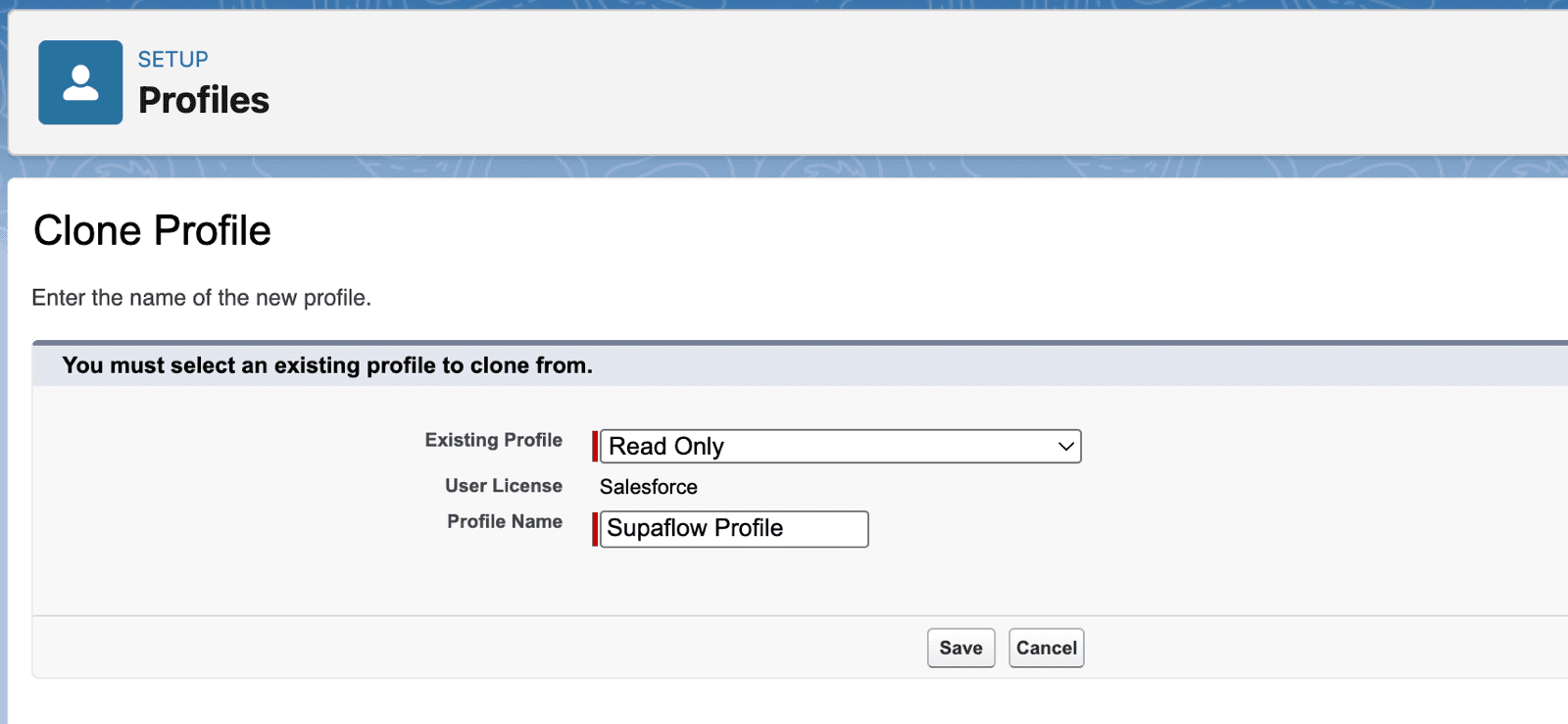
- Click New Profile.
- Select Read Only from the Existing Profile drop-down menu.
- Enter a name in the Profile Name field (for example,
Supaflow Profile). - Click Save.
Configure Profile Permissions
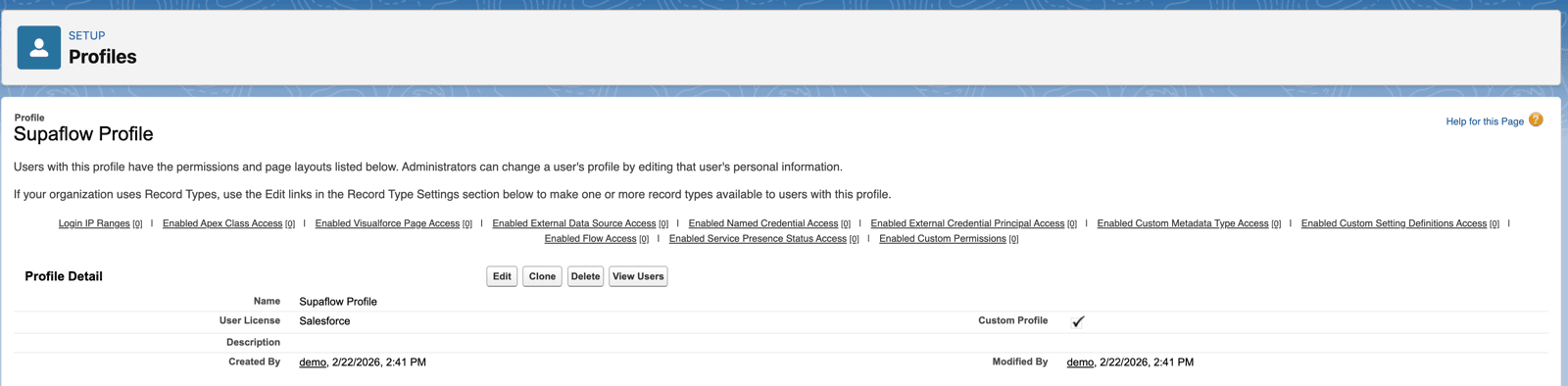
After saving, the Profile page will open.
- Click Edit in the Profile Detail section.
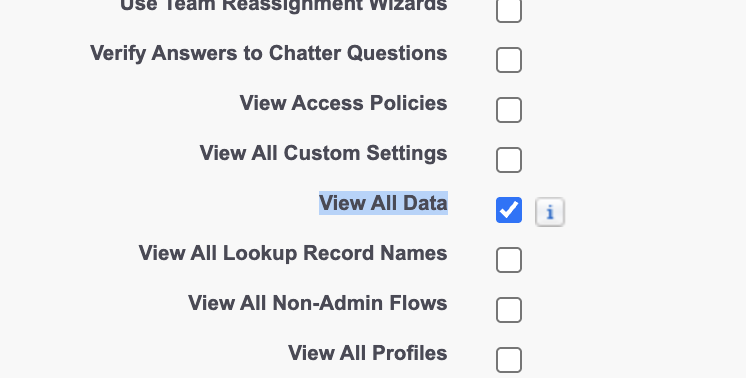
If you intend to use Supaflow to export all data from Salesforce, enable the View All Data permission in the Administrative Permissions section instead of granting access object by object. This gives the profile read access to all standard and custom objects, and you can skip step 2 below. Note that this grants broad org-wide visibility -- only use this option when full data export is required.
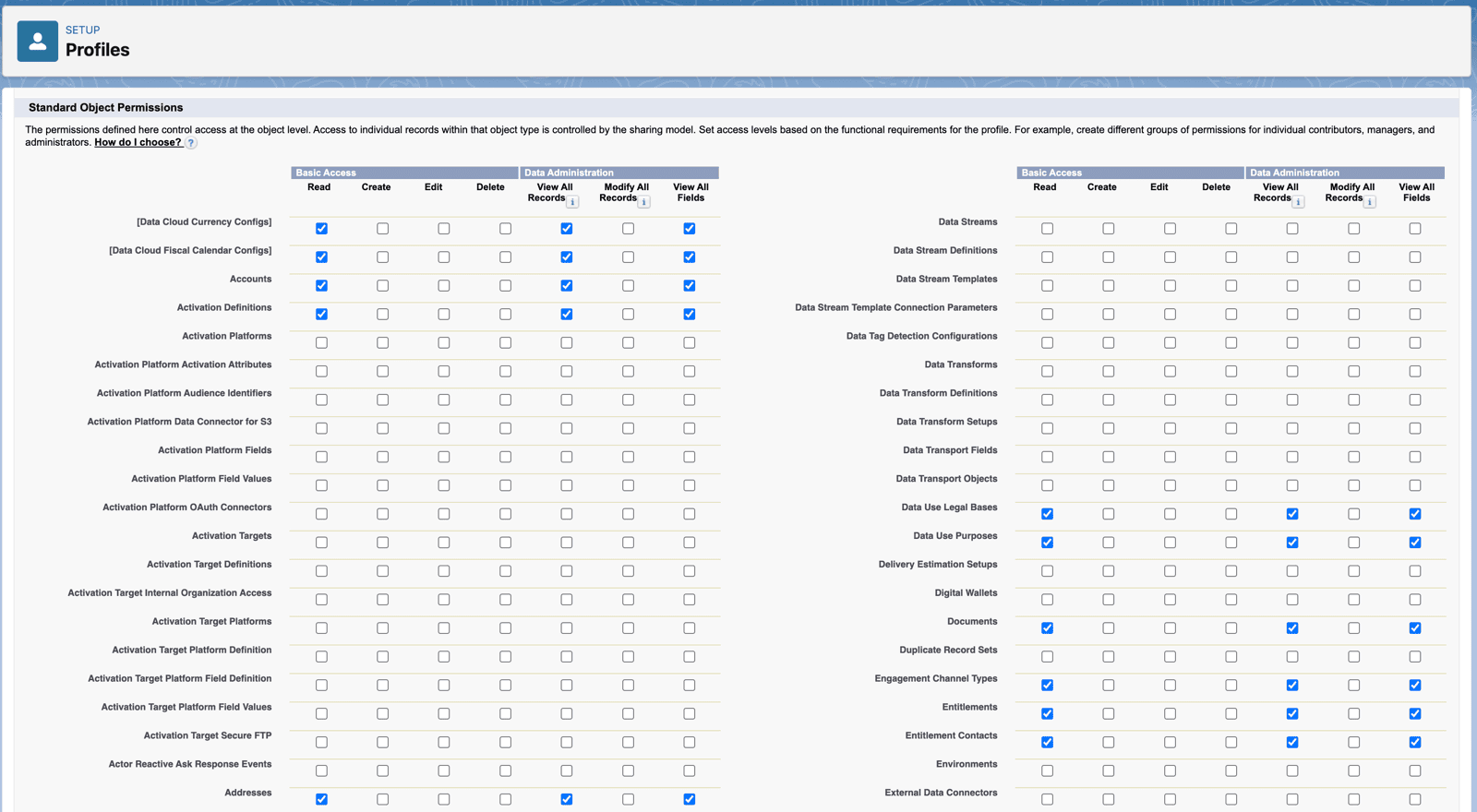
- Scroll down to the Standard Object Permissions section and enable View All Records and View All Fields for the objects you want to sync.
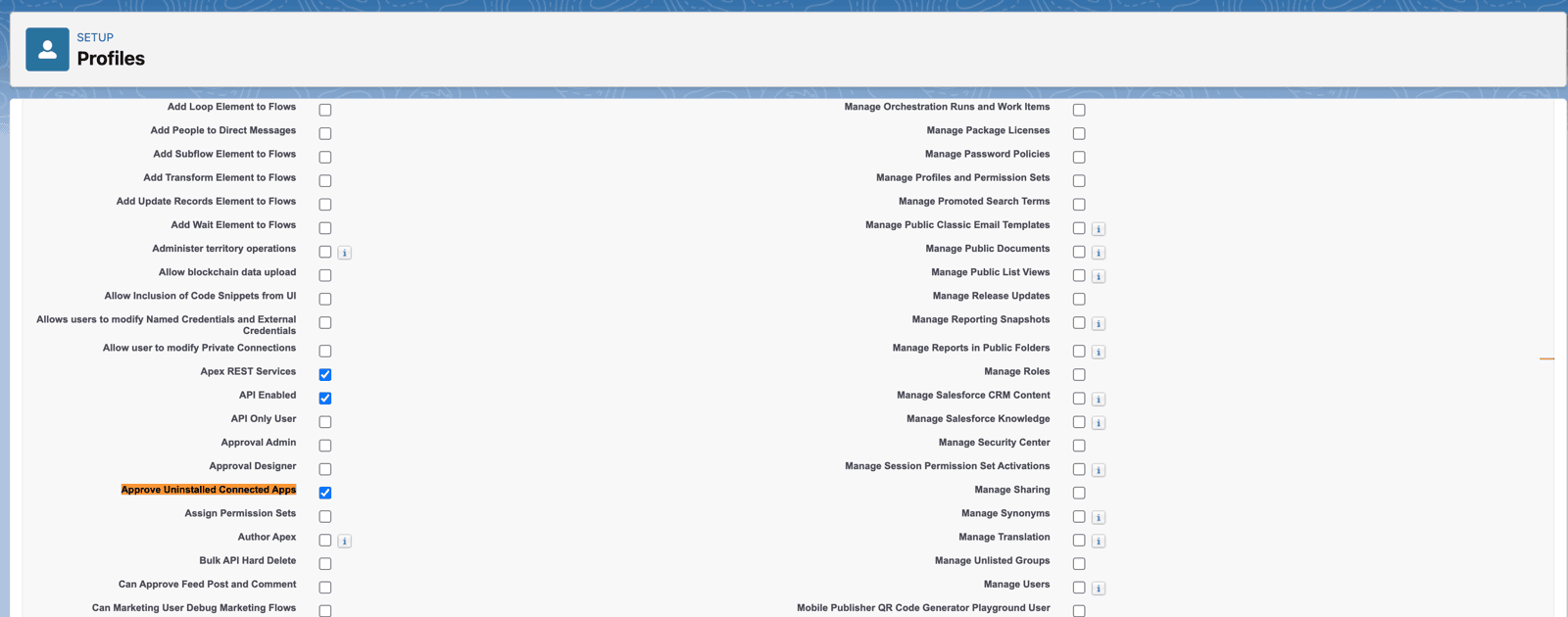
- Scroll to the Administrative Permissions section and ensure the following are enabled:
- API Enabled -- required for API access
- Approve Uninstalled Connected Apps -- required for OAuth authentication with Supaflow
- Click Save.
Create a New User
- Under the Administration tab on the left, click Users.
- Click New User.

- Fill in the required details (First Name, Last Name, Email, Username).
- In the Profile field, select the profile you created earlier (for example,
Supaflow Profile). - Click Save.
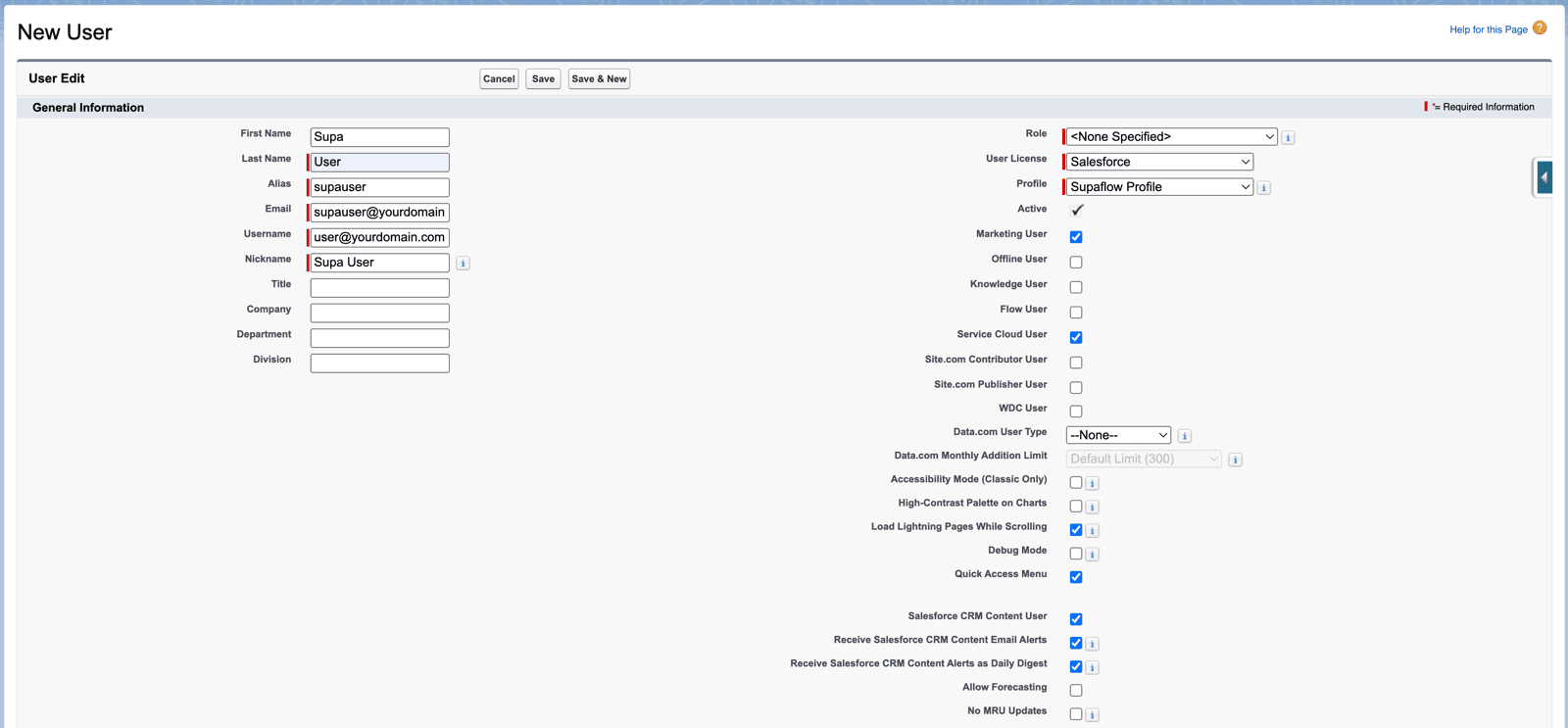
The new user will receive an email with login instructions. Use this account when connecting Salesforce to Supaflow.
Next Steps
Return to the Salesforce source setup to configure your connection.
 Ask Claude