Git Workflow for Transformation Projects
Connect a Git account to import private dbt repositories and send project changes back through a feature branch.
Supported Providers
| Provider | Hosted authentication | Self-hosted authentication |
|---|---|---|
| GitHub | OAuth, personal access token, or SSH key | Personal access token or SSH key |
| GitLab | OAuth, personal access token, or SSH key | Personal access token or SSH key |
| Azure DevOps | OAuth or personal access token | Not currently available |
| Git server | Not available | Username and token/password, or SSH key |
OAuth is available for the hosted GitHub, GitLab, and Azure DevOps services. Use a token or SSH key for a supported self-hosted GitHub or GitLab server.
Link an Account
- Navigate to Settings → Linked accounts
- Click Link account
- Choose the provider
- Select an authentication method
- Complete authorization or enter the requested credential
- For a token or SSH account, enter an account name. For OAuth, Supaflow assigns a name automatically; expand Advanced options to customize it
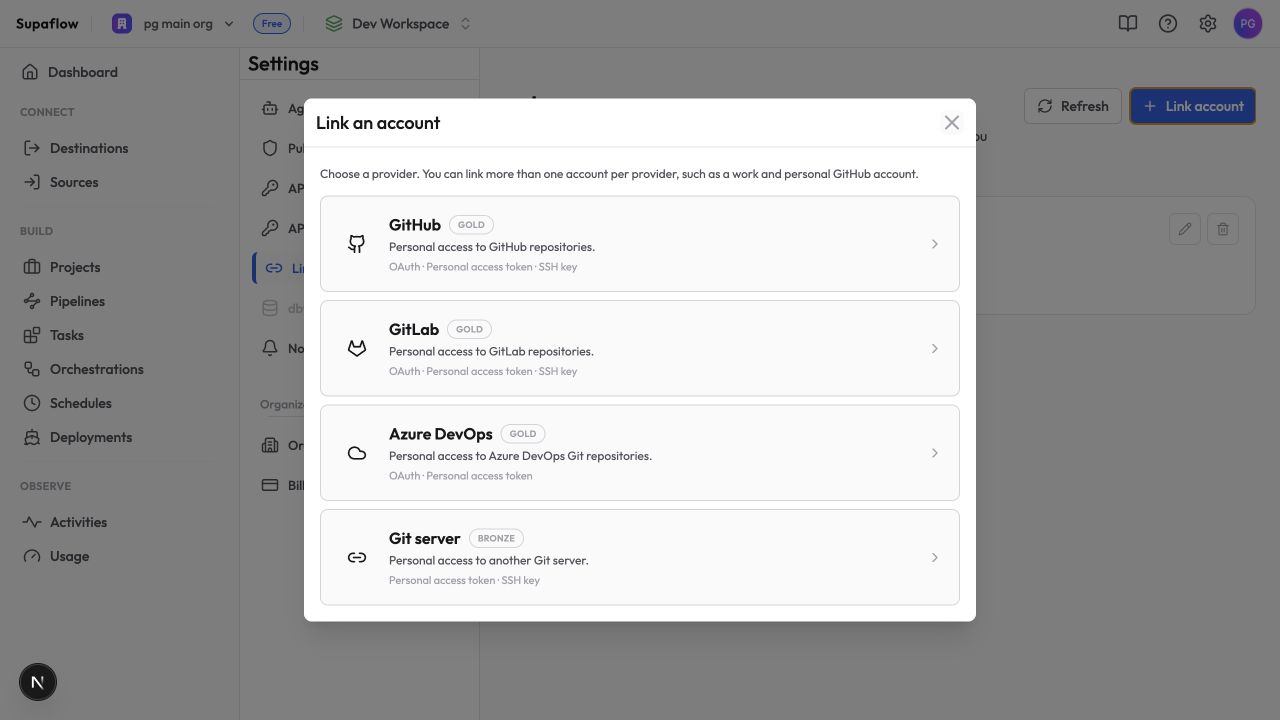
Linked accounts are personal to you. Other workspace members cannot use your stored credentials, and commits and pushes use your provider identity.
You can link more than one account for the same provider. This is useful when you work with separate personal and company repositories.
Import a dbt Project
When creating a transformation project:
- Choose Import from Git
- Enter the repository URL
- Select a Linked Git account when the repository is private or uses SSH
- Optionally enter a Git ref and dbt project subdirectory
- Create the project
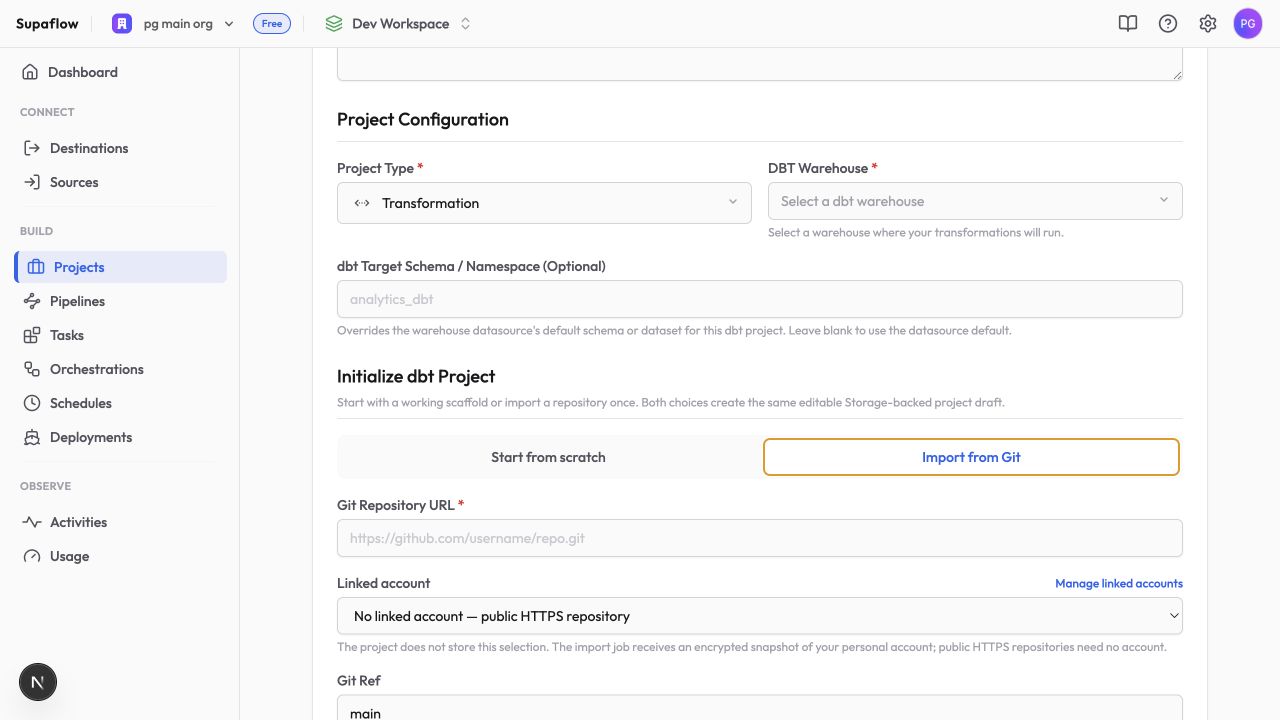
Public HTTPS repositories can be imported without a linked account.
Import runs as a background job. Wait for the project to finish provisioning before opening its files. If import completes but the Git view is not available, refresh the project once.
Make and Publish Changes
Git-backed projects keep the default branch read-only in Supaflow.
- Select Git above the project explorer
- Under Personal branch, select an existing feature branch or Create new branch…, then wait for branch creation to complete
- Edit and save project files
- Select a changed file under Changes to review its diff
- Stage files individually, or click Stage all
- Enter a commit message and click Commit
- When the commit completes, click Push branch
- Click Create pull request to continue with your Git provider
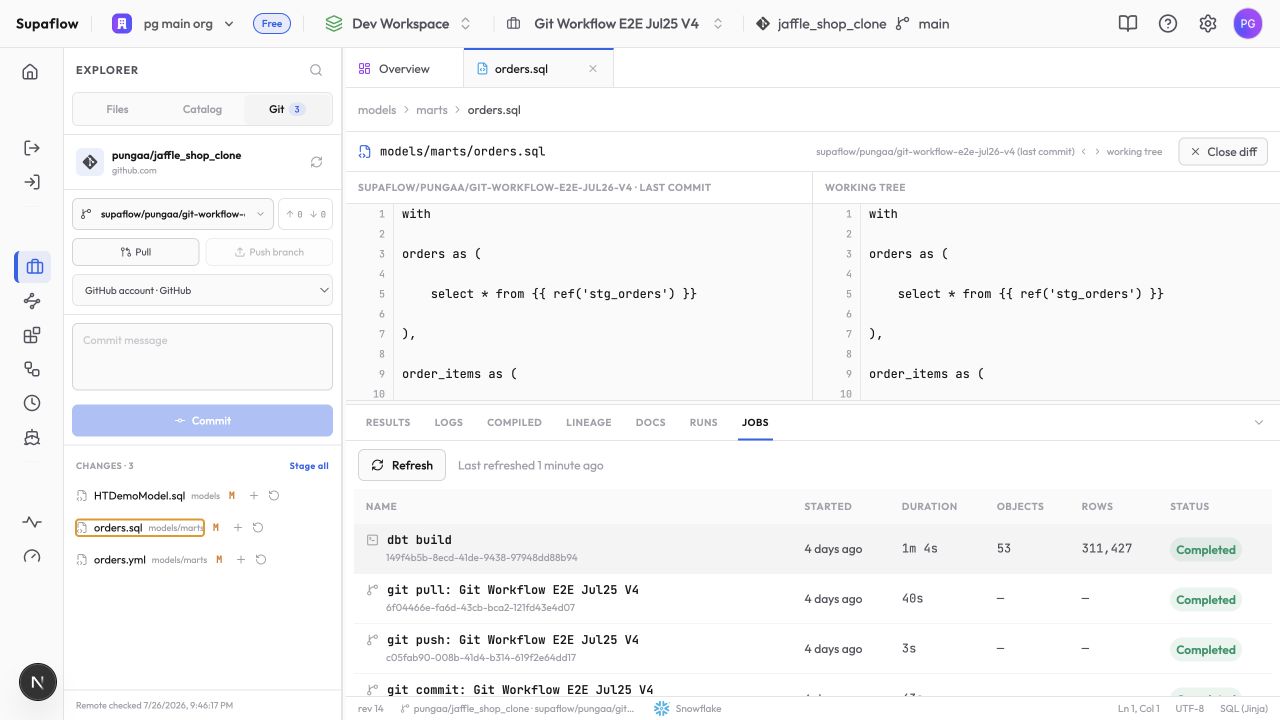
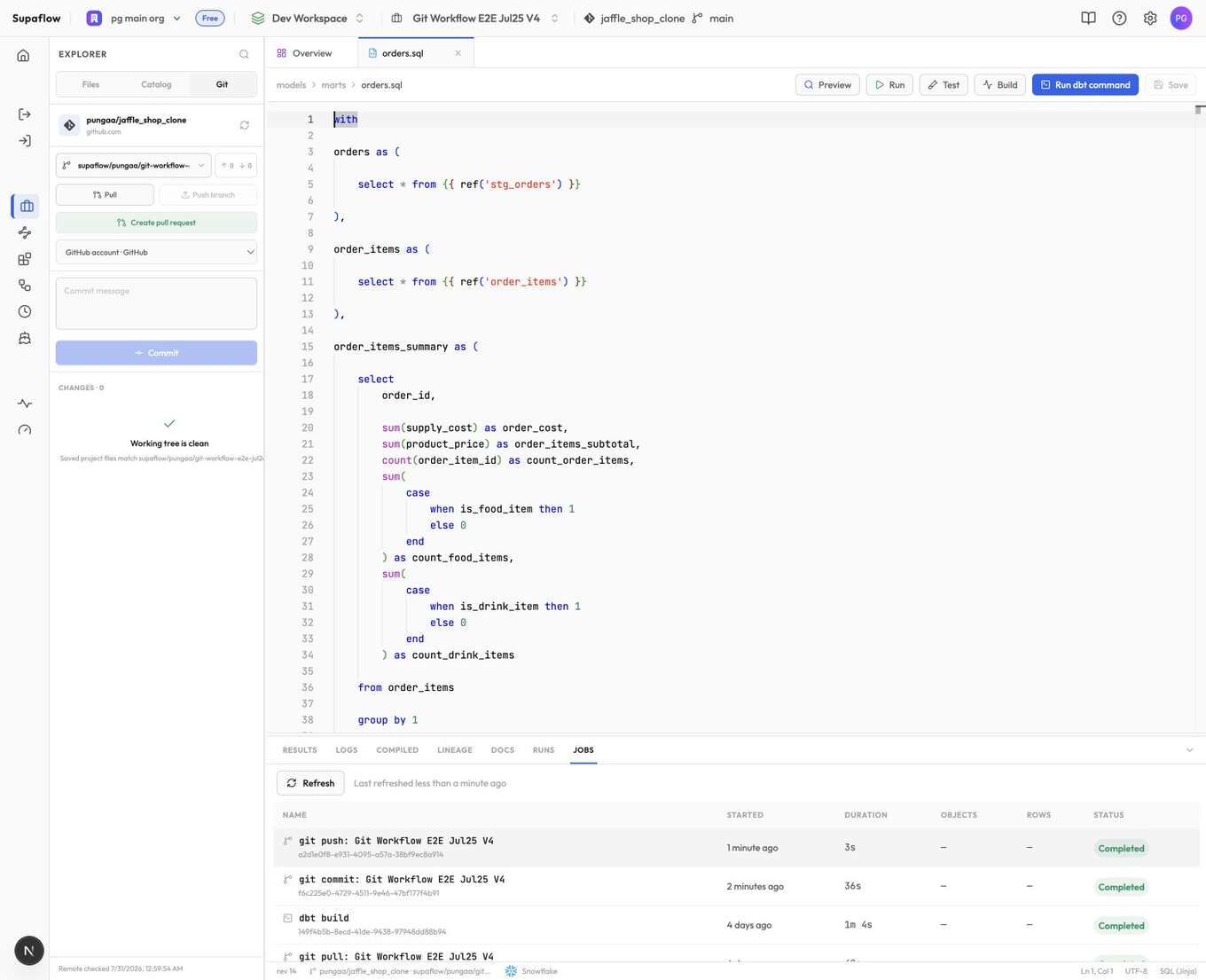
Pull before pushing when the remote branch has advanced. If a pull reports conflicts, resolve the affected files before retrying.
A newly created personal branch exists only in the Supaflow project until you push it. After a successful push, the branch is available in the Git provider and the project reports no unpushed commits. Create pull request opens the provider workflow; Supaflow does not create or approve the pull request itself.
Discard removes the selected uncommitted change from the Supaflow project. Review the diff first; discarded work cannot be recovered from a commit unless it was committed previously.
Reconnect an Account
Supaflow marks a linked account Reconnect required when the provider rejects or expires its authorization.
- Navigate to Settings → Linked accounts
- Find the affected account
- Click Reconnect
- Complete the provider authorization or replace the credential
After reconnecting, retry the Git action that failed.
Limitations
Supaflow does not currently run GitHub Actions or other CI workflows.
Troubleshooting
No linked account matches the repository
Problem: The import or Git panel does not offer the account you expected.
Solution: Confirm the linked account and repository URL use the same Git host. For SSH URLs, select an SSH linked account. For a self-hosted service, use a token or SSH key rather than hosted OAuth.
Commit is disabled
Problem: Files are changed, but the Commit button is unavailable.
Solution: Under Personal branch, create or select a feature branch. Then select a Linked Git account, stage at least one file, and enter a commit message. The default branch is read-only.
Push is rejected
Problem: The remote branch advanced or diverged.
Solution: Pull the latest remote changes, resolve any conflicts, commit the result, and push again.
Related Pages
- dbt Core transformations
- Validate a dbt project end to end
- Work with a transformation project
- Projects
- Settings
Support
Need help? Contact us at support@supa-flow.io
 Ask Claude