Work with a Transformation Project
Open a transformation project to edit its dbt Core files and inspect the results without switching between separate tools.
Open a Transformation Project
- Navigate to Projects
- Find a transformation project and click Open
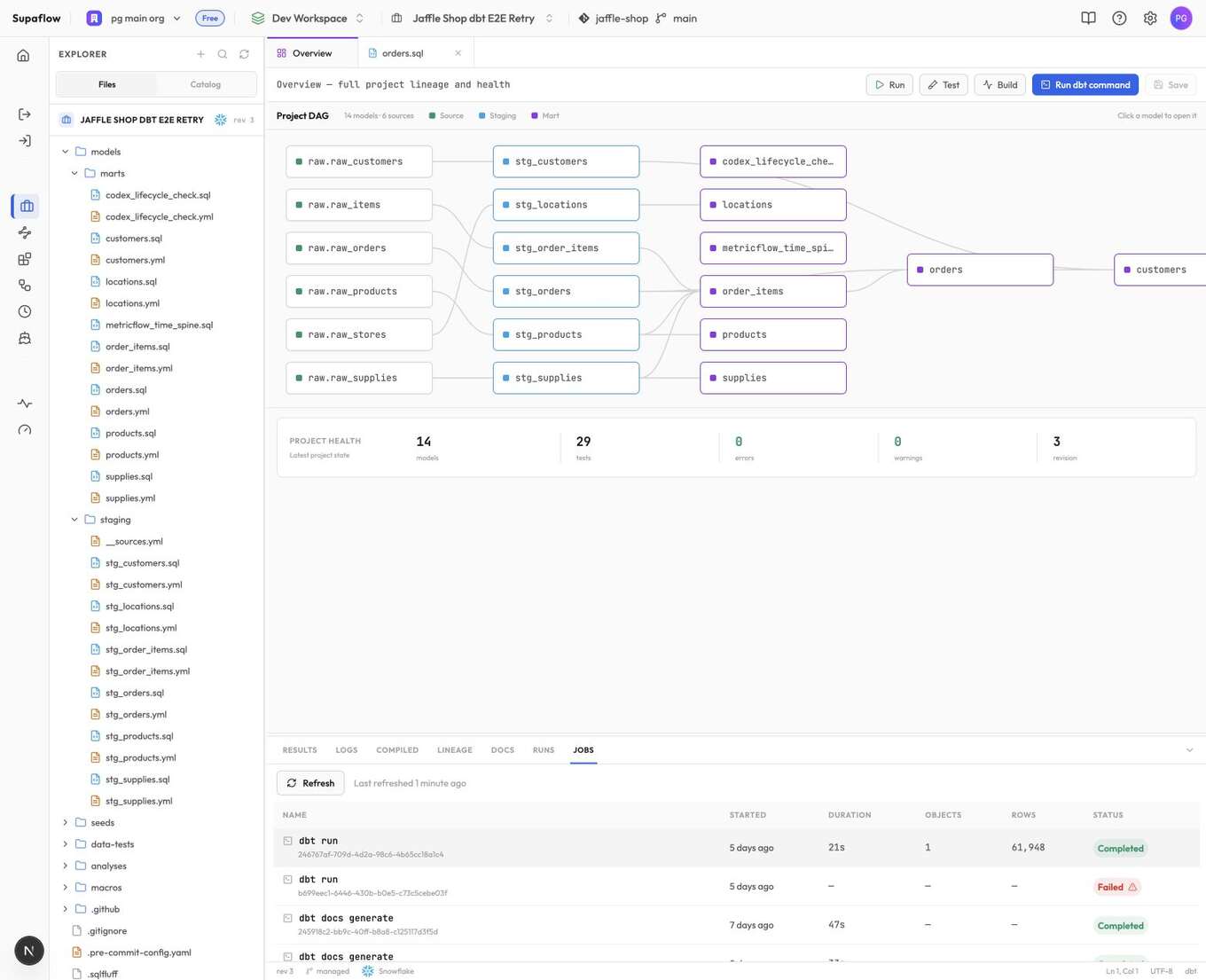
The project opens directly on Overview, where you can review its DAG, project health, files, and recent dbt jobs.
Edit Project Files
Select a file in the explorer to open it. The editor supports the text files commonly used by dbt projects, including SQL models, YAML configuration, Markdown, and seed CSV files.
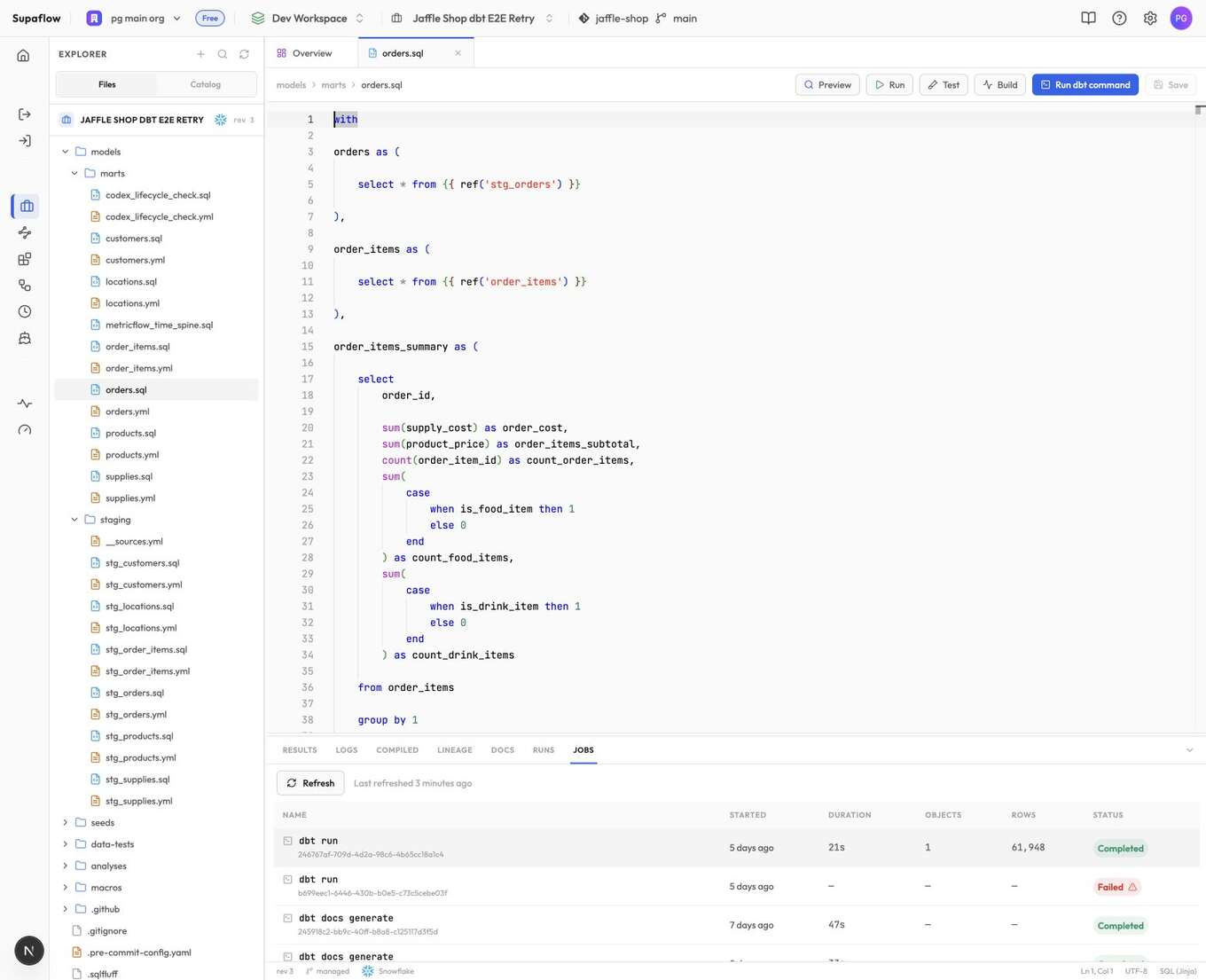
After making a change, click Save. Save a SQL model before previewing it so the preview runs against the current project revision.
Editors can create, update, and remove project files. Viewers can inspect the project but cannot save changes or run commands. In a Git-backed project, switch to a branch under Personal branch before editing because the default branch is read-only.
Preview a Model
- Open a saved SQL file below
models/ - Click Preview, or use Command+Enter on macOS or Ctrl+Enter on Windows and Linux
- When the preview completes, select Results
Supaflow runs dbt show for that model and returns up to 100 rows. Preview is for checking a model while you work; it does not replace a full dbt run or dbt build.
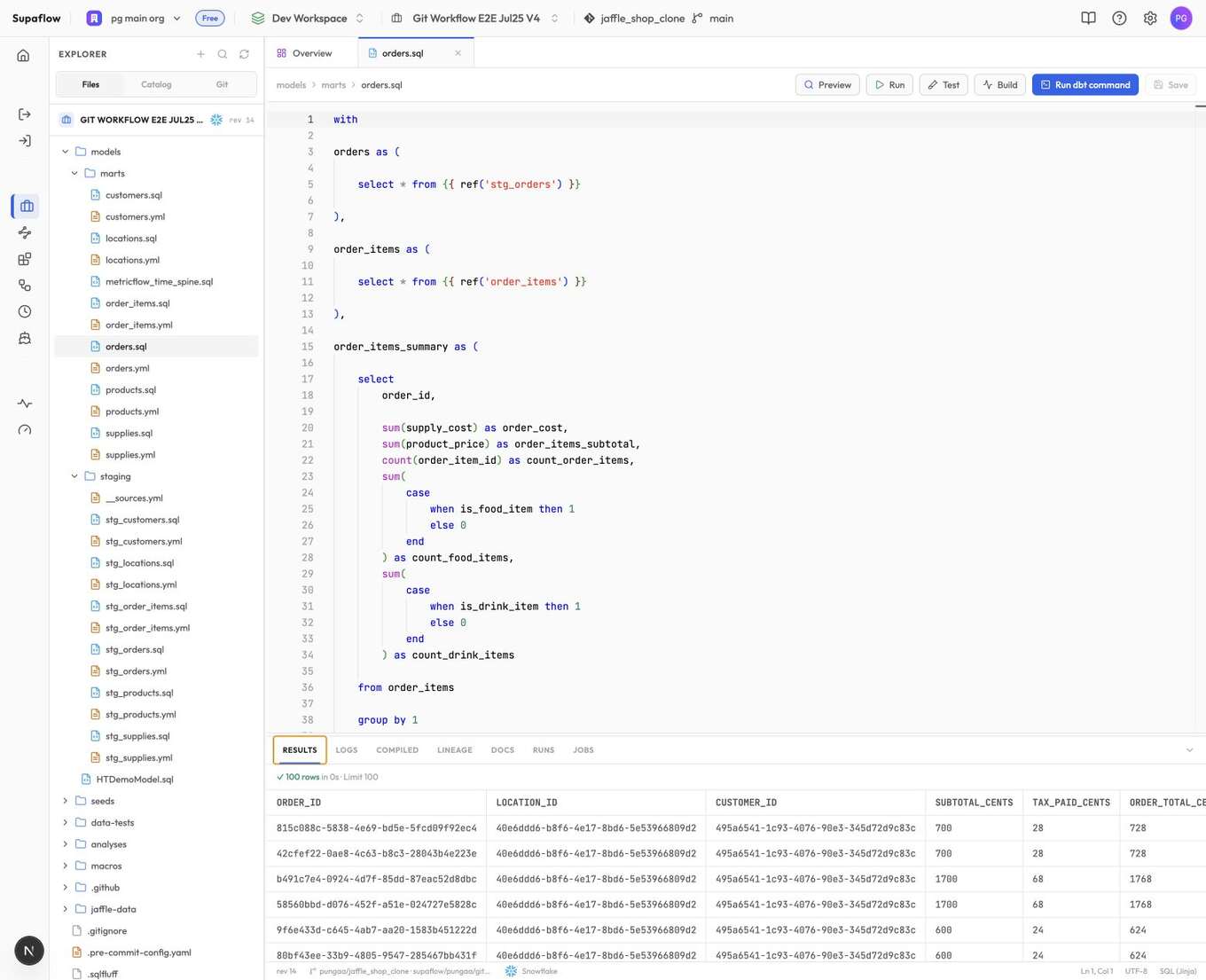
If the model has unsaved changes, save it and preview again.
Run a Project or Model
From Overview, click Run, Test, or Build to run the corresponding dbt command for the project.
When a saved SQL model is open, the same buttons scope the command to that model. Use Preview when you want to inspect rows without building the model.
Use Run dbt command when you need another supported command or want to configure selectors, exclusions, variables, threads, or full refresh.
Run and Monitor a dbt Job
- Click Run dbt command
- Choose a command and add selectors, exclusions, variables, or a thread count when needed
- Click Run [command]
- Select Jobs to follow the job
The newest job appears at the top of Jobs. The table refreshes while a job is active and shows when it started, its duration, and its current status. Select a job to load its processed objects and rows when those totals are available.
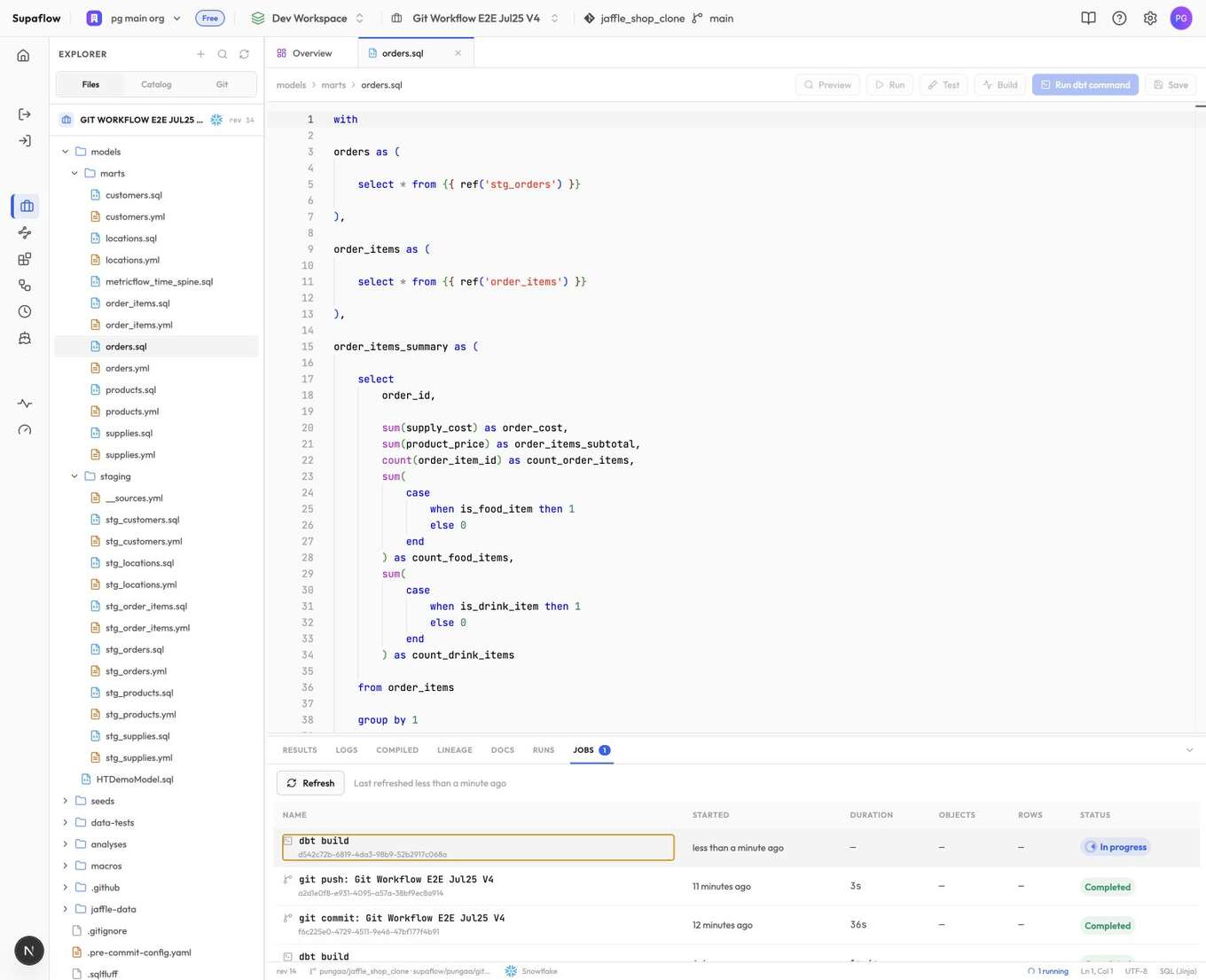
Hover over a status to see its status message. For a failed job, the message includes the error details and a button to copy them.
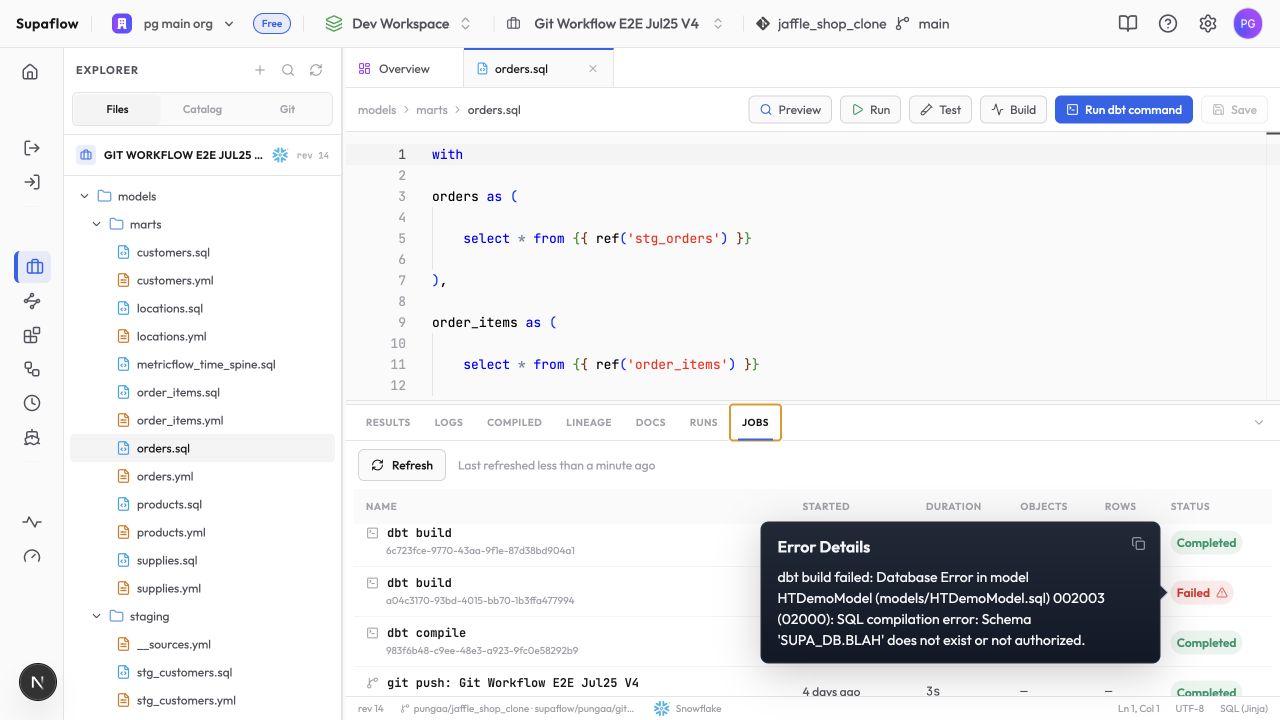
To stop a queued, picked, or in-progress job, hover over its status. The status changes to Cancel. Click it and confirm the cancellation.
See dbt commands for the supported command list and available arguments.
Inspect a Job's Output
Select a job under Jobs, then choose:
- Logs to view the dbt output for that job, including dependency installation and the selected command
- Runs to review each model, seed, snapshot, test, or other reported dbt resource, with its status, row count, and execution time
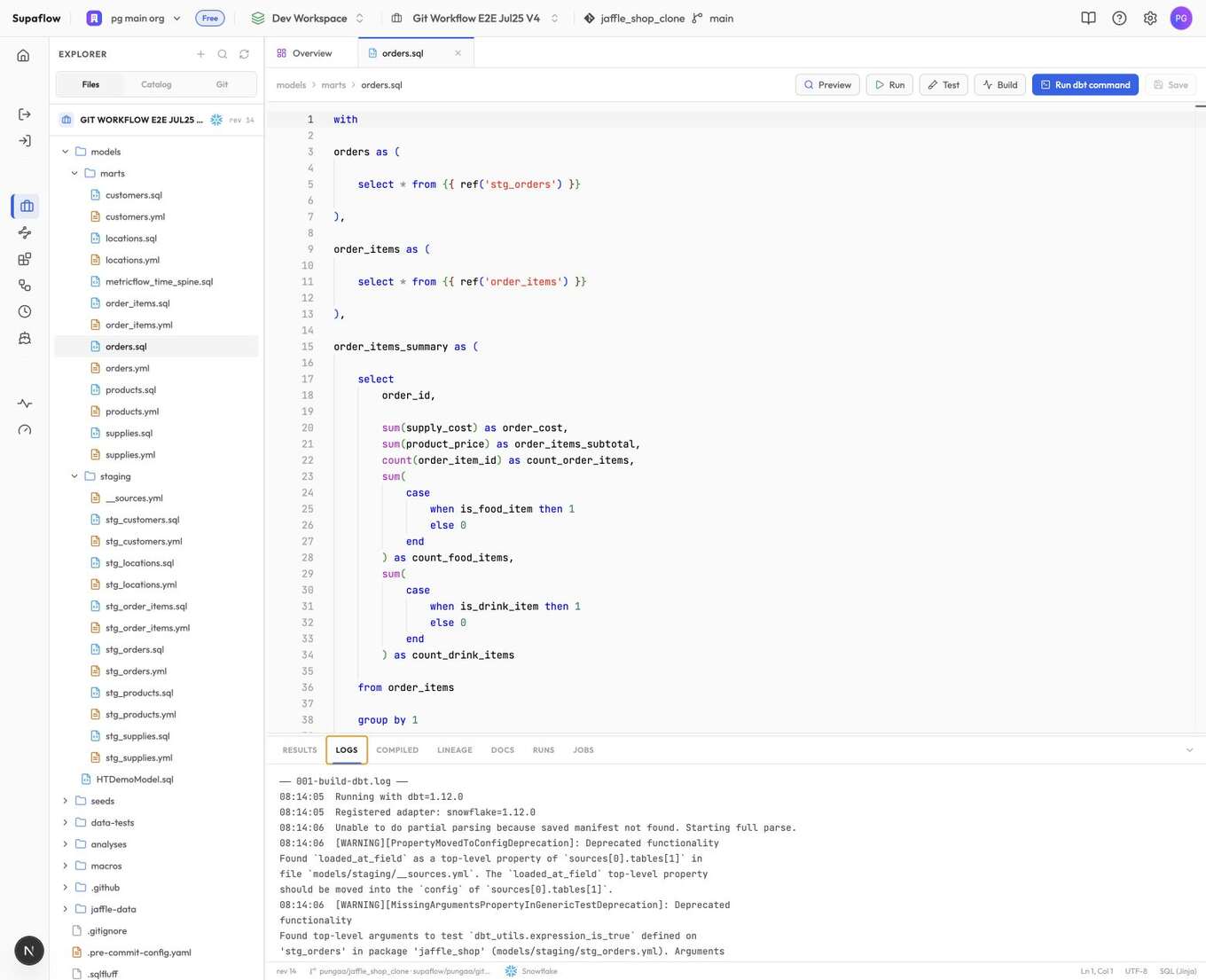
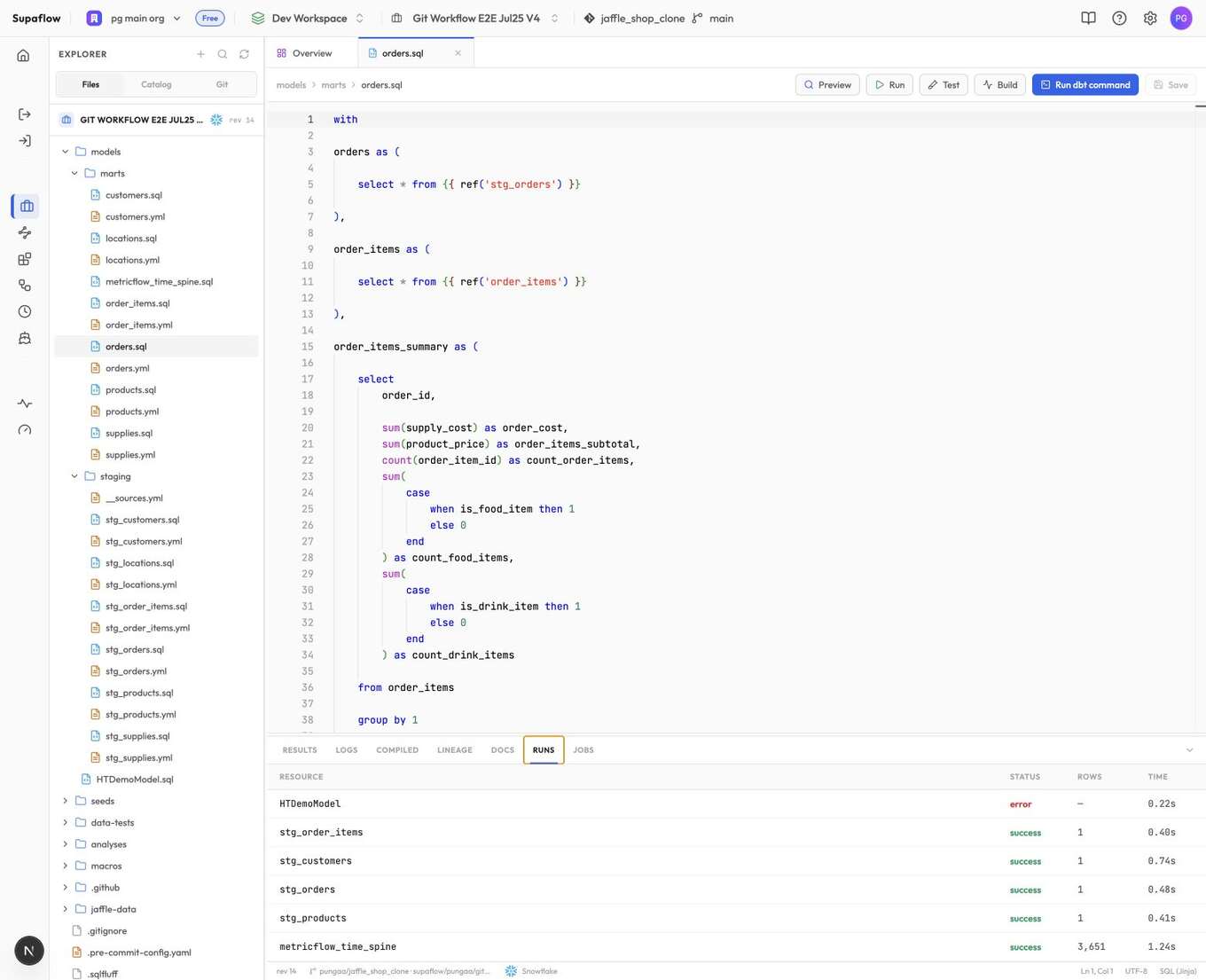
Selecting a different job updates Logs and Runs, so you can return later and inspect any recent project job.
The resource total can include entries that dbt reports as NO-OP, such as saved queries that do not execute for the selected target. A completed job can also contain package or deprecation warnings. Use the job status to determine whether the command succeeded, then review Logs for warnings that should be addressed before production use.
Review Model and Project Details
The output panel also provides:
- Compiled for the SQL dbt produced for the active model
- Lineage for the active model's upstream and downstream dependencies
- Docs for model and column descriptions from generated dbt metadata
Select Catalog above the file explorer to browse models, sources, columns, and types from generated dbt metadata.
Run dbt compile when you need fresh compiled SQL. Run dbt docs generate when Docs or Catalog is missing current project metadata.
Work with Git
For a project imported from Git, select Git to:
- Review changed files and diffs
- Stage or discard changes
- Create or switch feature branches
- Pull remote changes
- Commit staged files
- Push a feature branch
The default branch is read-only in Supaflow. See Git workflow before making repository changes.
Run dbt with Pipelines
Add a transformation project to an orchestration when dbt should run as part of a larger workflow. For example, run one or more ingestion pipelines, wait for them to complete, run the transformation project, and then start activation pipelines that depend on the modeled data.
Troubleshooting
Preview is unavailable
Problem: The Preview button is disabled or says the model must be saved.
Solution: Open a SQL file below models/, save the file, and try again. Preview is not available for YAML, Markdown, seed, or unsaved files.
Compiled SQL is missing
Problem: The model is saved, but no compiled SQL appears.
Solution: Run dbt compile, dbt run, or dbt build, then reopen the model. Confirm the command completed against the current project revision.
Documentation or Catalog is empty
Problem: Project files are visible, but generated documentation is not.
Solution: Run dbt docs generate and wait for the job to complete. Then refresh the project view.
A saved change is not in Git
Problem: The project file changed, but no commit exists in the remote repository.
Solution: Saving updates the Supaflow project. For a Git-backed project, create a feature branch, select Git, stage the file, commit it, and push the branch.
Related Pages
- dbt Core transformations
- Validate a dbt project end to end
- Run dbt commands
- Git workflow
- Orchestrations
Support
Need help? Contact us at support@supa-flow.io
 Ask Claude