Validate a dbt Project End to End
Use this workflow to confirm that a dbt repository, Git account, warehouse, and Supaflow transformation runtime work together.
Prerequisites
Before you begin, ensure you have:
- An active dbt-supported datasource in the current workspace
- Permission to create and update objects in a dedicated development target
- A Git repository that contains
dbt_project.yml - A linked Git account when the repository is private or you want to push changes
1. Import the Project
- Navigate to Projects and click Create Project
- Select Transformation
- Enter the project name and API name
- Select the DBT Warehouse
- Set dbt Target Schema / Namespace to a dedicated development location, such as
analytics_dbt_dev
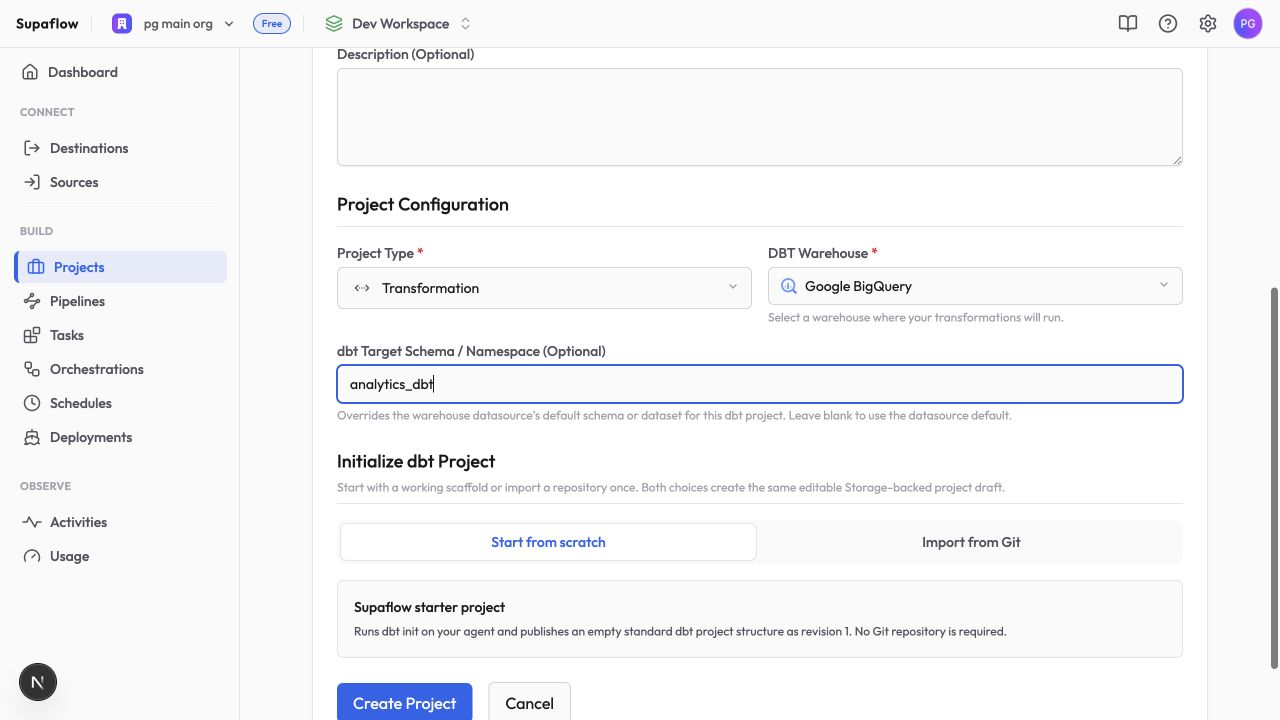
- Choose Import from Git
- Enter the repository URL, optional Git ref, and optional dbt project subdirectory
- Select a linked account when the repository is private or when you want Supaflow to use that account for Git actions
- Click Create Project and wait for provisioning to complete
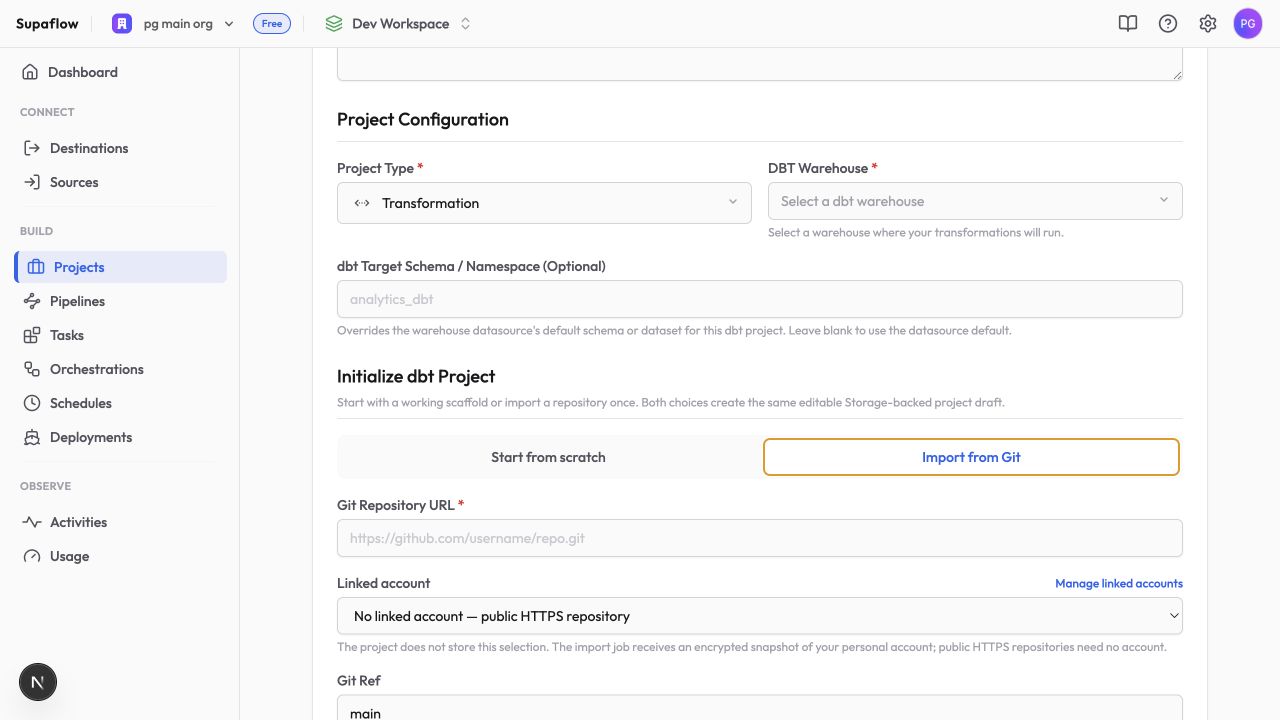
The import runs as a background job. When the project becomes active, open it and confirm that Overview shows the project files. If the import completed but the Git view is not available, refresh the project once.
2. Create a Personal Branch
The imported default branch is read-only.
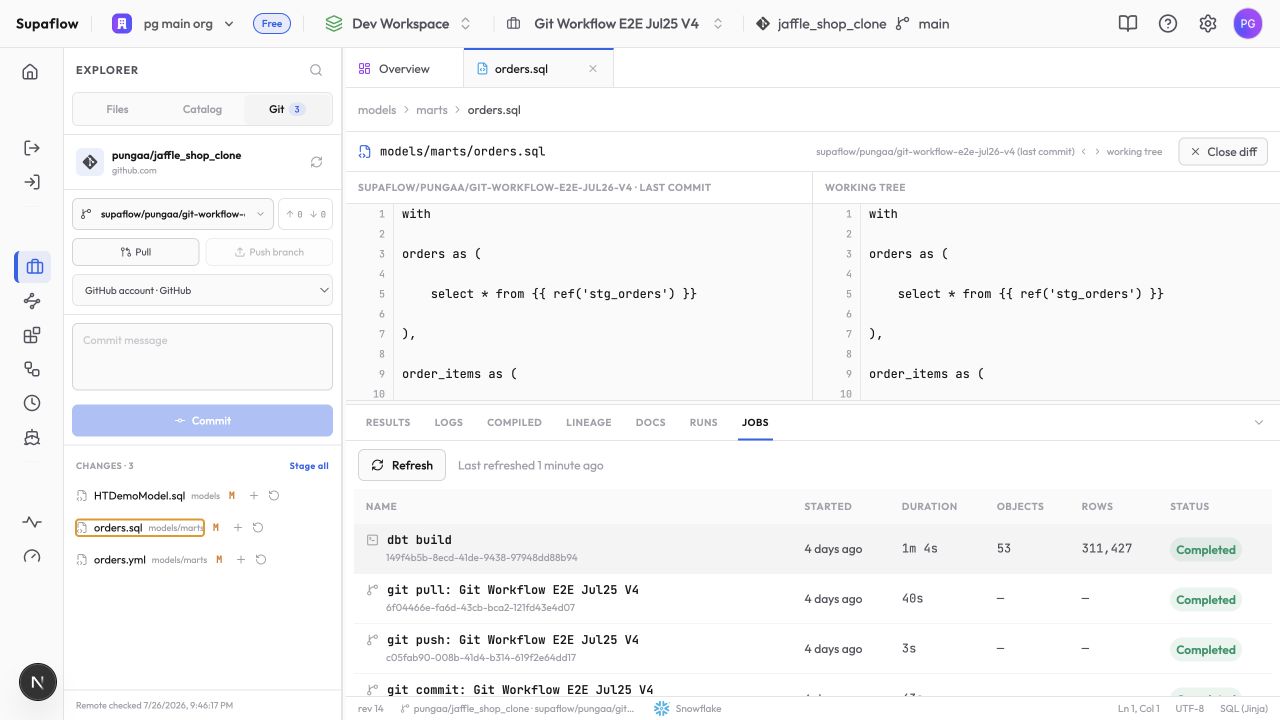
- Select Git above the project explorer
- Under Personal branch, select Create new branch…
- Enter a feature-branch name and wait for branch creation to complete
The new branch remains in the Supaflow project until you push it to the Git provider.
3. Make a Validation Change
- Create
models/supaflow_validation.sql - Add a small model that is safe for the selected development target:
select
    1 as validation_id,
    current_timestamp as validated_at
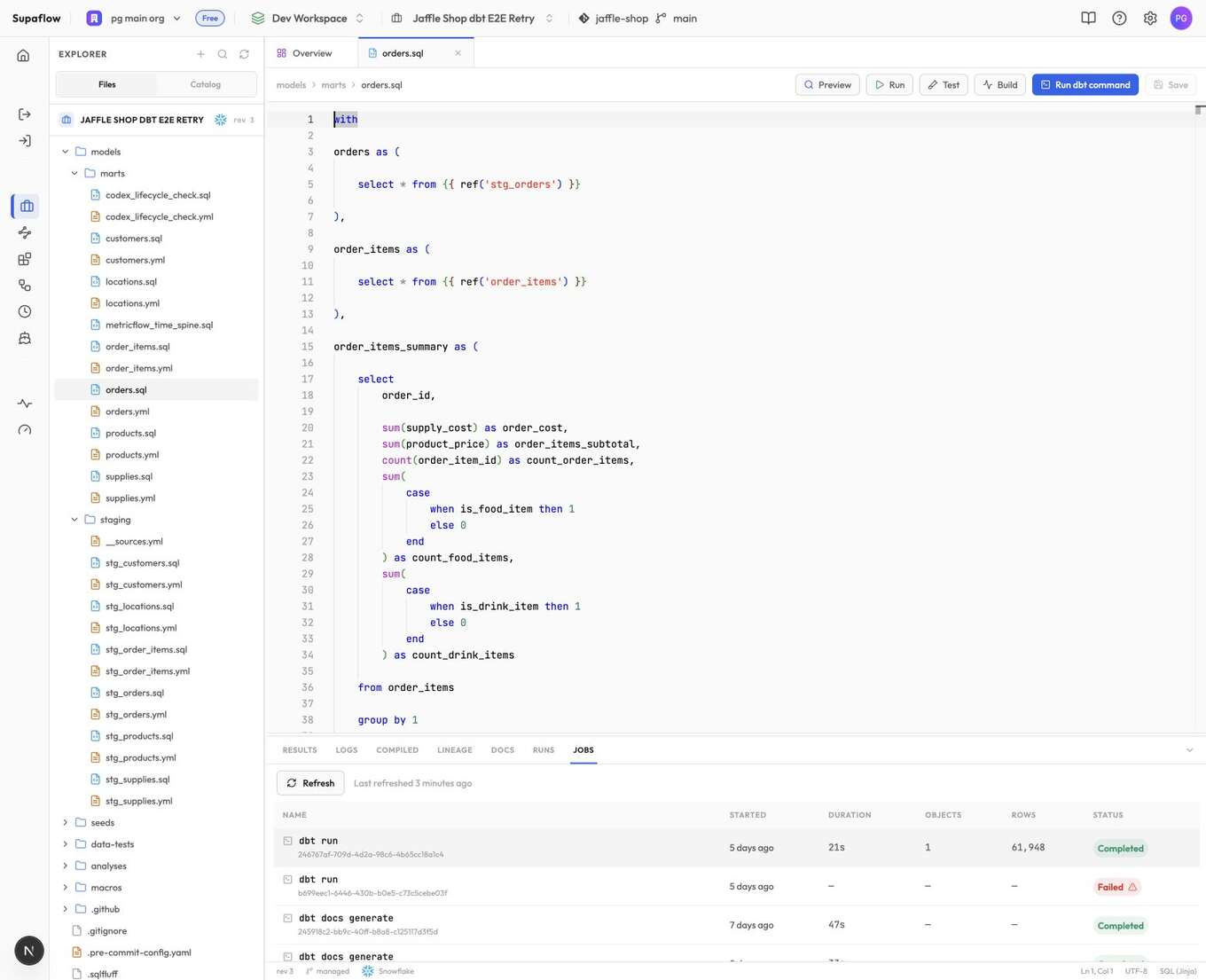
- Click Save
- Select Git and confirm that the file appears under Changes
Saving creates a new Supaflow project revision. It does not create a Git commit.
4. Build and Parse the Project
From Overview, click Build and run dbt build. This command can create or update warehouse objects, so confirm the project uses the intended development target before starting it.
When the job completes:
- Confirm the job status is completed
- Open Runs to review resource statuses and row counts
- Open Logs to review dbt output and warnings
- Confirm the validation model was built in the configured target
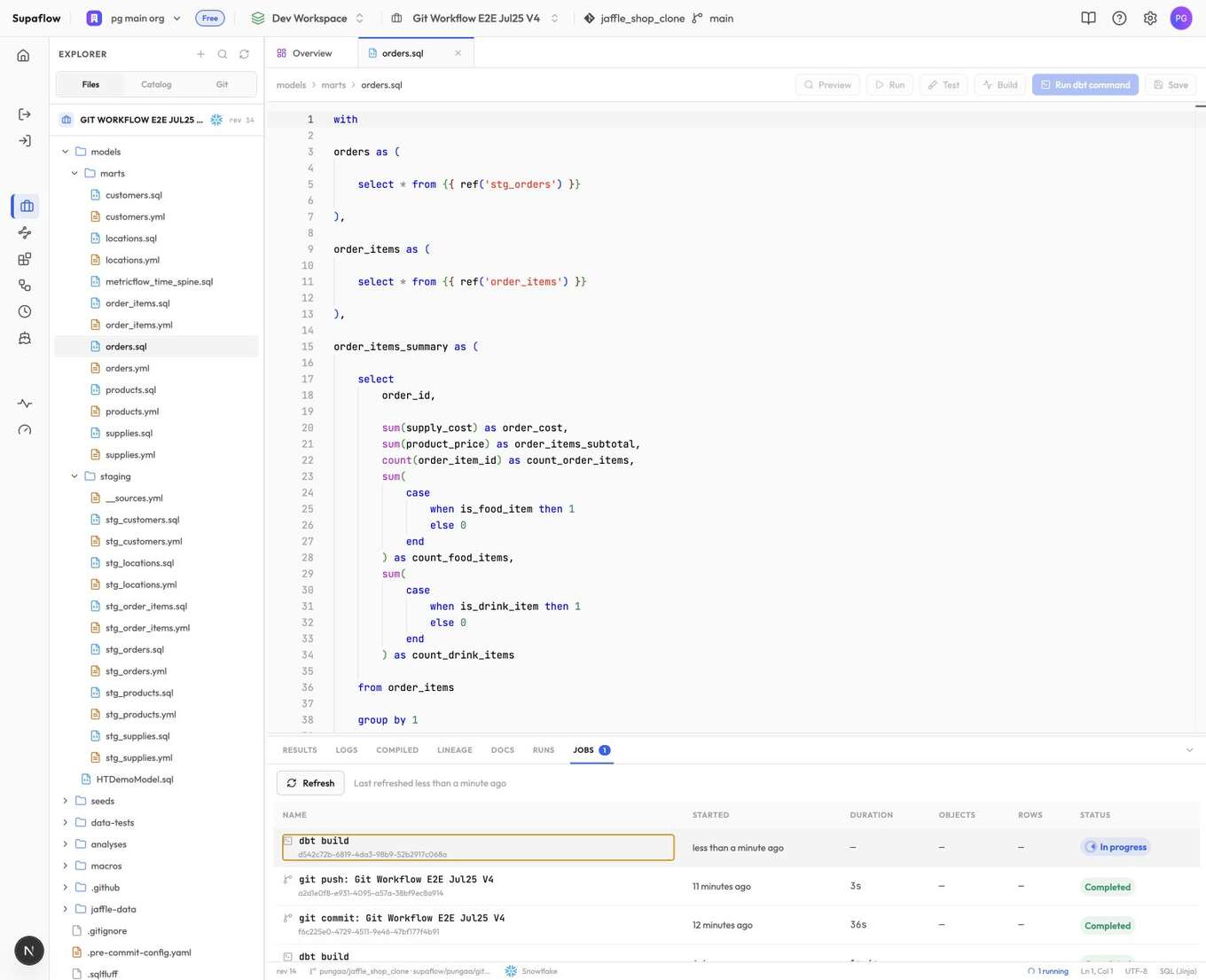
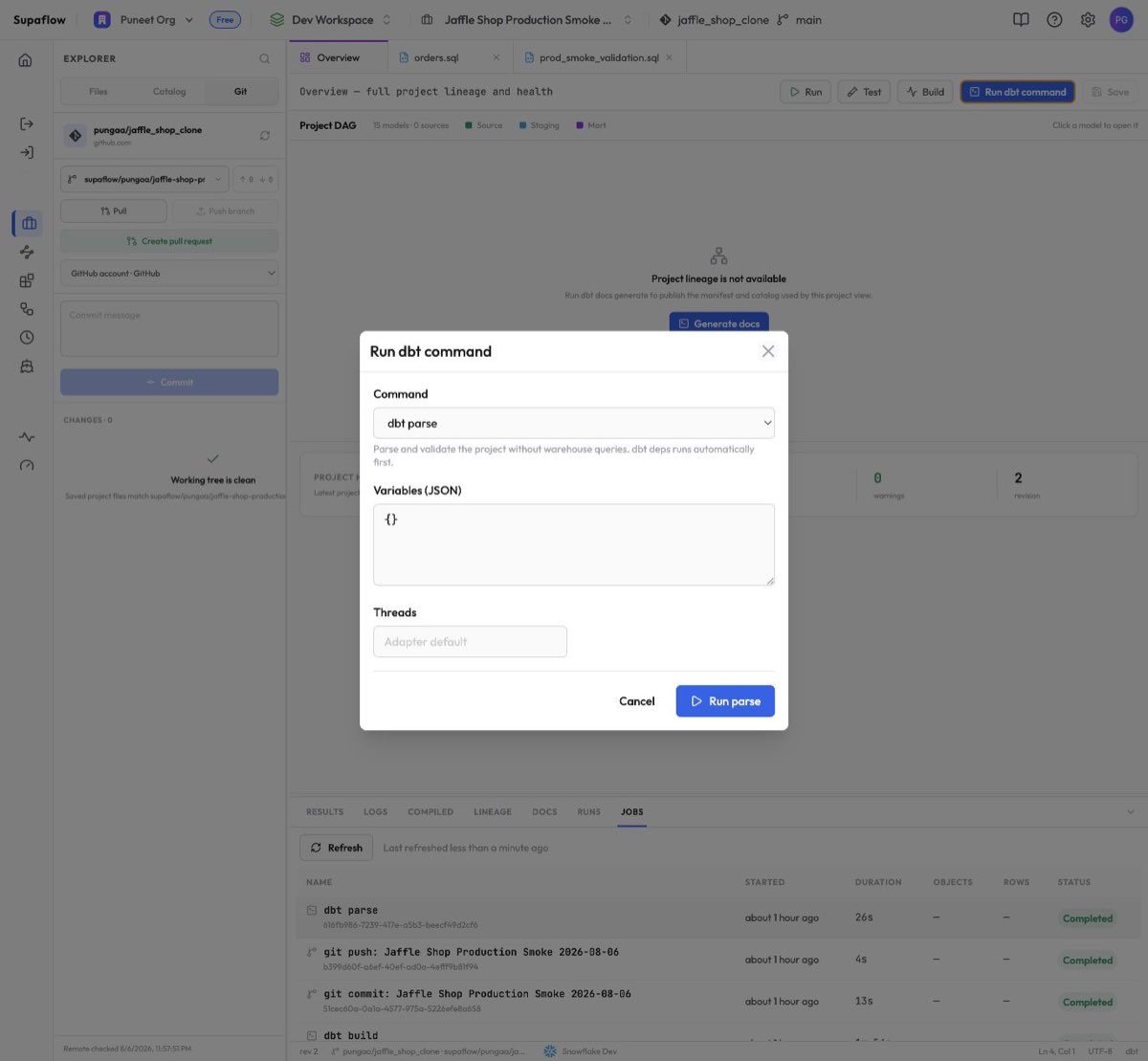
Next, use Run dbt command to run dbt parse. A completed parse confirms that dbt can read the active project revision and validate its structure.
5. Commit and Push
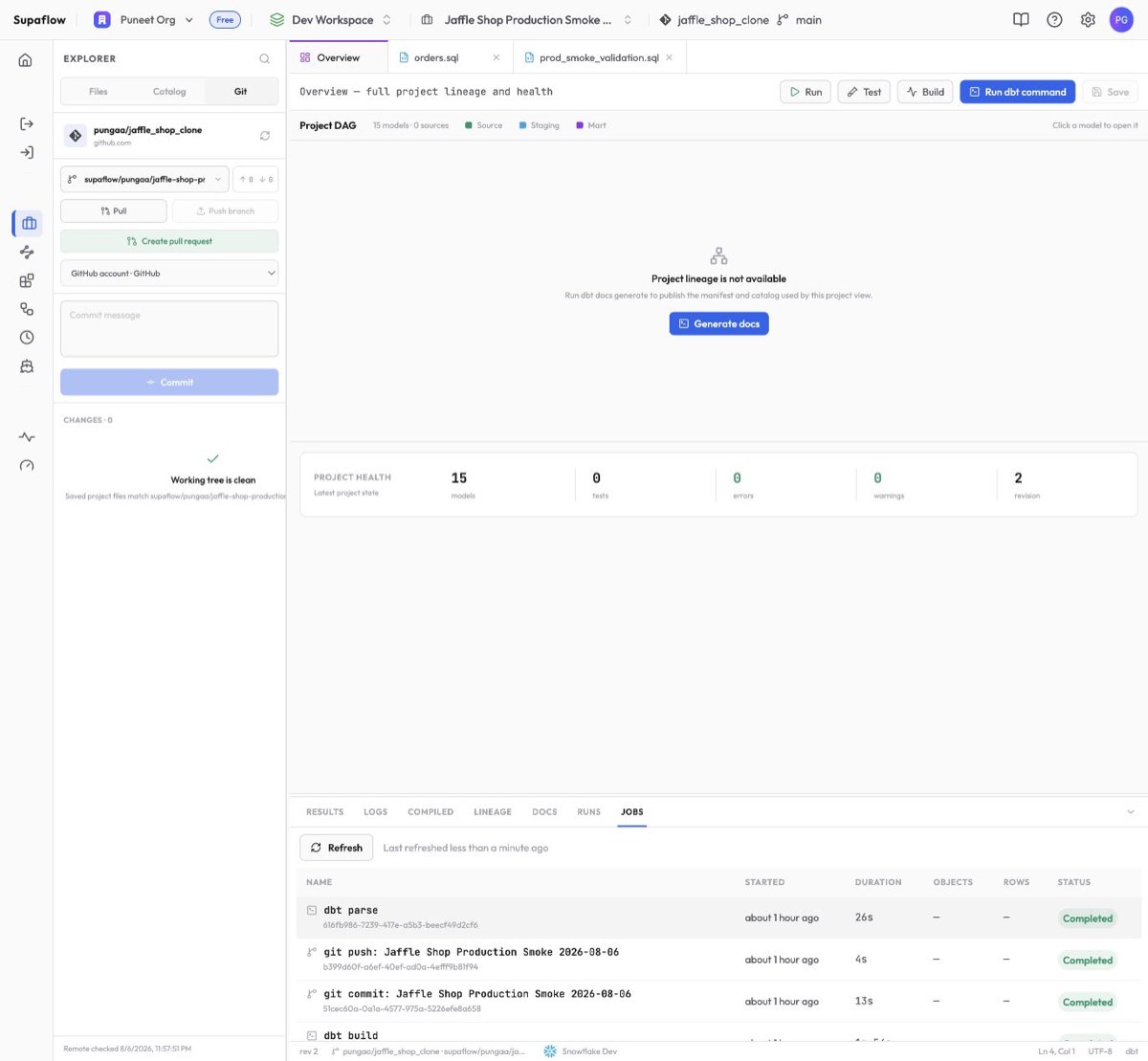
- Select Git
- Review the validation-file diff
- Stage the file
- Enter a commit message and click Commit
- Wait for the commit to complete, then click Push branch
After the push completes, confirm that the branch is available in the Git provider and that Supaflow reports no unpushed commits. Click Create pull request when you are ready to continue in the provider.
6. Add the Project to an Orchestration
To run dbt alongside data pipelines, create an orchestration with this order:
- One or more ingestion pipelines
- The dbt Core transformation project
- One or more activation pipelines
Set the transformation step to wait for its ingestion dependencies, then set each activation step to wait for the transformation. Run the orchestration manually first, review its activities, and schedule it after the complete workflow succeeds.
Troubleshooting
No dbt warehouse is available
Transformation projects list only eligible datasources in the current workspace. Switch to the workspace that contains the warehouse or create and test a supported datasource in the current workspace.
The project stays in provisioning
Test the warehouse connection. For a private repository, confirm that the linked account can read it. Reconnect the account if needed, then retry the import.
The build completes with warnings or NO-OP resources
A completed job can contain package or deprecation warnings. dbt can also report resources such as saved queries as NO-OP when they do not execute for the selected target. Review the final job status and Logs before deciding whether the validation passed.
Related Pages
- dbt Core transformations
- Work with a transformation project
- Run dbt commands
- Git workflow
- Orchestrations
Support
Need help? Contact us at support@supa-flow.io
 Ask Claude