Prepare Microsoft Fabric Warehouse for Supaflow
Use this guide to prepare Microsoft Fabric Warehouse for the Supaflow SQL Server connector. The same connector can read Warehouse tables for ingestion or activation pipelines and load data into a Warehouse destination. Fabric uses Microsoft Entra service-principal authentication instead of a SQL username and password.
For connector behavior and configuration fields, see the SQL Server source and SQL Server destination guides. For capabilities and use cases, see the Microsoft Fabric Warehouse connector overview.
What You Will Configure
| Resource | Purpose |
|---|---|
| Microsoft Entra application | Provides a dedicated identity for Supaflow |
| Client secret | Authenticates the application without an interactive user |
| Fabric tenant setting | Allows approved service principals to use Fabric APIs |
| Fabric workspace access | Grants the service principal access to the Warehouse |
| Warehouse SQL endpoint | Supplies the hostname and database name used by Supaflow |
No redirect URI or additional Microsoft Graph permission is required for service-principal authentication. Fabric authorization is controlled through the Fabric tenant, workspace, item, and SQL permissions described below.
Before You Begin
You need:
- Permission to register applications in the Microsoft Entra tenant that owns the Fabric workspace
- A Fabric administrator who can update tenant settings
- Administrator access to the Fabric workspace
- A Microsoft Fabric Warehouse on an active Trial, F, or supported Premium capacity for final connection validation
- An approved secret manager where you can save the client secret immediately after creating it
Register the Service Principal
1. Register a single-tenant application
- Sign in to the Microsoft Entra admin center.
- Go to Entra ID > App registrations.
- Click New registration.
- Enter a descriptive name, such as
Supaflow Microsoft SQL Connector. - Under Supported account types, select Accounts in this organizational directory only.
- Leave Redirect URI blank.
- Click Register.
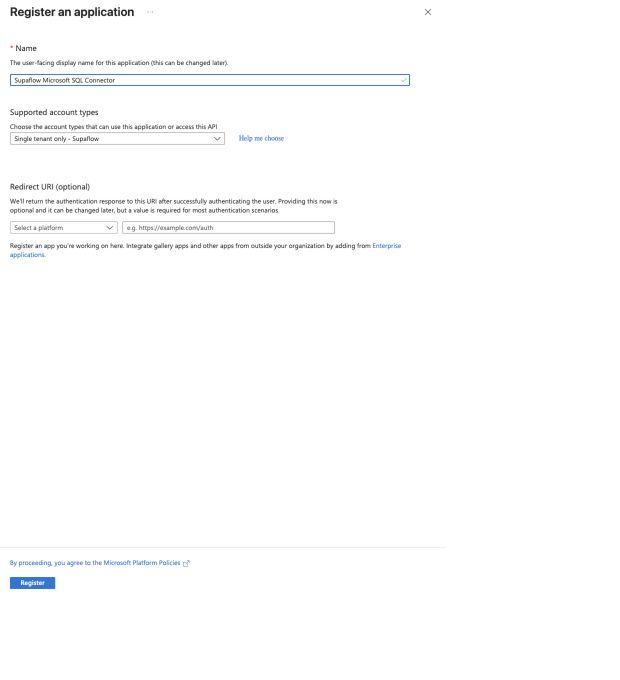
On the application Overview page, copy these values for the Supaflow connection:
- Application (client) ID
- Directory (tenant) ID
The Object ID and Managed application values are not connection credentials.
2. Create a client secret
- In the application menu, select Certificates & secrets.
- Open Client secrets and click New client secret.
- Enter a description that identifies the Supaflow connection.
- Select an expiration period allowed by your organization's credential policy.
- Click Add.

Copy the secret's Value immediately and store it in your approved secret manager. Microsoft displays the value only once. Do not copy the Secret ID; it cannot authenticate the connector.
Create a rotation reminder before the expiration date. After rotating the secret, update the Supaflow source or destination before removing the previous credential.
Treat the client-secret value like a password. Do not include it in screenshots, tickets, email, chat, documentation, or source control.
Allow Service Principals to Call Fabric APIs
A Fabric administrator must allow service principals to call Fabric APIs. Supaflow uses this access to initialize the service principal's Fabric security context before connecting to the Warehouse SQL endpoint.
- Sign in to Microsoft Fabric.
- Open Settings > Admin portal > Tenant settings.
- Expand Developer settings.
- Expand Service principals can call Fabric public APIs.
- Turn the setting on.
- Apply the setting to the entire organization or to an approved security group that contains the Supaflow service principal.
- Click Apply if you changed the setting.
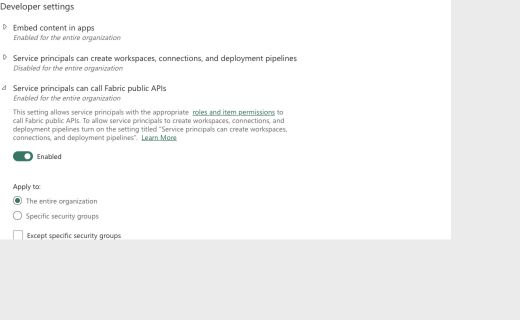
Scoping the setting to a dedicated security group provides tighter access control when your tenant policy supports it. Supaflow does not require Service principals can create workspaces, connections, and deployment pipelines.
The Users can access data stored in OneLake with apps external to Fabric setting is also not required. Supaflow connects through the Warehouse SQL endpoint rather than the OneLake file APIs.
Continue the Fabric Setup
1. Create or select a capacity-backed workspace
Use a shared workspace assigned to an active Fabric, Fabric Trial, or supported Premium capacity. A Power BI Pro or Premium Per User workspace does not provide the capacity required to create or run a Warehouse.
To create a workspace:
- In Fabric, select Workspaces > New workspace.
- Enter a workspace name.
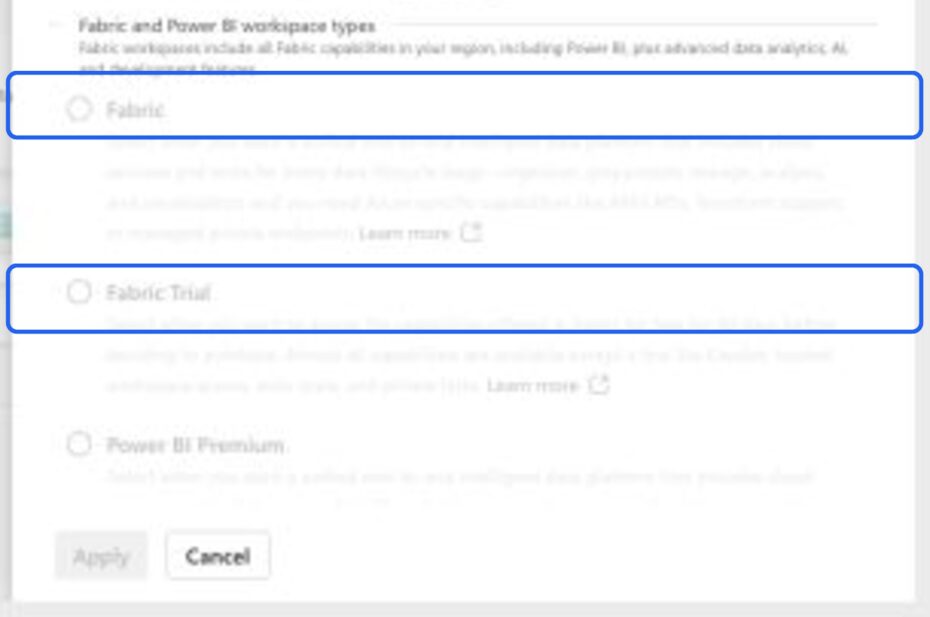
- Expand Advanced.
- Under Workspace type, select Fabric or Fabric Trial.
- Click Apply.
If both Fabric workspace types are unavailable, ask your Fabric administrator to assign the workspace to an existing capacity, enable your organization's Fabric trial policy, or add you to an active trial capacity. Do not continue with a Power BI-only workspace.
For current licensing details, see Understand Microsoft Fabric licenses.
2. Grant the service principal workspace access
- Open the shared workspace that contains the Warehouse.
- Select Manage access.
- Click Add people or groups.
- Search for the Entra application name you registered earlier.
- Assign the role that matches how Supaflow will use the Warehouse:
- Viewer for a source used by ingestion or activation pipelines.
- Contributor for a destination that creates and updates schemas and tables.
- Click Add.
Viewer supplies the workspace visibility and read access required by the connector's initialization and source reads. Contributor adds the write and object-management access required by a destination without granting workspace-administrator privileges.
If the application does not appear in the search results, confirm that Service principals can call Fabric public APIs applies to the application, either for the entire organization or through a security group.
3. Create or select a Warehouse
- Open the capacity-backed workspace.
- Click New item and select Warehouse, or open an existing Warehouse.
- Use a Warehouse item for destination loads. Do not select a Lakehouse SQL analytics endpoint as a destination because it is read-only for external SQL clients.
4. Collect the Fabric connection details
Collect the following values without including them in screenshots or support tickets:
| Supaflow field | Where to find it |
|---|---|
| Database Host | Open the Warehouse and select Copy SQL connection string, or open Settings > SQL endpoint, then copy the server name |
| Database Port | Use 1433 |
| Database Name | Use the Warehouse item name as the database or initial catalog |
| Tenant ID | Entra application Overview > Directory (tenant) ID |
| Client Application ID | Entra application Overview > Application (client) ID |
| Client Secret | The secret value saved when you created the credential |
| Fabric Workspace ID | Open the workspace and copy the identifier after /groups/ in the browser URL |
The Warehouse hostname normally ends in .datawarehouse.fabric.microsoft.com. Copy only the server name into Database Host, not an entire JDBC or ODBC connection string.
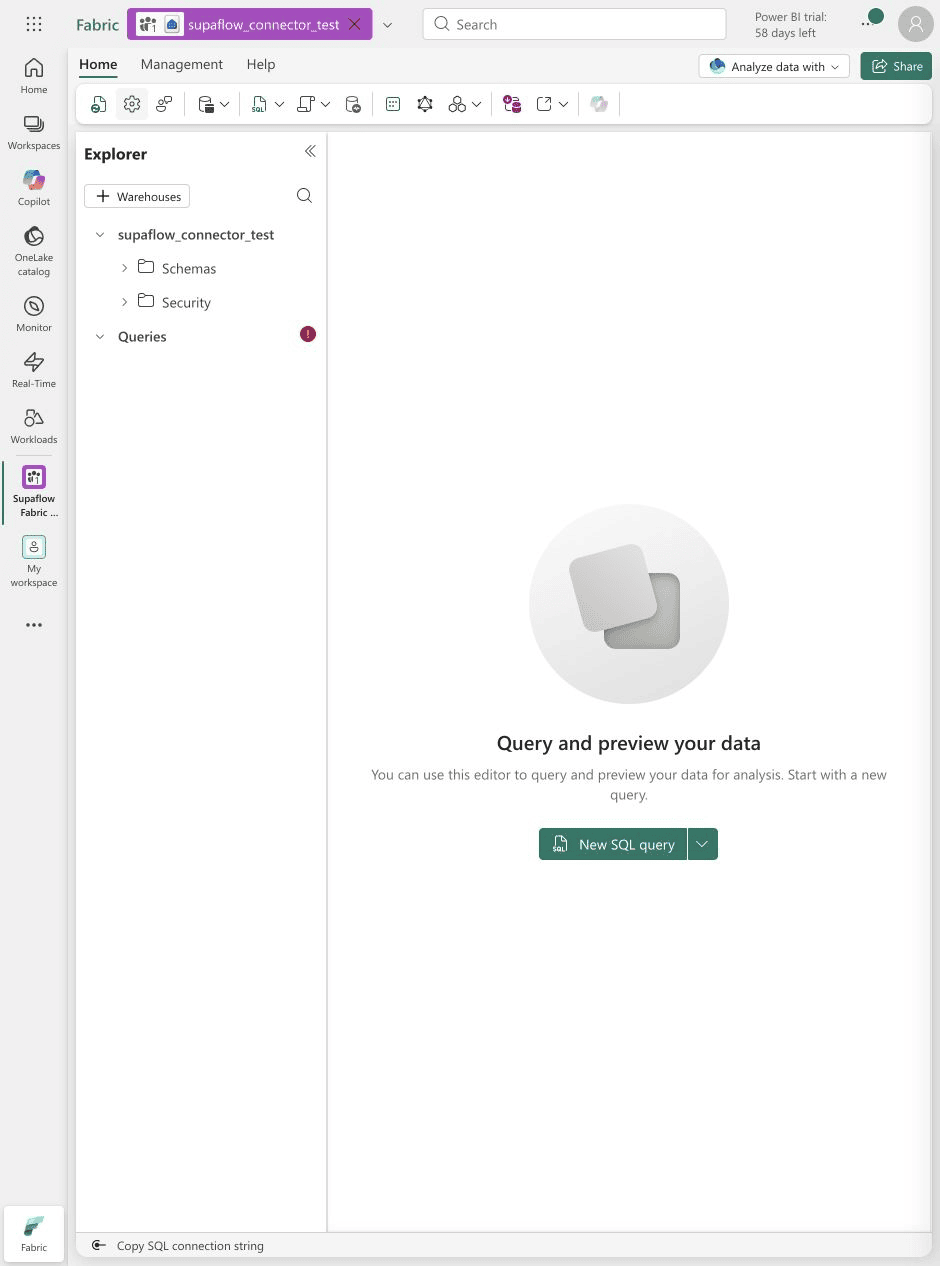
5. Configure the SQL Server connector
- In Supaflow, create or edit a SQL Server source or destination.
- Enter the Warehouse host, port, and database name.
- Set Authentication Method to Entra Service Principal.
- Enter the tenant ID, client application ID, client-secret value, and Fabric workspace ID.
- Keep Encrypt enabled and Trust Server Certificate disabled.
- Leave Database Flavor set to Auto for a standard Fabric hostname. Select Fabric Warehouse only when a custom DNS or proxy hostname prevents automatic detection.
- For a source, leave Query Mode set to Standard. Fabric Warehouse does not support SQL Server Change Tracking.
- For a destination, set Error Handling Mode to Abort on Any Error (
STRICT) and leave Perform Hard Deletes disabled. Fabric direct bulk copy rejects Continue with Warnings (MODERATE) before loading data. - Click Test & Save.
Supaflow makes a read-only Fabric API request to initialize the service principal's Fabric security context before opening the Warehouse SQL connection. This initialization is automatic; administrators do not need to run a separate script or CLI command.
Troubleshooting
Fabric and Fabric Trial workspace types are disabled
The tenant does not currently expose a Fabric capacity that you can use. A Power BI individual trial is not a Fabric capacity trial. Join an existing Fabric or Fabric Trial capacity, ask the capacity administrator to assign your workspace, or request that your Fabric administrator enable trials.
The service principal is not found when granting access
Confirm that the tenant setting Service principals can call Fabric public APIs is enabled for the service principal. If the setting is limited to specific security groups, add the application to an included group and allow time for the change to propagate.
Fabric rejects the initialization request
Verify the tenant ID, client application ID, client-secret value, Fabric workspace ID, tenant setting, and workspace membership. The application must be in the same Entra tenant as the Fabric workspace.
The connection succeeds but loading fails
Confirm that you selected a Warehouse rather than a Lakehouse SQL analytics endpoint and that the service principal has the Contributor workspace role. Verify that Database Name exactly matches the Warehouse item name.
The source connects but cannot read tables
Confirm that the service principal has at least the Viewer workspace role, the Warehouse is running on an active capacity, and Database Name exactly matches the Warehouse item name. Keep Query Mode set to Standard.
The client secret expired
Create a replacement secret in the existing Entra application, update the Supaflow source or destination, and test the connection before deleting the previous credential.
For Microsoft requirements and current limitations, see Microsoft Entra authentication in Fabric Data Warehouse and Service principals in Fabric Data Warehouse.
 Ask Claude